Lesson 6 of 20
Approve a request
What you will be able to do
This lesson is for approvers. You will open a request that came back after a rejection, check that the correction was made, approve it with a comment, and see the record change state.
Before you start
- The author has corrected the record and submitted it again. Lesson 5 did this.
- You did not write or edit the record yourself.
Steps
- 1
Open Approvals
Select Approvals in the left menu. The privacy policy is back under To decide, as a new request, together with the two assessments.
- Select Approvals3
- 2
Select Open record
Select Open record on the policy card. The draft opens with the Awaiting approval box at the top.
- Select Open record
- 3
Read what changed
What changed holds the author's note about the correction. The text below now ends with the sentence on how long recordings are kept, which is what you asked for.
- 4
Look at the version history
Scroll down to Version history. It lists each version with its status, effective date and change summary. This is version 1.0, awaiting approval.
- 5
Select Approve
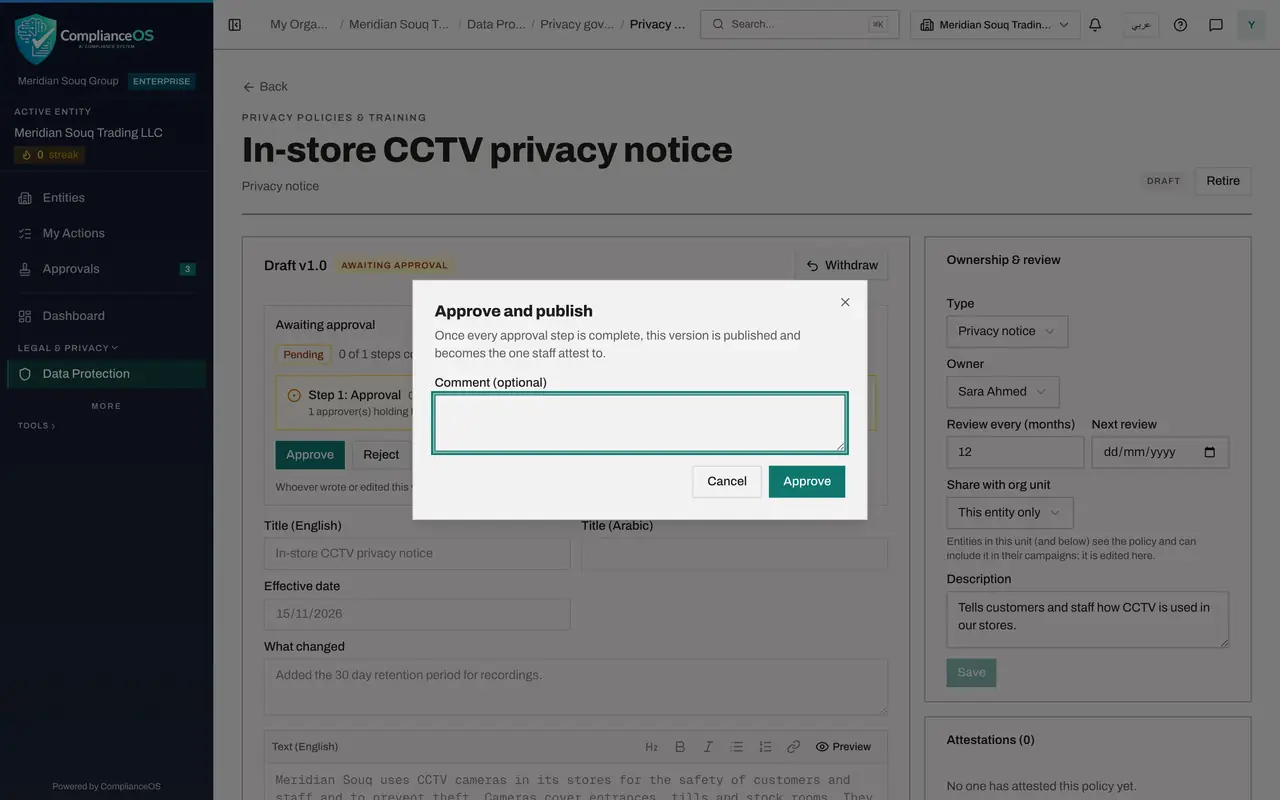
Scroll back to the top and select Approve. The Approve and publish box explains what will happen and offers an optional comment.
- Select Approve
- 6
Add a comment
Type a short comment. It is recorded with your decision and shown to the author.
- Type Comment (optional):
Retention period added. Approved for publication.
- Type Comment (optional):
- 7
Confirm with Approve
Select Approve in the box. A message confirms Version approved and published. Because this policy needs only one approval step, the version is published straight away.
- Select Approve
- 8
Check the published version
The policy now shows Published version 1.0 with its effective date and a SHA-256 fingerprint. A fingerprint is a code worked out from the exact wording, so any later change to the text would be detected.
- 9
Return to the inbox
Select Approvals again. The policy has left To decide. The two assessments are still waiting.
- Select Approvals2
How to check it worked
A message confirms Version approved and published, the policy shows Published with an effective date and a fingerprint, and the request has left your To decide tab.
Common mistakes
- Approving without reading What changed and the text. Your name and the time are recorded with the approval.
- Expecting a draft to stay editable after approval. A published version is fixed; a change needs a new version, which goes through approval again.
- Leaving the comment empty when you approved after a rejection. A short comment tells anyone reading the history why it was acceptable this time.
Check your understanding
1. What happens to a privacy policy when the last approval step is complete?
- A.It stays a draft until the author publishes it
- B.It is published, and becomes the version staff attest to
- C.It is sent to the regulator
- D.It is deleted from the inbox and the library
Show answer
Answer: B. It is published, and becomes the version staff attest to
The Approve and publish box says so: once every approval step is complete, this version is published and becomes the one staff attest to.
2. Is a comment required to approve?
- A.Yes, always
- B.No, it is optional, but it is recorded with your decision
- C.Only for tax records
- D.Only the author can comment
Show answer
Answer: B. No, it is optional, but it is recorded with your decision
The box is labelled Comment, optional. Whatever you type is kept with the decision and shown in the approval history.