Lesson 12 of 20
Find evidence and prove it has not changed
What you will be able to do
This lesson is for compliance officers. You will find evidence by name, by source type, by retention and by date, group the list by module, open a record, check that the file is unchanged, read who handled it, and attach the original document to a record the system created.
Before you start
- The vault holds some records. Lesson 11 uploaded two files.
Steps
- 1
Search by name
Open the Evidence Vault and type part of a file name in the search box. Type cctv. The list narrows to the files with that word in the name. You can also search by fingerprint or by record number.
- Select Evidence Vault
- Type Search by file name, original document, hash, or record ID...:
cctv
- 2
Filter by source type
Clear the search box. Open All Types beside it and choose Compliance Report. Only evidence of that kind is listed: the fire safety certificate.
- Select Source Type
- Choose Compliance Report
- 3
Filter by retention
Set the type back to All Types. In the list on the left, select 10Y Corp. The number beside each line counts the records kept under that retention period. Then select All Policies to see everything again.
- Select Source Type
- Choose All Types
- Select 10Y Corp1 (1)
- Select All Policies4 (4)
- 4
Filter by date
The two date boxes limit the list to evidence created between two days. Enter today's date in the first box. Clear it when you have finished.
- Type From:
2026-10-20
- Type From:
- 5
Group the list by module
Clear the date, then select Group by Module. The records are gathered under their source type with a count for each. Select the button again to return to the plain list.
- Select Group by Module
- 6
Open a record
Return to the plain list and select the photograph's name. The record opens on Overview: the source type, when it was created, Uploaded document, the original file name, the linked record, the retention and expiry, the file type, and who uploaded it, shown by name.
- Select Group by Module
- 7
Select the Integrity tab
Select Integrity. It shows the full SHA-256 fingerprint recorded when the file was uploaded.
- Select Integrity
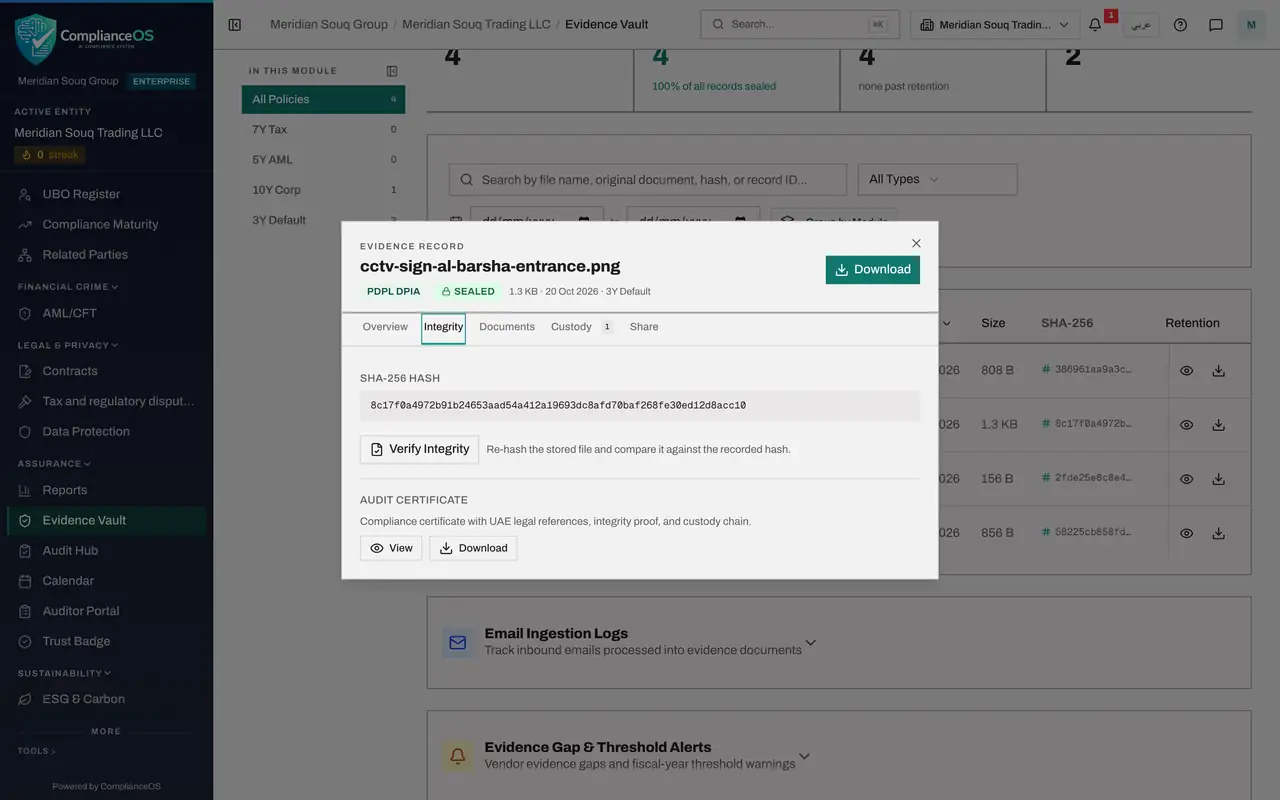
- 8
Select Verify Integrity
Select Verify Integrity. The vault works out the fingerprint of the stored file again and compares the two. Integrity verified, hash matches, means the file is exactly what was uploaded. The time of the check is shown.
- Select Verify Integrity
- 9
Download the audit certificate
Under Audit Certificate, select Download. A text file is saved to your computer with the legal references, the proof of integrity and the handling history of this record. Give it to an auditor together with the file.
- Select Download
- 10
Read the Custody tab
Select Custody. Custody means the chain of handling. The upload is listed with the time and the name of the person who did it. Certificates, exports and downloads are added to this list as they happen. You will see them in the next lesson.
- Select Custody2
- 11
Open a record the system created
Close the record and select Approved DPIA, Loyalty app purchase history. This record was stored by the system when an assessment was approved. Its Overview shows a short content preview, the words Compliance snapshot, the linked record and the name of the person who approved.
- Select Close
- 12
Attach the source document
Select Documents. It says No source document attached. Select Attach and choose the signed approval memo from your computer. The memo is stored beside the snapshot, so an auditor can read the original.
- Select Documents
- Upload Attach:
dpia-approval-memo-loyalty-app.pdf
- 13
Close the record
Select Close. The notice above the list counted system snapshots without a source document. With the memo attached, that snapshot is complete.
- Select Close
How to check it worked
The record's Integrity tab reads Integrity verified, hash matches, with the time of the check. Its Custody tab lists the upload with the person's name. The Approved DPIA record shows the attached source document.
Common mistakes
- Leaving a filter on and concluding a file is missing. Clear the search box, set the type back to All Types and select All Policies before you decide something is not there.
- Treating the short fingerprint in the list as the whole value. The Integrity tab shows the full SHA-256 fingerprint; use that one when you compare.
- Ignoring the notice about system snapshots without a source document. A snapshot only records that something happened; attach the signed original so an auditor can read it.
Check your understanding
1. What does Verify Integrity do?
- A.It renames the file
- B.It works out the fingerprint of the stored file again and compares it with the one recorded at upload
- C.It emails the file to an auditor
- D.It deletes old versions
Show answer
Answer: B. It works out the fingerprint of the stored file again and compares it with the one recorded at upload
The tab says: re-hash the stored file and compare it against the recorded hash. A match proves the file has not been modified.
2. Where do you see who uploaded a file and who handled it later?
- A.The Custody tab
- B.The Share tab
- C.The search box
- D.The Retention report
Show answer
Answer: A. The Custody tab
Custody is the chain of handling. Each event, such as the upload, a certificate or a download, is listed with the time and the person's name.