Lesson 15 of 20
Keep working documents in the Document Library
What you will be able to do
This lesson is for anyone who keeps working documents. You will upload a document with a title, description, category, tags and folder, find it again, comment on it, seal it so that it cannot be changed, and remove a document uploaded by mistake.
Before you start
- You hold a role that includes the Document Library with the right to add files, such as compliance officer.
- The file is on your computer.
Steps
- 1
Open Documents
In the left menu, open the Tools group and select Documents. The Document Library is the working store for this entity. It is empty: No documents yet.
- Select Tools
- Select Documents
- 2
Select Upload Document
Select Upload Document. The form asks for the file and a title, which are required, and offers a description, a category, tags and a folder.
- Select Upload Document
- 3
Choose the file and give it a title
Choose the file from your computer, then type a clear title. The title is what people will search for, so say what the document is.
- Upload File *:
store-opening-checklist-2026.pdf - Type Document title:
Store opening compliance checklist 2026
- Upload File *:
- 4
Describe it and choose a category
Add a short description of what the document is for. In Category choose Policy. The other categories are Evidence, Contract, Correspondence and Other.
- Type Optional description:
Checks every new store must pass before opening day. - Select Category
- Choose Policy
- Type Optional description:
- 5
Add tags and a folder
Tags are keywords separated by commas. A folder groups related documents: type a new name, or one you used before. Both are optional.
- Type uae, 2025, audit:
stores, checklist, 2026 - Type e.g. VAT / 2025:
Store openings 2026
- Type uae, 2025, audit:
- 6
Select Upload
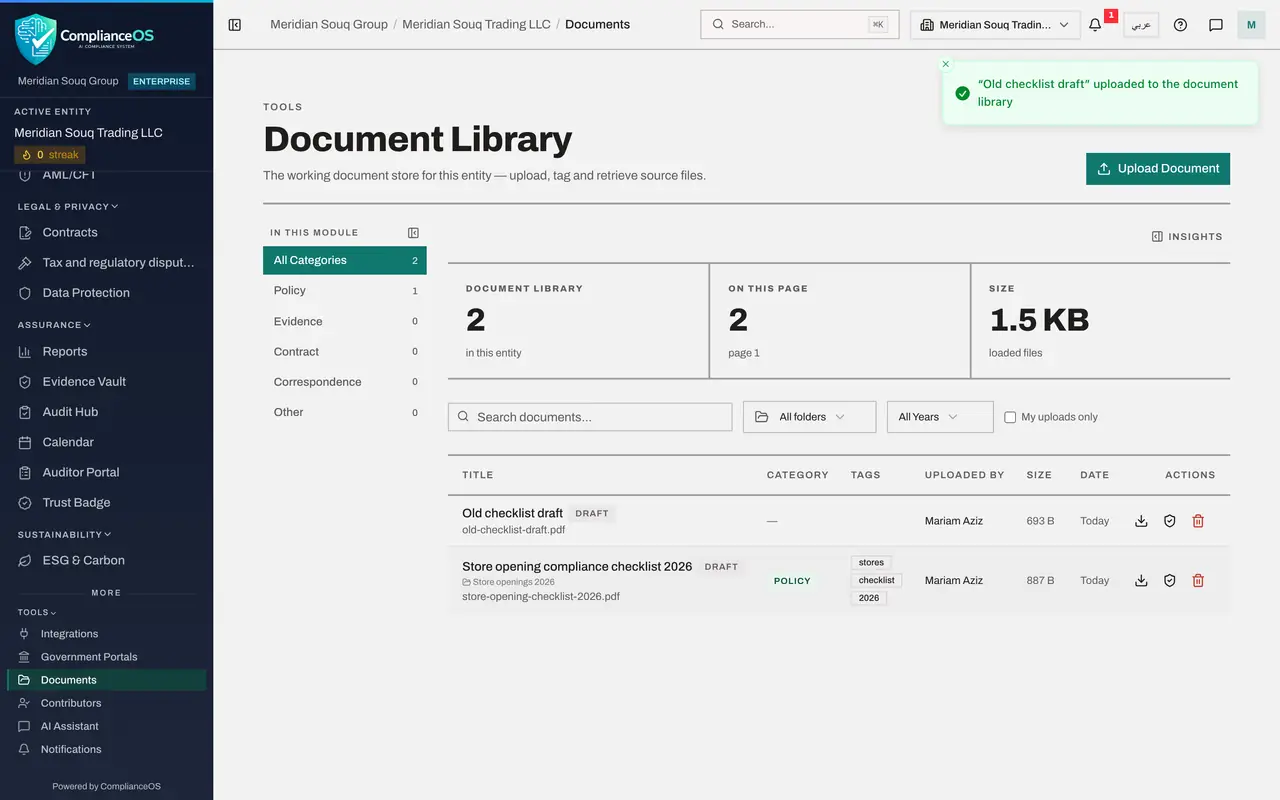
Select Upload. A message confirms the document was uploaded to the document library, and it appears in the list as a Draft, with its folder, file name, category, tags, your name, the size and the date.
- Select Upload
- 7
Upload a second document by mistake
To see how a mistake is removed, upload one more file. Select Upload Document, choose the file, type the title Old checklist draft and select Upload.
- Select Upload Document
- Upload File *:
old-checklist-draft.pdf - Type Document title:
Old checklist draft - Select Upload
- 8
Delete the wrong document
On the row of Old checklist draft, select the red bin. A box asks you to confirm, naming the document and warning that this cannot be undone. Select Delete. The document is removed from the list. A sealed document cannot be deleted.
- Select Delete
- Select Delete
- 9
Find a document
Type part of the title in the search box. On the left, the category list narrows the library to one category. The boxes above the list filter by folder and by year, and My uploads only shows just your own.
- Type Search documents...:
Store opening - Select My uploads only
- Type Search documents...:
- 10
Open the document
Select the document's title. A panel opens with its folder, file name, size, category, who uploaded it, the description and tags, a Download button, Seal document, and Comments at the bottom.
- 11
Write a comment
Type a note in the Add a comment box and select Post comment. The comment appears with your name and the time. Anyone who can view the document can read it and add their own.
- Type Add a comment…:
Item 3 was added after the CCTV privacy notice was approved. Use this… - Select Post comment
- Type Add a comment…:
- 12
Select Seal document
When the document is final, select Seal document. A box asks you to confirm, because a sealed document can no longer be edited or deleted. Select Seal document in the box. A message confirms Document sealed. The panel now says it is immutable and cannot be edited or deleted. Comments can still be added.
- Select Seal document
- Select Seal document
- 13
Close the panel and check the list
Select Close. The row now shows Sealed in place of Draft, and its bin is greyed out. The document stays in the Document Library. Proof that must be kept for the record is uploaded to the Evidence Vault instead.
- Select Close
How to check it worked
The document is listed with the label Sealed, its folder, its tags and your name, your comment is shown under it, and the document uploaded by mistake is gone from the list.
Common mistakes
- Confirming a deletion without reading the title in the question. Deleting cannot be undone, so check that the box names the document you mean.
- Sealing a document that still needs changes. A sealed document cannot be edited or deleted.
- Treating the library as the Evidence Vault. The library is for working documents. Proof that must be kept, with a fingerprint and a handling history, belongs in the Evidence Vault.
Check your understanding
1. What does sealing a document do?
- A.It deletes the document
- B.It makes the document unchangeable: it can no longer be edited or deleted
- C.It emails the document to an auditor
- D.It hides the document from colleagues
Show answer
Answer: B. It makes the document unchangeable: it can no longer be edited or deleted
After sealing, the panel reads: sealed, immutable, cannot be edited or deleted, and the bin on the row is greyed out.
2. What are tags for?
- A.They set who can open the document
- B.They are keywords that help you and your colleagues find the document
- C.They set the retention period
- D.They are required by law
Show answer
Answer: B. They are keywords that help you and your colleagues find the document
Tags are keywords, separated by commas, shown on the row. Together with the title, category and folder they make a document easy to find.