Lesson 16 of 20
Comment on a document with read-only access
What you will be able to do
This lesson is for auditors, reviewers and anyone with view-only access. You will open a document in the library, read a colleague's comment, add your own, correct it, and delete a comment you posted by mistake.
Before you start
- You can view the Document Library. The read-only Auditor role is enough.
- The library holds the store opening checklist uploaded in lesson 15.
Steps
- 1
Open Documents
In the left menu, open the Tools group and select Documents. The library lists the store opening checklist, marked Sealed, uploaded by Mariam Aziz. Upload at the top is greyed out and the row has no seal or delete buttons, because a read-only reviewer cannot add or change documents.
- Select Tools
- Select Documents
- 2
Open the document
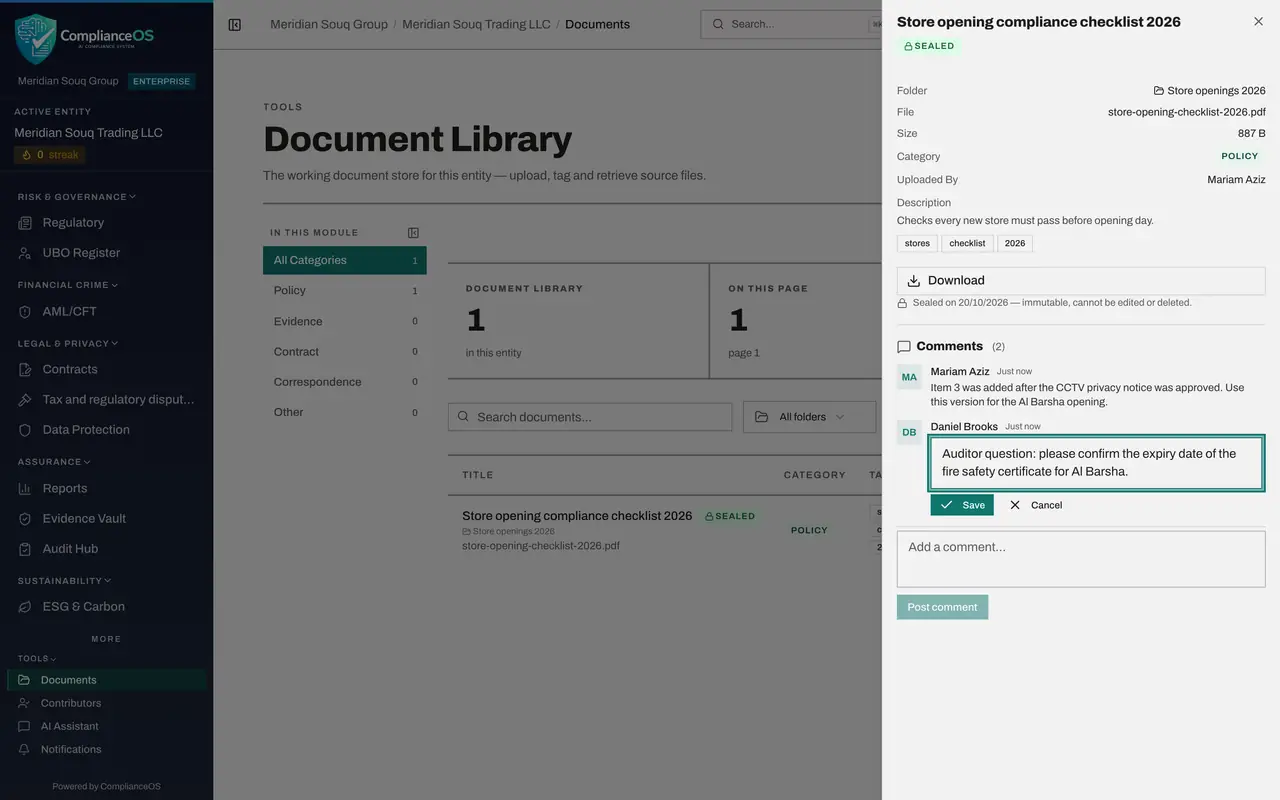
Select the document's title. The panel shows its details, a Download button, and Comments. There is no Seal document button. One comment is already there, from Mariam Aziz. It has no pencil or bin beside it, because it is not yours.
- 3
Write your comment
Type your question in the Add a comment box and select Post comment. It appears under Comments with your name and the time.
- Type Add a comment…:
Auditor question: please confirm the expiry date of the fire certifica… - Select Post comment
- Type Add a comment…:
- 4
Edit your comment
Beside your own comment are a pencil and a bin. Select the pencil. The comment opens in a box. Correct the wording: here, fire certificate becomes fire safety certificate.
- Select Edit comment
- 5
Save the change
Select Save. The comment shows the corrected wording.
- Select Save
- 6
Post a comment by mistake
Now post a second comment that you will remove: type Test and select Post comment.
- Type Add a comment…:
Test - Select Post comment
- Type Add a comment…:
- 7
Delete your own comment
Select the bin beside the Test comment. A box asks you to confirm. Select Delete. The comment is removed, and your first comment and the compliance officer's comment remain.
- Select Delete comment
- Select Delete
- 8
Download the document if you need a copy
Download saves a copy of the file to your computer. As a read-only reviewer you can read, download and comment. Close the panel when you have finished.
How to check it worked
Your corrected comment is shown under the document with your name, below the compliance officer's comment, and the comment you deleted is gone.
Common mistakes
- Emailing a question about a document. A comment keeps the question, and its answer, with the document, where the next reader will find it.
- Looking for a pencil on someone else's comment. You can edit and delete only your own.
- Confirming a deletion without checking which comment it is. A deleted comment cannot be brought back.
Check your understanding
1. Who can comment on a document in the library?
- A.Only the person who uploaded it
- B.Only administrators
- C.Anyone who can view the document, including a read-only auditor
- D.Nobody once it is sealed
Show answer
Answer: C. Anyone who can view the document, including a read-only auditor
The read-only auditor posted a comment on a sealed document. Viewing is enough to comment.
2. Which comments can you edit or delete?
- A.All of them
- B.Only your own
- C.None
- D.Only the newest
Show answer
Answer: B. Only your own
The pencil and the bin appear only beside the comments you wrote yourself.