Lesson 2 of 20
Send a second kind of record for approval: a DPIA
What you will be able to do
This lesson is for anyone who prepares records. You will create a data protection impact assessment, or DPIA, answer its questions, attach a supporting file, and submit it. It goes to the same Approvals inbox as the privacy policy, which shows that every kind of record follows the same route.
Before you start
- You are signed in with a role that can create assessments in Data Protection, such as Data Protection Officer.
- You know the processing you are assessing: here, CCTV cameras in the stores.
Steps
- 1
Open Data Protection and select DPIAs
In the left menu select Data Protection, then DPIAs. A data protection impact assessment, or DPIA, weighs the risk of a new use of personal data. One assessment is already waiting for approval.
- Select Data Protection
- Select DPIAs1
- 2
Start a new assessment
Select the button New DPIA, at the right above the list. A form opens for the title, the risk and the template. The title is the only field marked as required.
- Select New DPIA
- 3
Type the title and describe the risk
In Title, name the processing you are assessing. In Risk Description, say in a sentence or two what could go wrong for the people whose data it is.
- Type Title *:
In-store CCTV cameras - Type Risk Description:
Cameras record customers and staff in stores. Footage could be viewed…
- Type Title *:
- 4
Score likelihood and severity
Give each a score from 1, very low, to 5, very high. Here likelihood is 2 and severity is 3. The risk level is worked out from the two scores and is shown to the approver.
- Type Likelihood score (1–5):
2 - Type Severity score (1–5):
3
- Type Likelihood score (1–5):
- 5
Choose the template
Under Template choose General DPIA, the standard set of questions. The other templates add questions for special cases, such as children's data or health data.
- 6
Create the assessment without an AI draft
Untick Also request an AI draft of the narrative, because you will write the answers yourself. Then select Create DPIA. The assessment is added to the list as a Draft.
- Select Create DPIA
- 7
Open the assessment and select Questionnaire
Select View Details on the new assessment, then the Questionnaire tab. The counter shows how many required questions are answered. Submit for approval stays greyed out until all are answered.
- Select Open In-store CCTV cameras
- Select Questionnaire
- 8
Describe the processing
In the first box, describe what personal data is used, whose it is, and why. Then tick the groups of people involved: Customers, and Employees and contractors.
- Type Describe the processing: what personal data, from whom, how and why *:
Cameras at store entrances, tills and stock rooms record video of cust… - Select Customers
- Select Employees and contractors
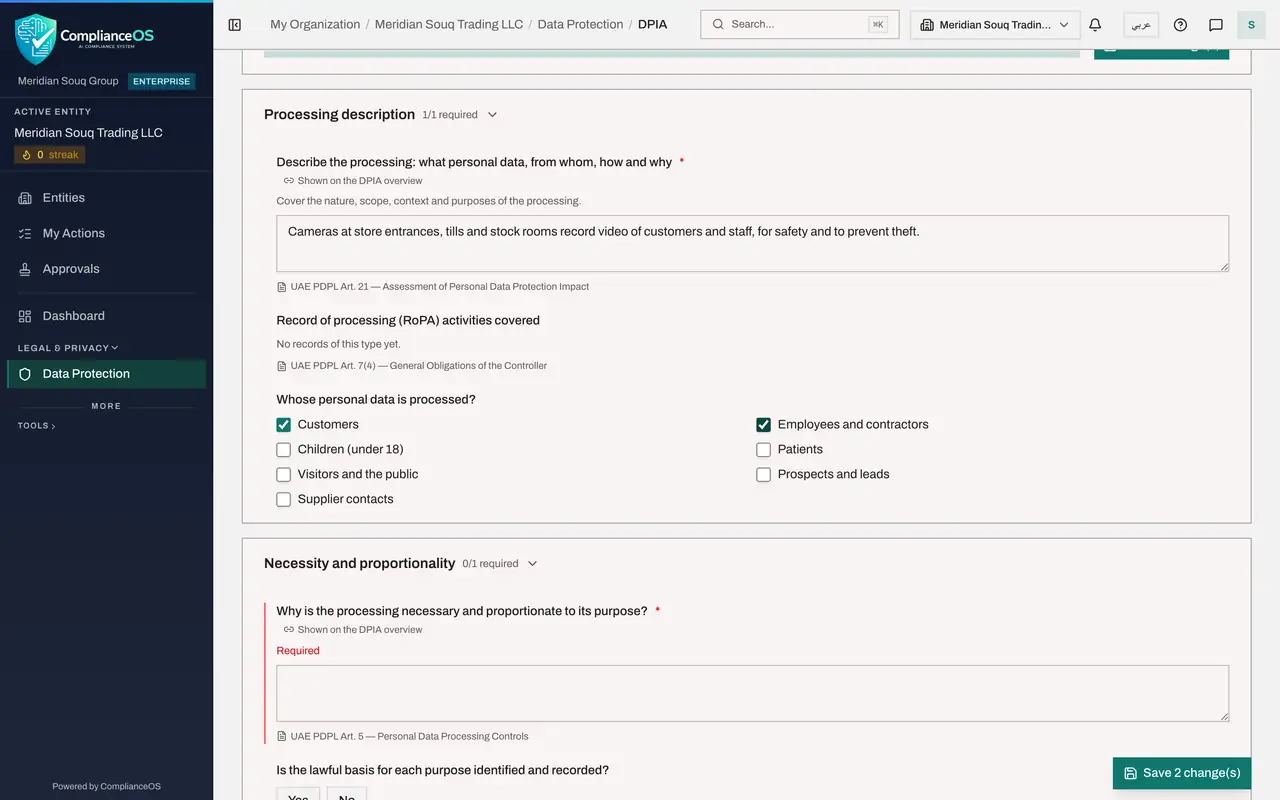
- Type Describe the processing: what personal data, from whom, how and why *:
- 9
Explain why it is necessary
Say why the processing is needed and why it is not excessive. Then answer Yes to the three questions below it: the lawful basis is recorded, only the data needed is collected, and a retention period is set.
- Type Why is the processing necessary and proportionate to its purpose? *:
Stores had 14 theft incidents last year. Cameras cover public areas on… - Select Yes
- Select Yes
- Select Yes
- Type Why is the processing necessary and proportionate to its purpose? *:
- 10
Attach a supporting file
Under Evidence, select Upload file and choose the retention schedule from your computer, then select Upload. The file is stored in the Evidence Vault and listed here with its fingerprint.
- Upload Choose an evidence file:
cctv-retention-schedule.pdf - Select Upload
- Upload Choose an evidence file:
- 11
List the measures that reduce the risk
Under Mitigations, type one measure per line. When the assessment is approved, each line becomes a tracked risk action. Then answer Yes: after these measures the remaining risk is acceptable.
- Type Measures to reduce the risks (one per line):
Restrict access to footage to store managers Delete recordings automat… - Select Yes
- Type Measures to reduce the risks (one per line):
- 12
Write the conclusion
Answer Yes to Was the Data Protection Officer consulted, then write your conclusion and recommendation. The approver reads this first.
- Select Yes
- Type Conclusion and recommendation to the approver *:
With access limits and 30 day deletion the remaining risk is low. Reco…
- 13
Save the answers
Scroll to the top. The Save button shows how many changes are not saved yet. Select it. The counter now reads 3 of 3 required questions answered, and Submit for approval becomes available.
- Select Save 10 change(s)
- 14
Select Submit for approval
Select Submit for approval. A message confirms Submitted for approval, the status changes to Pending DPO approval, and a request opens in the approvers' inbox.
- Select Submit for approval
- 15
Go back to Data Protection and reopen the assessment
Select Back to PDPL. The Data Protection page now lists both assessments as DPIA pending approval, and the tile DPIAs pending reads 2. Select the line for In-store CCTV cameras to open it again.
- Select Overview
- Select Back to PDPL
- 16
Read the approval steps on the Overview tab
Scroll down the Overview tab to DPO Approval Required. It shows the approval policy, Strict maker and checker, and one step called Approval. The note says you created or edited this record, so someone else has to approve it. You are not offered Approve or Reject.
How to check it worked
The assessment shows Pending DPO approval. On its Overview tab the approval steps are listed with a note that you created or edited the record, so someone else has to approve it.
Common mistakes
- Trying to submit before the required questions are answered. Submit for approval stays greyed out until the counter reads 3 of 3 required questions answered and the answers are saved.
- Choosing a file under Evidence and forgetting to select Upload. The file is only stored in the Evidence Vault after you select Upload.
- Selecting an answer a second time. Selecting the highlighted Yes or No again clears it, and a required answer left blank blocks submission.
Check your understanding
1. You attach a file to a question in the assessment. Where is it kept?
- A.Only inside the assessment
- B.In the Evidence Vault, with a fingerprint
- C.In your email
- D.In the Document Library
Show answer
Answer: B. In the Evidence Vault, with a fingerprint
The confirmation says File added to the evidence vault, and the file is listed under the question with its SHA-256 fingerprint.
2. After you submit the assessment, what do you see where the approver sees Approve and Reject?
- A.The same two buttons
- B.Nothing at all
- C.A note that you created or edited the record, so someone else has to approve it
- D.A button to approve with a justification
Show answer
Answer: C. A note that you created or edited the record, so someone else has to approve it
The preparer is never offered the decision under strict maker and checker. The note explains why.