Lesson 17 of 20
Read the audit log
What you will be able to do
This lesson is for the people who may read the audit log: auditors, compliance officers, security administrators and people with full access. You will open the log, read its columns, search by action, filter by the kind of record, follow the story of one record, and open the details of an entry.
Before you start
- Your role includes the Audit log view permission. The compliance officer and the auditor roles do.
- Some work has been done in the entity. Lessons 1 to 16 created it.
Steps
- 1
Open the Audit log
Select Audit log in the left menu. The log lists what was done, newest first. The notice explains that you see only events recorded against the entities you can access.
- Select Audit log
- 2
Read the columns
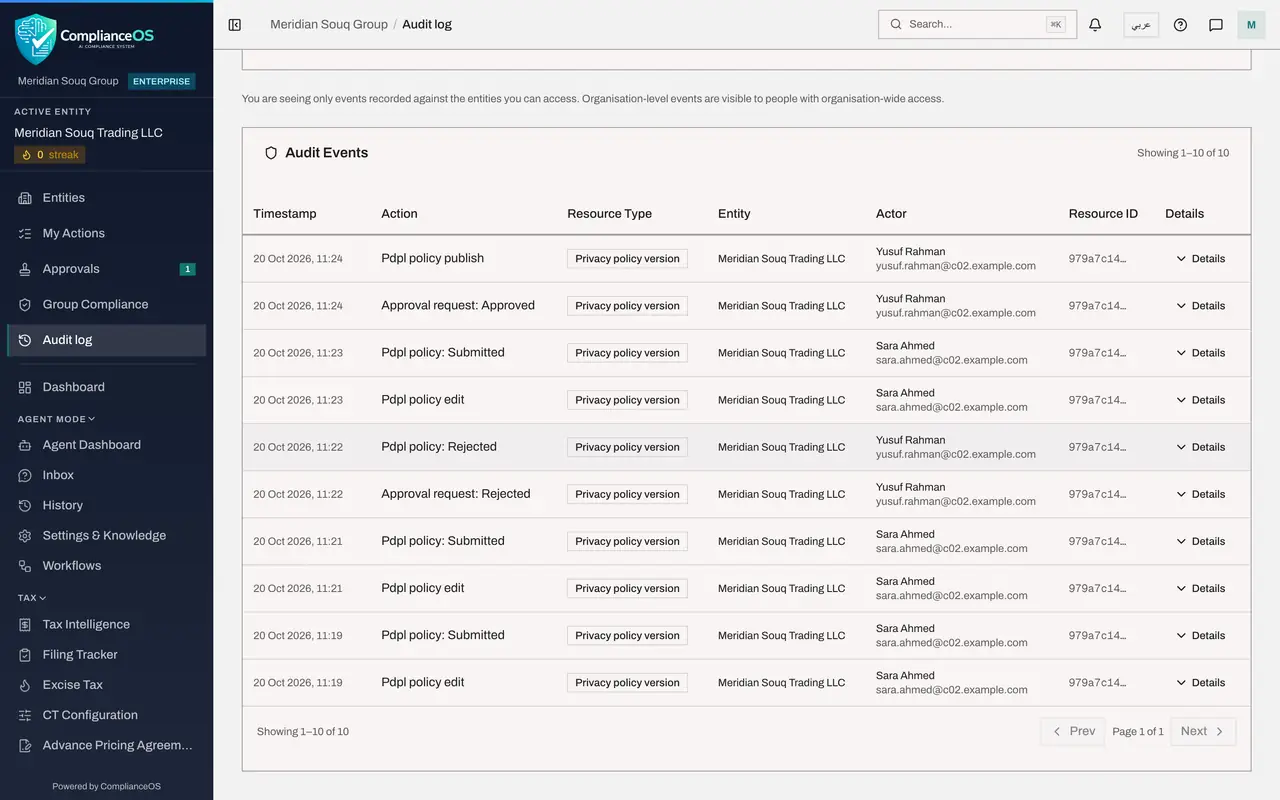
Each line is one action. Timestamp is when it happened. Action says in plain words what was done, such as Approval request: Approved. Resource Type is the kind of record, and Entity is the company it belongs to. Actor is the person, shown by name and sign-in email. Resource ID identifies the exact record, and Details opens what was recorded with the action.
- 3
Search by action
Type approv in the search box. The search matches any part of the action name, so it finds every approval and rejection, whatever the kind of record: here the assessment approved by the deputy, and the privacy policy that was rejected and later approved.
- Type Search by action name:
approv
- Type Search by action name:
- 4
Filter by the kind of record
Clear the search box. Open Resource Type. The list holds the kinds of record that actually appear in your log. Choose Privacy policy version, the privacy policy from lesson 1.
- Select Resource Type
- Choose Privacy policy version
- 5
Follow the story of one record
Read from the bottom line upwards. Sara Ahmed edited and submitted the policy, and after withdrawing it, edited and submitted it again. Yusuf Rahman rejected it. Sara edited and submitted once more, and Yusuf approved and published it. The submit lines and the reject and publish lines carry different names: maker and checker were different people.
- 6
Open Details
Select Details at the end of the line for the rejection. The details open in plain words, including the reason the approver typed.
- Select Details
- 7
Show the raw record
Select Show raw to see the same details exactly as they were stored. This is the form an auditor may ask for. Select Hide raw, then Hide, to close it.
- Select Show raw
- 8
Look at another kind of record
Change Resource Type to Evidence record. The log shows each upload, integrity check, share link, download and export in the Evidence Vault, with the person who did it.
- Select Resource Type
- Choose Evidence record
- 9
Clear the filters
Select Clear filters to return to the full log. The line under the list says how many entries there are, and Prev and Next move through the pages.
- Select Clear filters
How to check it worked
With Resource Type set to Privacy policy version, the log shows the policy being edited, submitted, edited and submitted again, rejected, submitted once more and published, and the people who submitted are different from the person who rejected and published.
Common mistakes
- Typing the whole action name. The search matches any part of it, so approve finds every approval in every module.
- Forgetting a filter is on. Select Clear filters before you conclude that something was never done.
- Assuming you see the whole organisation. A person whose role covers one entity sees only that entity's events, and the notice at the top says so.
Check your understanding
1. You want every approval and rejection, whatever the kind of record. What do you type in the search box?
- A.The record's name
- B.approv or reject, one at a time
- C.Your own name
- D.Nothing; it cannot be done
Show answer
Answer: B. approv or reject, one at a time
The box searches inside the action name. A part of the word is enough, and it matches across every kind of record.
2. How do you tell that maker and checker were different people?
- A.By the time of day
- B.By comparing the Actor on the submit entries with the Actor on the reject and publish entries
- C.By the Resource ID
- D.It is not recorded
Show answer
Answer: B. By comparing the Actor on the submit entries with the Actor on the reject and publish entries
Actor shows the name and sign-in email of whoever did each action. Submit shows Sara Ahmed; reject and publish show Yusuf Rahman.