Lesson 14 of 19
Name and style your agents
What you will be able to do
This lesson is for the organisation administrator. Each agent has a persona: the name people see, an Arabic name, a working style, the language it writes to people in, and a colour. You will change how Hind, the VAT preparer, writes, see the change in the preview, save it, and see what Reset to default would do. A persona changes how an agent appears and writes. It never changes what the agent is allowed to do, and the AI label cannot be turned off.
Before you start
- You are signed in as the organisation administrator.
- You hold the permission to manage the AI workforce (AI agents, Manage). Everyone else sees the personas read-only.
Steps
- 1
Open the AI team settings
In the left menu, under AI team, choose Settings. The page AI team settings opens on the Personas tab. On the left is the list of agents. Zayed, the compliance lead, is selected, and his persona is on the right.
- Select Settings
- 2
Select Hind
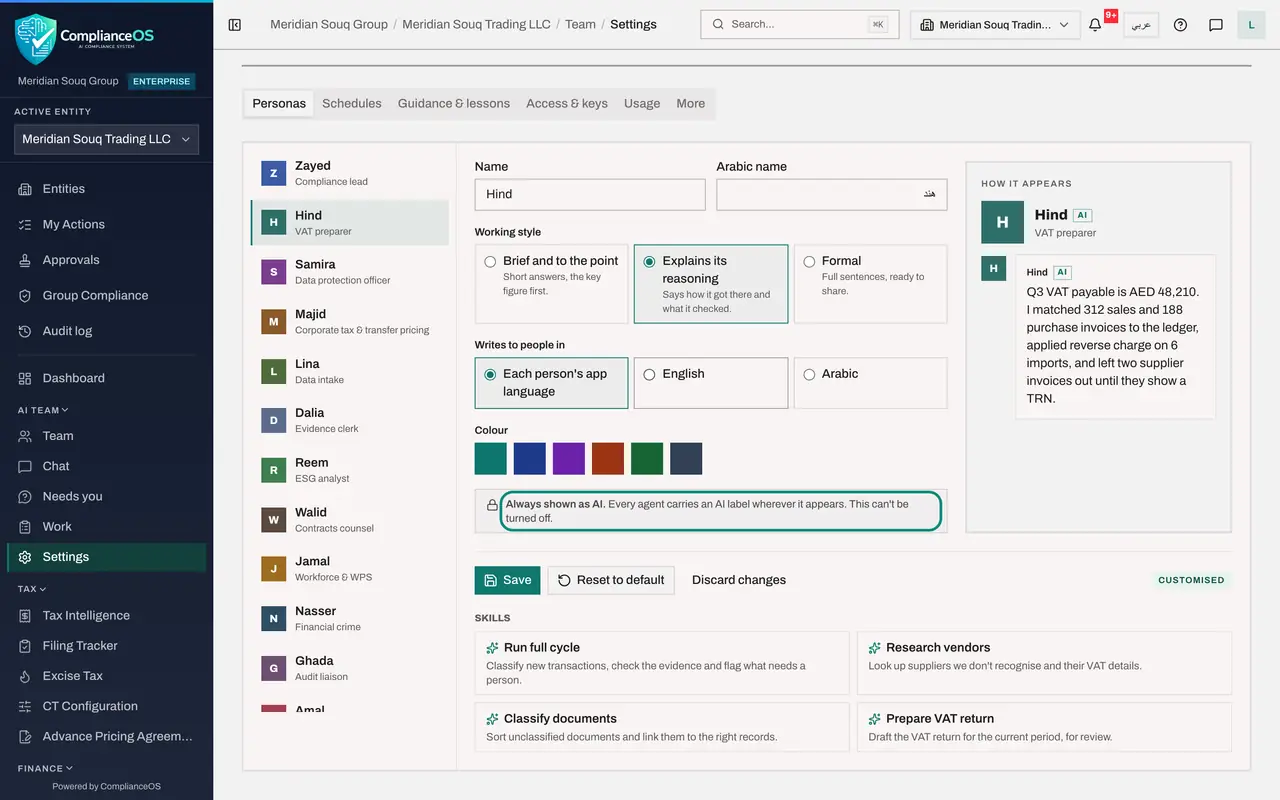
In the list on the left, select Hind, the VAT preparer. The form shows Hind's persona: Name, Arabic name, Working style, the language Hind writes to people in, and Colour. On the right, How it appears previews Hind's card and a sample reply.
- Select HHindVAT preparer
- 3
Choose a working style
Under Working style there are three choices. Brief and to the point gives short answers with the key figure first. Explains its reasoning says how the agent got there and what it checked. Formal writes full sentences, ready to share. Select Explains its reasoning. The sample reply in the preview changes at once.
- 4
Check the language and the AI label
Writes to people in is set to Each person's app language: Hind writes in English to people who use the app in English, and in Arabic to those who use it in Arabic. Below the colours, a note says Always shown as AI: every agent carries an AI label wherever it appears, and this cannot be turned off.
- 5
Select Save
Select Save at the bottom of the form. A message confirms that Hind now appears this way to everyone. The tag Customised on the right shows that this persona differs from the default. The persona changes how Hind writes. It does not change anything Hind is allowed to do.
- Select Save
- 6
See what Reset to default does
Select Reset to default. A question asks whether to reset this agent to its default persona, and names the default it would go back to: the name, colour and style the app gave the agent before your organisation named it.
- Select Reset to default
- 7
Select Cancel
Select Cancel. Nothing changes: Hind keeps the name your organisation chose, and the new working style you saved.
- Select Cancel
- 8
See Hind's skills
Scroll down to Skills. These are the ready-made requests Hind offers on the Team page and in the chat, such as Run full cycle and Prepare VAT return, each with a line on what it does. They are read-only here.
How to check it worked
Hind's persona shows the working style Explains its reasoning and the tag Customised, a message confirmed that Hind now appears this way to everyone, and Hind's name and AI label are unchanged.
Common mistakes
- Giving an agent a name that could be taken for a real colleague's. Pick names nobody in the organisation has; the AI label is always shown, but the name should not confuse.
- Expecting a persona to change what an agent may do. Its permissions come from its key and the entities it has been let onto, not from its persona.
- Pressing Reset to default to undo a single change. Reset puts back the default name too; use Discard changes before saving instead.
Check your understanding
1. Can an administrator hide the AI label on an agent?
- A.Yes, under Personas
- B.No: every agent is always shown as AI
- C.Only for the compliance lead
- D.Only in Arabic
Show answer
Answer: B. No: every agent is always shown as AI
The screen says it plainly: Always shown as AI. This can't be turned off.
2. You set Hind's working style to Explains its reasoning. What changes?
- A.Hind may now approve returns
- B.Hind's replies say how it got to an answer and what it checked
- C.Hind works on more entities
- D.Hind's answers are no longer checked
Show answer
Answer: B. Hind's replies say how it got to an answer and what it checked
The working style shapes how the agent writes. Permissions and approvals do not change.