Lesson 15 of 19
Automatic work: schedules
What you will be able to do
This lesson is for the organisation administrator. Besides answering when asked, an agent can start work on a schedule: Zayed plans the coming weeks every Monday, Hind checks every month whether a VAT return is due, and Majid starts the corporate tax return once a year. Scheduled work follows the same rules as any other: the agent prepares, and a person approves. You will read the schedules of Meridian Souq Trading LLC, see the next run on an agent's card, and pause and resume a schedule.
Before you start
- You are signed in as the organisation administrator, with the permission to manage the AI workforce.
- Three schedules have been set up for Meridian Souq Trading LLC: a weekly compliance plan, a monthly VAT return check and a yearly corporate tax return.
Steps
- 1
Open the Schedules tab
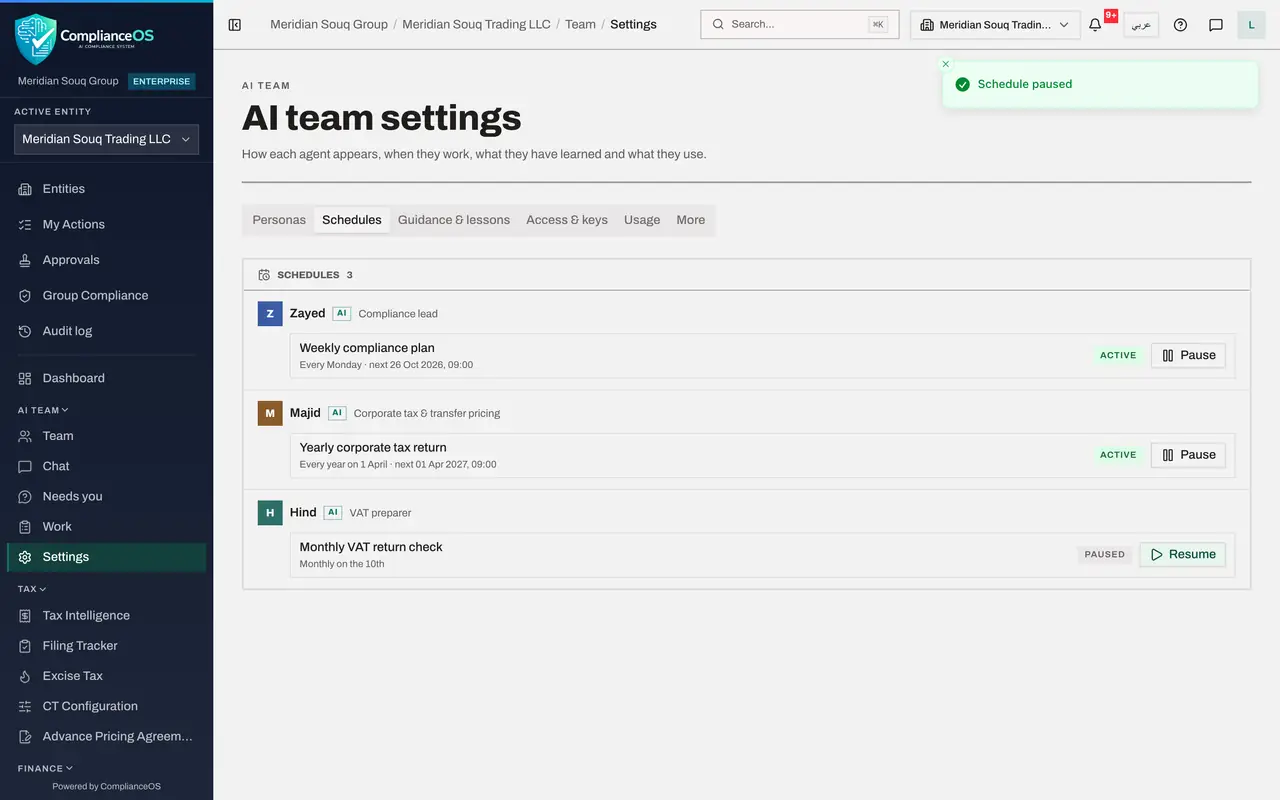
You are in AI team settings. Select the tab Schedules. It lists the scheduled work on this entity, grouped by agent, with each agent's name and AI label. There are three schedules.
- Select Schedules
- 2
Read a schedule
Each schedule has a title, how often it runs and the next run. Zayed's Weekly compliance plan reads Every Monday, with the date of the next Monday. Hind's Monthly VAT return check reads Monthly on the 10th: Hind checks whether a VAT period has ended and, if its return is not filed, prepares it for the tax manager. Majid's Yearly corporate tax return reads Every year on 1 April. The tag Active means the schedule will run.
- 3
Pause the VAT return check
Suppose the VAT preparation is being done by hand this month. Select Pause on the Monthly VAT return check. A message confirms Schedule paused, and the tag changes to Paused. A paused schedule does not run until someone resumes it.
- Select Pause
- 4
Resume it
Select Resume on the same schedule. A message confirms Schedule resumed, and the tag reads Active again, with its next run.
- Select Resume
- 5
See the next run on the Team page
In the left menu choose Team. Hind's card now shows Next run with the date of the 10th of next month, instead of No scheduled run. When a scheduled run starts, the card says what Hind is working on, and the work appears under Work like any other request.
- Select Team
How to check it worked
The Schedules tab lists the three schedules with their next run, the VAT return check shows Active again after you paused and resumed it, and Hind's card on the Team page shows its next run.
Common mistakes
- Pausing a schedule and forgetting it. A paused schedule does not run at all until someone resumes it: the monthly VAT check would simply not happen.
- Expecting a scheduled run to file or approve anything. It prepares and hands over; a person checks and approves, as with any request.
Check your understanding
1. A schedule's line reads Monthly on the 10th. When does it run?
- A.Ten times a month
- B.On the 10th of every month
- C.Every 10 days
- D.In October
Show answer
Answer: B. On the 10th of every month
The cadence names how often and on which day; the next run date beside it confirms it.
2. What does Pause do to a schedule?
- A.Deletes it
- B.Stops it running until someone selects Resume
- C.Runs it now
- D.Changes its agent
Show answer
Answer: B. Stops it running until someone selects Resume
The tag changes from Active to Paused, and the schedule keeps its settings for when it is resumed.