Lesson 1 of 19
Meet your AI team
What you will be able to do
This lesson is for everyone who will work with the AI team, and is shown by the organisation administrator. The AI team is a set of AI agents, each with a name and a job, such as Hind, the VAT preparer, or Zayed, the compliance lead. They are not people: they work through ComplianceOS with only the permissions they were given, they prepare work, and a person always checks and approves it. You will open the Team page, read an agent's card, filter the team by what it is doing, and find the five pages of the AI team area.
Before you start
- You are signed in to Meridian Souq Trading LLC.
- The AI team has been switched on for the organisation and its agents have been let onto this entity.
Steps
- 1
Open Team
In the left menu, under AI team, choose Team. The page Your AI team opens. It lists every agent of the team as a card. The agents prepare routine compliance work and ask a person whenever a decision is needed.
- Select Team
- 2
Read Zayed's card
The first card is Zayed, the compliance lead. Next to the name is the label AI: every agent carries it wherever it appears, so nobody mistakes an agent for a person. Zayed leads the team: when you ask the whole team for something, Zayed works out which agents should do it. At the top right of the card is what the agent is doing now. Idle means it has nothing in hand.
- 3
Read Hind's card
Next to it is Hind, the VAT preparer. The card says what Hind is working on, the last piece of work Hind handed over for a person to check, and when Hind next runs on a schedule. Under Skills are ready-made requests, such as Prepare VAT return. Selecting one starts a chat with Hind with the request already written.
- 4
See the buttons on a card
At the foot of every card are two buttons. Ask Hind opens a chat with this agent. See work lists everything Hind has done or is doing. You will use both in the next lessons.
- 5
Scroll through the team
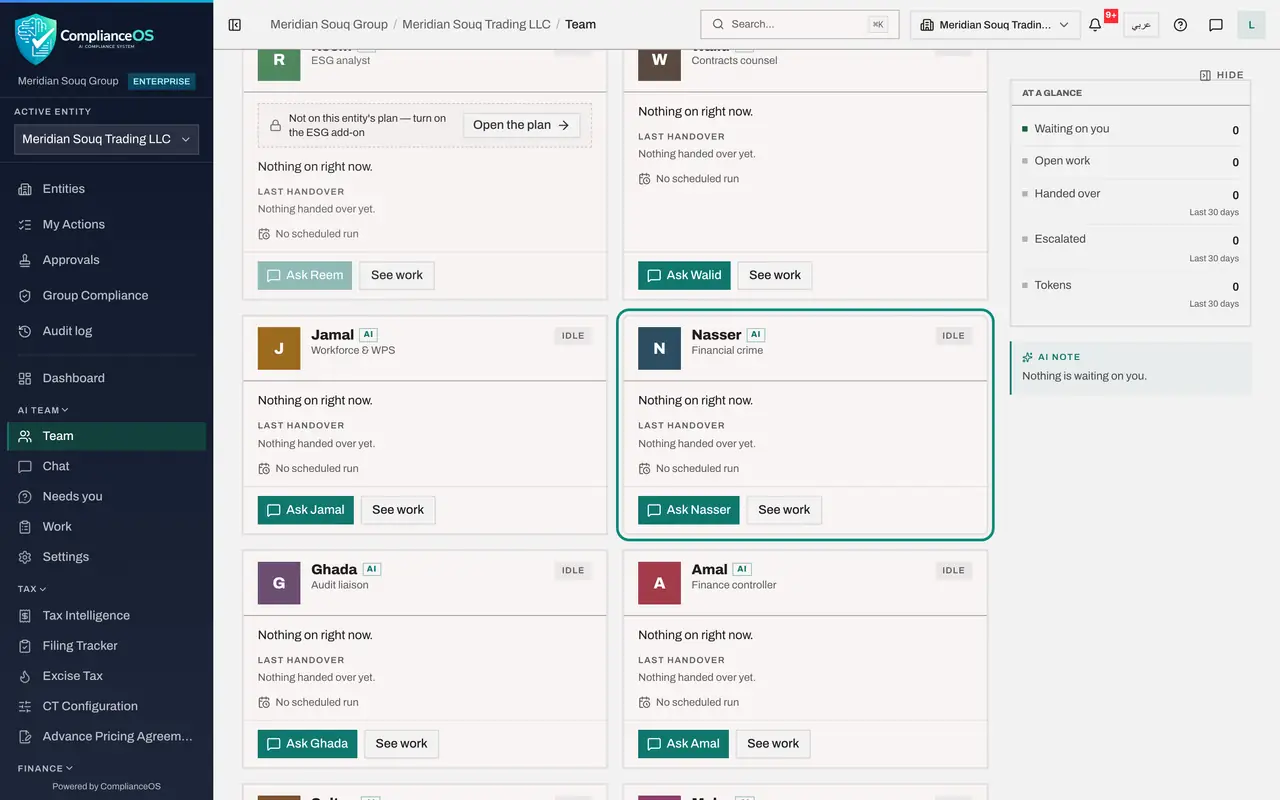
Scroll down. There is one agent for each kind of work: Samira for data protection, Majid for corporate tax, Nasser for financial crime, Jamal for payroll and the Wages Protection System, Walid for contracts, and more. Each one works only on the entities it has been let onto, and only with the permissions given to it.
- 6
Filter the team
Go back to the top. Above the cards are filters: Everyone, Working, Waiting on you and Idle, each with a count. Select Waiting on you to see only the agents that need an answer from you. Right now nobody is waiting, so the list is empty. Select Everyone to see the whole team again.
- Select Waiting on you 0
- Select Everyone 18
- 7
Read At a glance
On the right, At a glance counts what is waiting on you, the work the agents have open, what they handed over and escalated in the last 30 days, and the tokens they used. Tokens measure how much AI the agents have used. Under it, the AI note says in one line what needs you.
- 8
Find the AI team pages
In the left menu, AI team has five pages. Team is this page. Chat is where you ask the agents questions and give them tasks. Needs you lists what the agents are waiting on a person for. Work shows what they are doing and what they handed over. Settings holds their names, schedules, guidance and budget.
- 9
Talk to the team or give it a task
At the top right of the page are two buttons. Talk to the team opens the chat to ask a question. Give them a task opens the chat ready for a piece of work, such as preparing a return. Whatever the agents prepare comes back to a person to check and approve.
How to check it worked
You can open Team from the left menu, find Hind's card with its AI label, role and skills, and say where to go to talk to the agents, to answer them and to follow their work.
Common mistakes
- Thinking of the agents as colleagues who decide. They are AI agents: they prepare, and a person approves anything that matters.
- Expecting an agent to work on an entity it has not been let onto. Each agent works only where it has been given access.
- Looking for the agents' questions in e-mail. They wait under Needs you, and in My Actions.
Check your understanding
1. What does the AI label next to an agent's name tell you?
- A.That the agent is a new employee
- B.That it is an AI agent, not a person: it prepares, and people decide
- C.That the agent is idle
- D.That it can file returns on its own
Show answer
Answer: B. That it is an AI agent, not a person: it prepares, and people decide
Every agent carries the AI label wherever it appears, and it cannot be turned off.
2. Hind's card says Idle and No scheduled run. What does that mean?
- A.Hind is switched off
- B.Hind has nothing in hand right now and works only when someone asks
- C.Hind has failed
- D.Hind is waiting for you
Show answer
Answer: B. Hind has nothing in hand right now and works only when someone asks
Idle means no open work. With no schedule, an agent starts work only when a person asks it something or gives it a task.