Lesson 5 of 19
Give a plan step to a colleague
What you will be able to do
This lesson is for the tax manager, and continues lesson 4. The approved plan starts with a checkpoint for the finance manager: confirm that every third-quarter supplier bill has been entered. Checkpoints belong to the person who asked for the work until they give them to someone. You will give that step to the finance manager, Rashid Karim, by his e-mail address, so that he sees the conversation and can complete the step himself.
Before you start
- You are signed in as the tax manager of Meridian Souq Trading LLC.
- Lesson 4 is done: the plan is approved and waits on its first step, the finance manager's checkpoint.
Steps
- 1
Open the conversation
In the left menu, under AI team, choose Chat. The conversation The whole team holds your task and the approved plan. Above the plan, Zayed says it is your turn on the first step: the plan waits until it is done.
- Select Chat
- 2
Read the first step
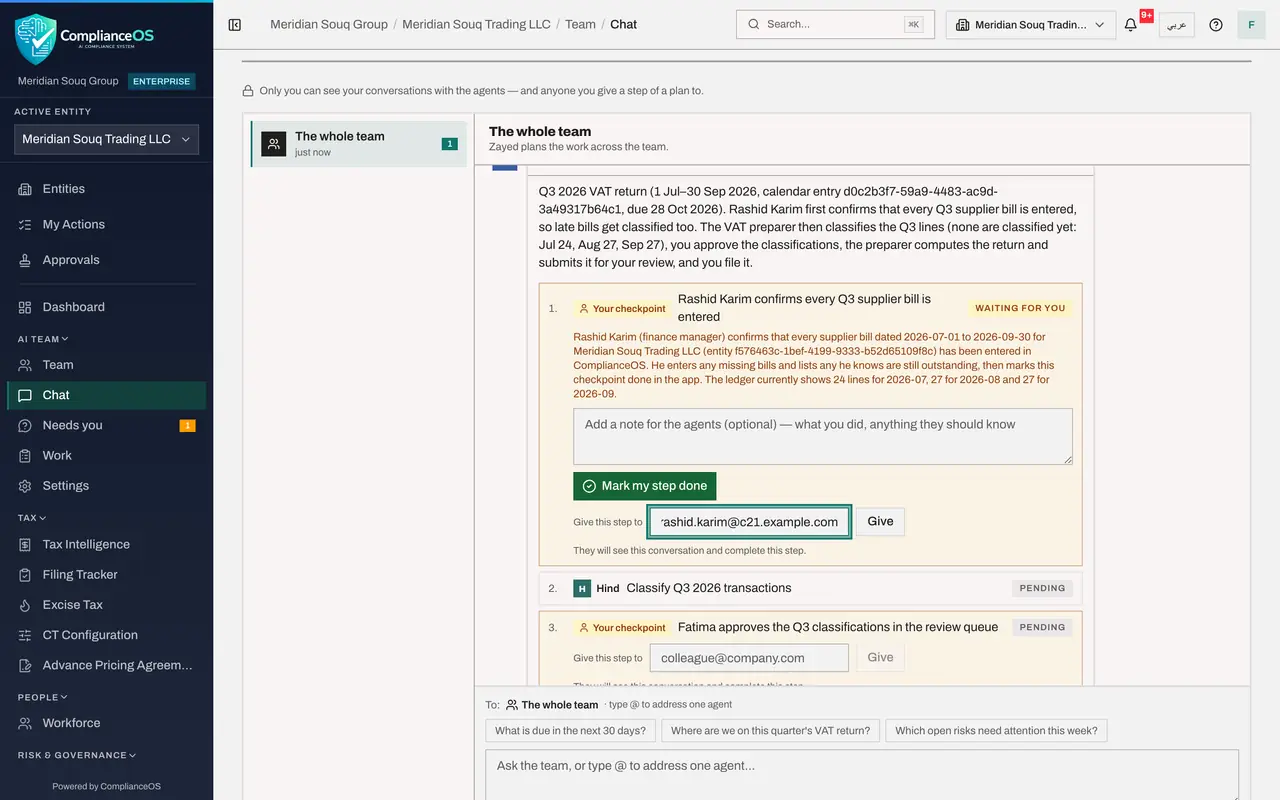
Step 1 is marked Your checkpoint and Waiting for you: Rashid Karim confirms that all third-quarter supplier bills are entered. Under it is what the step should achieve, a note box with Mark my step done, and the field Give this step to.
- 3
Type Rashid's e-mail address
In Give this step to, type the finance manager's sign-in e-mail address, as shown on screen. The line under it says that he will see this conversation and complete this step.
- Type Give this step to:
rashid.karim@c21.example.com
- Type Give this step to:
- 4
Select Give
Select Give. A message confirms Step given to Rashid. The step now says Waiting for Rashid Karim, and Given to Rashid Karim, with Take back to return it to you.
- Select Give
- 5
See what Rashid can do
Your conversation is still private: only you, and now Rashid for this plan, can see it. Rashid finds the step under Needs you, and only he can mark it done. Everything else in the plan stays yours to steer.
How to check it worked
The first step of the plan says Waiting for Rashid Karim and Given to Rashid Karim, with Take back beside it.
Common mistakes
- Making the whole conversation shared so that one colleague can help. Give that colleague the step: they see this conversation only, and complete only their step.
- Typing a name instead of an e-mail address. The step is given to the person with that sign-in e-mail.
- Forgetting a step you gave away. The plan waits until the colleague marks it done; Take back returns it to you.
Check your understanding
1. You give a plan step to a colleague. What can the colleague do?
- A.Approve or reject the whole plan
- B.See this conversation and complete the step given to them
- C.See all your conversations
- D.Change the agents' permissions
Show answer
Answer: B. See this conversation and complete the step given to them
The help under the box says it: they will see this conversation and complete this step. Only the person who asked steers the plan.
2. How do you get a step back from a colleague?
- A.Delete the plan
- B.Select Take back beside Given to
- C.Ask an administrator
- D.You can't
Show answer
Answer: B. Select Take back beside Given to
Take back returns the step to you; the plan then waits for you again.