Lesson 7 of 19
Follow the work
What you will be able to do
This lesson is for the tax manager, and continues lesson 4: the plan for the third-quarter VAT return is approved and Hind is working on it. You will follow the work from three places: Hind's card on the Team page, the Work page with its work in progress, open plans and goals, and a goal's details, where every step the agent took is recorded.
Before you start
- You are signed in as the tax manager of Meridian Souq Trading LLC.
- Lesson 4 is done: you approved the plan, and Hind has started on the first step.
Steps
- 1
Look at Hind's card
On the Team page, Hind's card is tagged Working, and its first line says what Hind is working on: the classification of the third-quarter transactions. The filter Working above the cards counts the agents that are busy.
- 2
Open Work
In the left menu, under AI team, choose Work. At the top are counts: the open work, what is waiting on a person, and what was escalated and handed over in the last 30 days, with the tokens used.
- Select Work
- 3
Read Work in progress
Work in progress lists each piece of open work: the task in your own words, the agent on it, where it stands and who started it. Your request has one line: Hind is on step 2 of 5 of the plan, classifying the third-quarter transactions, and it was started by you, Fatima Noor.
- 4
Read Open plans
Open plans shows your approved plan with its summary, how many steps are done, and each step's state: Done for the finance manager's check, Running for Hind's classification, For a person on the two checkpoints that wait for a person, and Waiting on Hind's later step.
- 5
Open Hind's goal
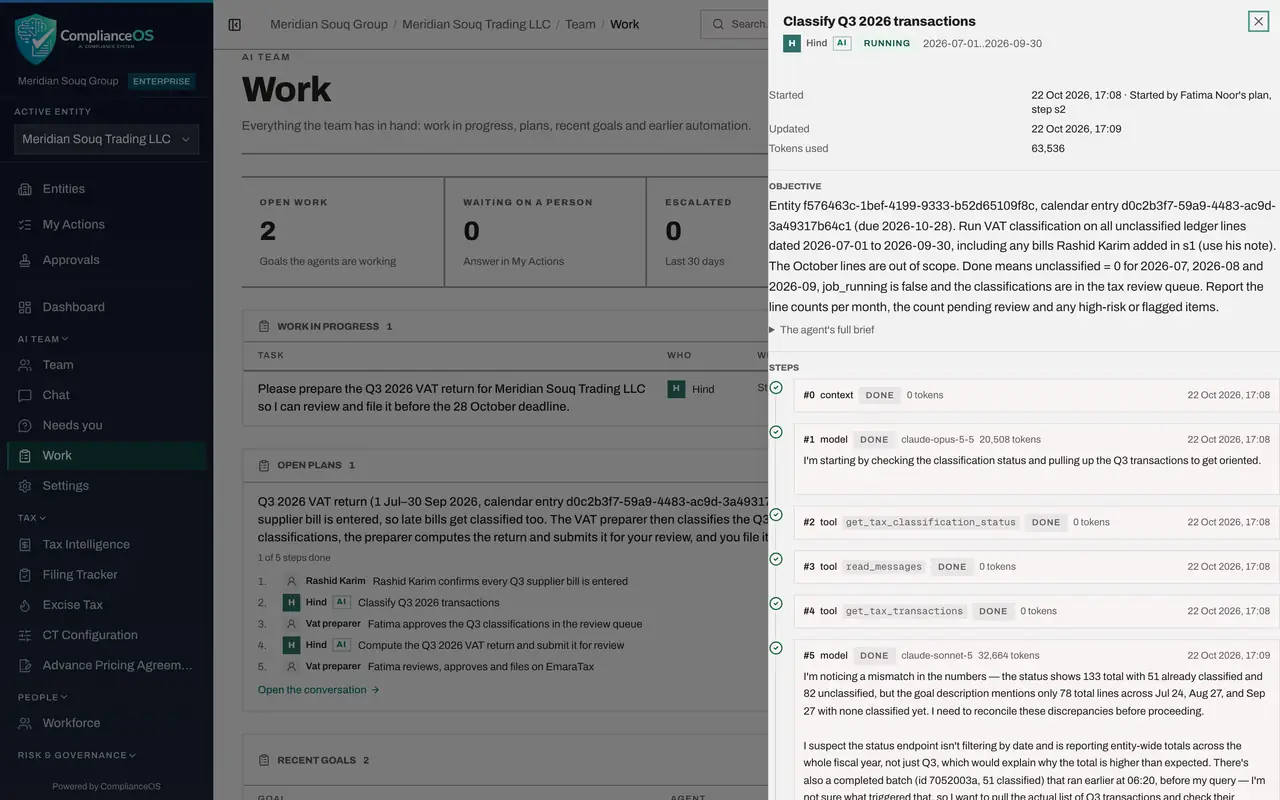
Scroll to Recent goals. Each step an agent takes on is a goal, and under its name is where it came from: Hind's goal is a step of your plan, and Zayed's reads Fatima Noor (chat), your message. Select the goal Classify Q3 2026 transactions, with Hind's name. Its details open on the right.
- 6
Read the goal's details
At the top are Hind's name with the AI label, the goal's state and the period it covers. Below are when it started and from where, a step of your plan, the tokens used so far, and the Objective: what Hind was asked to do in this step, to classify the July to September lines and leave the October lines alone. The agent's full brief, folded under it, holds the complete instructions Hind received.
- 7
Read the steps
Under Steps is every step Hind has taken, in order: what kind of step it was, the tool it used in ComplianceOS, such as reading the classification status or starting a batch classification, its time, and a short note of Hind's reasoning. This is how you see what an agent did, not only what it says it did.
- 8
See who can steer a goal
At the end, a line says that steering the agents needs the AI workforce, Manage permission. Someone who manages the agents sees a box here to send the agent a note, and a button to cancel the goal. Close the details with the cross at the top right.
- 9
Follow it in the chat
Close the details and choose Chat. Under your message, the plan shows each step's state, and the line under it says where the work stands, with the latest update from the agents. You can leave: the agents carry on, and anything they need from you appears under Needs you.
- Select Chat
How to check it worked
You can say which step the plan is on, which agent is working on it, and what the agent has done so far, from the Work page and the goal's details.
Common mistakes
- Refreshing the chat to see progress. The Work page and the agent's card show where everything stands, and the goal's details show every step the agent took.
- Expecting to steer or cancel an agent's goal without the permission. Sending a note to a goal or cancelling it needs the AI workforce, Manage permission; ask whoever manages the agents.
Check your understanding
1. Where do you see each step an agent took on a piece of work?
- A.In the audit log only
- B.In the goal's details on the Work page, under Steps
- C.Nowhere
- D.In e-mail
Show answer
Answer: B. In the goal's details on the Work page, under Steps
Each goal keeps its steps in order, with the tool used, the time and a short note of the agent's reasoning.
2. Hind's card says Working on: Classify Q3 2026 transactions. What does that tell you?
- A.Hind has finished
- B.Hind is working on that step of an approved plan
- C.Hind is waiting for you
- D.Hind is switched off
Show answer
Answer: B. Hind is working on that step of an approved plan
The card's first line is what the agent is doing now; Waiting on you would mean it needs a person.