Lesson 13 of 16
Your account: profile, roles, name and password
What you will be able to do
Find your own account details, read which roles you hold and where, change the name your colleagues see, know how to change your password, and find Entity settings and the Audit log in your account menu.
Before you start
- You are signed in and have opened an entity at least once.
Steps
- 1
Open your account menu
Select the round button with your initial in the top right corner. The menu shows your name and the email you are signed in with, and then the pages that belong to you and to the entity you last worked in.
- Select Account menu
- 2
Select Profile and preferences
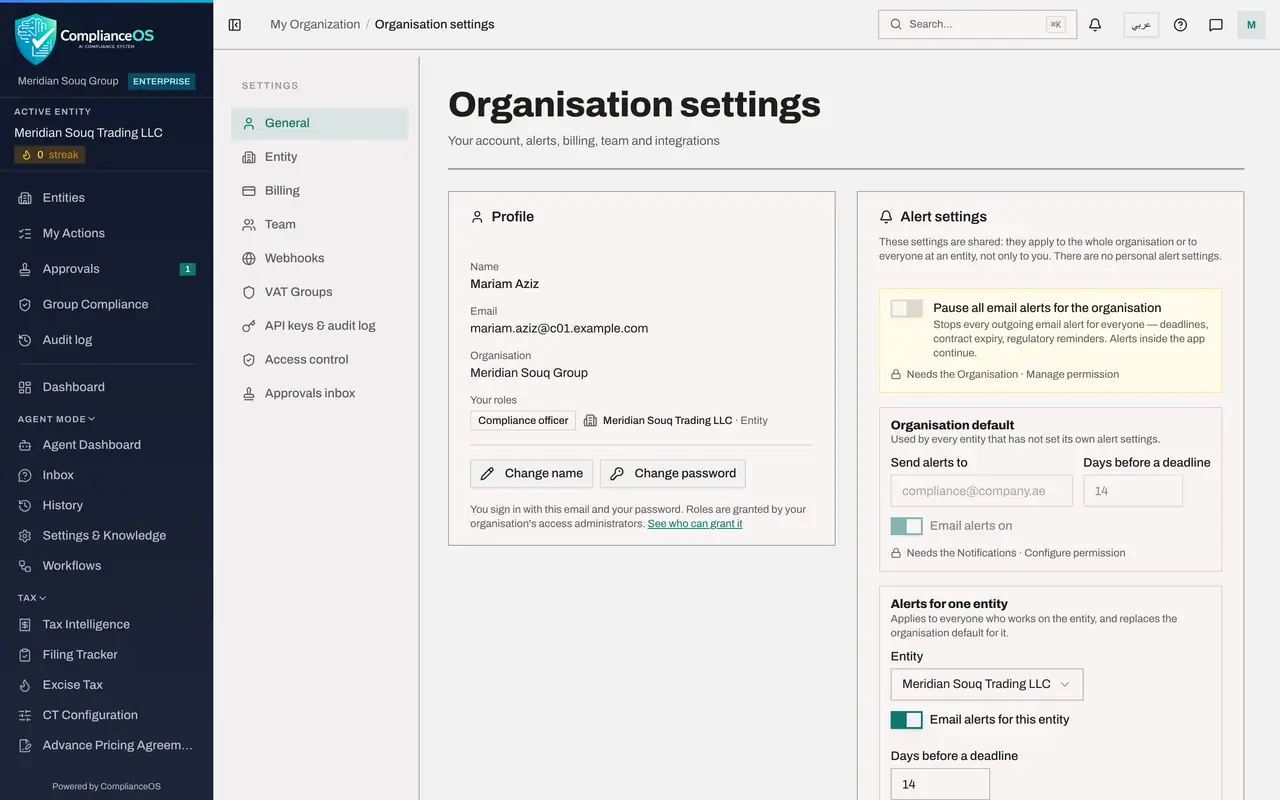
Select Profile and preferences. Administrators see the same item under the name Organisation settings. The settings page opens on General, which holds your Profile card.
- Select Profile & preferences
- 3
Read your Profile card
The card shows your name as colleagues see it, the email you sign in with, and your organisation. Under Your roles, each role is listed with where it applies. Mariam is Compliance officer on the entity Meridian Souq Trading LLC. Roles decide which modules you can open and what you can do in them.
- 4
Select Change name
Select Change name. A small form opens. The name you enter is how colleagues see you in lists, approvals and the audit log.
- Select Change name
- 5
Type the new name and save
Type your name as you want it shown, here Mariam A. Aziz, and select Save. A message confirms Name updated, and the card shows the new name at once.
- Type Name:
Mariam A. Aziz - Select Save
- Type Name:
- 6
Change the name back
For this course we put the name back. Select Change name again, type Mariam Aziz and select Save.
- Select Change name
- Type Name:
Mariam Aziz - Select Save
- 7
Select Change password
Select Change password. The form asks for your current password, a new password, and the new password a second time. Under the new password, five rules are listed: at least 12 characters, an uppercase letter, a lowercase letter, a number and a symbol.
- Select Change password:
(your password)
- Select Change password:
- 8
Know what happens when you change it
When you select Change password at the bottom of the form, you stay signed in on this device and every other device is signed out. We do not change the password in this lesson, so select Cancel.
- Select Cancel
- 9
Know who grants roles
The line under the buttons explains that you sign in with this email and your password, and that roles are granted by your organisation's access administrators. If a module you need is missing from your menu, ask them for the role that includes it.
- 10
Look at the other settings sections
The list on the left holds more sections, such as Entity, Billing, Team and Access control. They are for administrators, and each one tells you which permission it needs if your role does not include it.
- 11
Open Entity settings from the account menu
Open the account menu again and select Entity settings. This page holds the details of the entity you last worked in: its name, legal structure, registration numbers and financial profile. Changing them needs the permission to edit the entity.
- Select Account menu
- Select Entity settings
- 12
Open the Audit log from the account menu
Open the account menu once more and select Audit log. This item is offered only to people whose role may read the log. It lists who did what and when, for the entities you can access. The approvals and audit course explains how to read it.
- Select Account menu
- Select Audit log
How to check it worked
You can open your Profile card, say which role you hold on which entity, change your display name and see it change on the card, and open the Change your password form and say what a new password must contain.
Common mistakes
- Trying to change your email or your roles yourself. The email is how you sign in and roles are granted by your organisation's access administrators; ask them.
- Choosing a weak new password. The form only accepts at least 12 characters with an uppercase letter, a lowercase letter, a number and a symbol.
- Forgetting your other devices. When you change your password you stay signed in where you are, and every other device is signed out.
Check your understanding
1. Where do you see which roles you hold?
- A.On the Profile card, under Your roles
- B.On the sign-in page
- C.In the bell
- D.Only an administrator can see them
Show answer
Answer: A. On the Profile card, under Your roles
The Profile card lists each role with the entity or level it applies to, for example Compliance officer on Meridian Souq Trading LLC.
2. What happens to your other devices when you change your password?
- A.Nothing
- B.They are signed out, and you stay signed in on the device you used
- C.They are deleted from your account
- D.They switch to Arabic
Show answer
Answer: B. They are signed out, and you stay signed in on the device you used
The Change your password form says so: you stay signed in here and every other device is signed out.