Lesson 15 of 16
What you see with a role that has less access
What you will be able to do
Understand why two people see different screens. This lesson signs in as an employee with the self-service role and shows the shorter menu, the reduced dashboard, the employee's own record, and the message you get when a page needs a permission you do not hold.
Before you start
- You are signed in. This lesson is shown by Aisha Farouk, whose only role is Employee, self-service, on one entity.
- You have watched the earlier lessons, which were recorded by a compliance officer with access to many modules.
Steps
- 1
Start on the organisation Dashboard
Aisha Farouk is an employee. After she signs in, her organisation Dashboard has a short menu: Entities, My Actions and Approvals. Group Compliance and Audit log are not offered, because her role does not include them.
- 2
See which entities you can access
The first tile reads Entities you can access, 1 of 2 in the organisation. The group has two companies, and Aisha's role covers one. Every figure on this page is limited to that one.
- 3
Open the entity
Select the entity's card, where it says View dashboard. Inside the entity, the left menu holds only Dashboard, the People group with Workforce, and Tools. A compliance officer sees more than forty pages here.
- 4
Read the reduced dashboard
A note at the top of the entity dashboard explains that the overall compliance score, frameworks and deadlines are shown only to people with the permission Compliance tasks, View, which her role does not include, and that her access on this entity covers Workforce. The tiles show dashes, and Overall score in the panel on the right reads Not shown for your access. This is not a sign that the company has no compliance work.
- 5
Open Workforce
Select Workforce in the left menu. An HR manager sees every employee here. With the self-service role, Aisha sees only My employee record: her own details as held by HR, with a note to ask HR to correct anything that is wrong.
- Select Workforce
- 6
Open Search
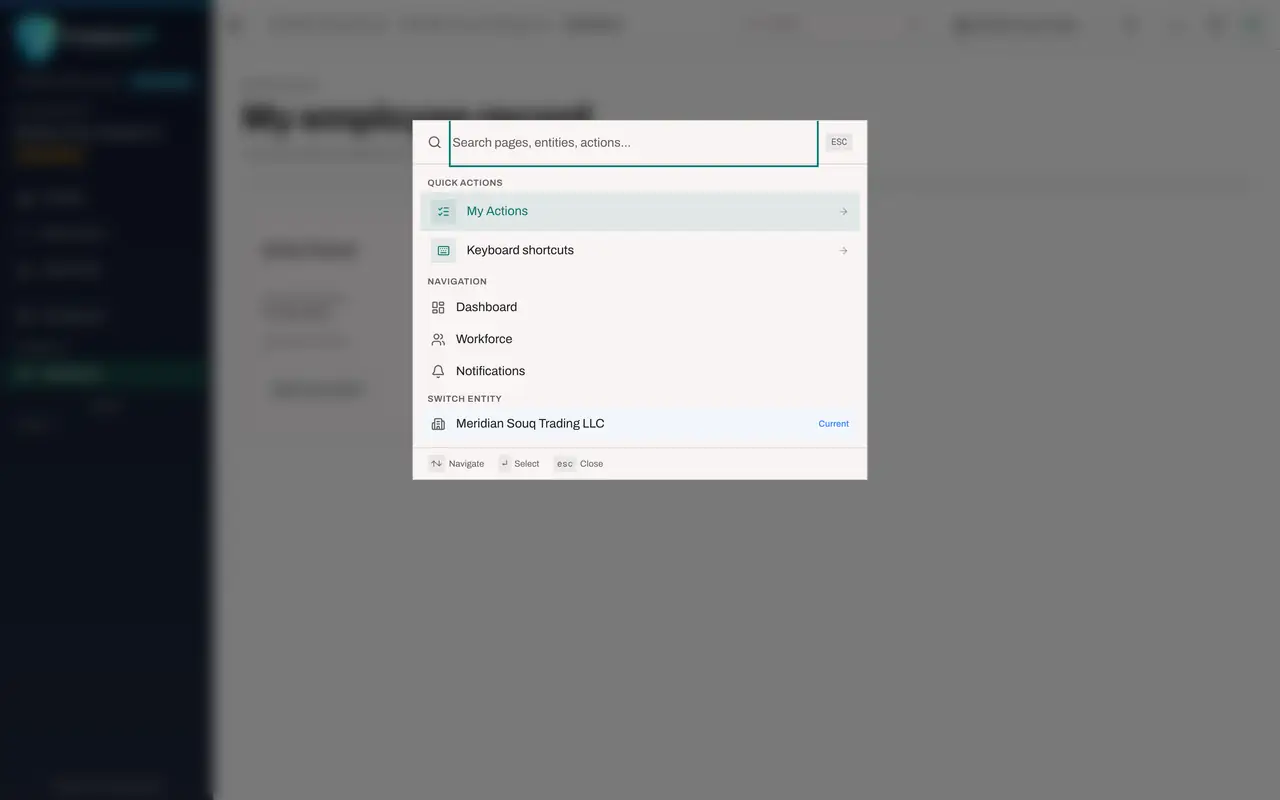
Open Search in the top bar. The Quick Actions are down to My Actions and Keyboard shortcuts, and Navigation lists far fewer pages. Search never offers a quick action that your role cannot use.
- Select Open search and commands
- 7
Open the account menu
Close Search with Escape and select the round button with your initial. The menu has Notification preferences, Profile and preferences and Sign out. There is no Entity settings and no Audit log, because this role may not use them.
- Select Account menu
- 8
Check the role on the Profile card
Select Profile and preferences. Under Your roles, the Profile card shows Employee, self-service, on Meridian Souq Trading LLC. When two people see different screens, compare this line first.
- Select Profile & preferences
- 9
See what happens on a page you may not open
Suppose a colleague sends Aisha a link to the Risk Register. The page opens with the message Module access required. It names the permission she does not hold, here the right to view the risk register on this entity, tells her to ask an access administrator for a role that includes it, and names the access administrators she can ask.
- 10
Select Back to overview
Select Back to overview to return to the entity dashboard. Nothing was shown and nothing was changed. If you need the module for your work, ask your access administrator; do not borrow a colleague's account.
- Select Back to overview
- 11
Look at My Actions
Select My Actions. Nothing has been assigned to Aisha, so the table says All caught up. If someone assigns her an audit request or another task, it appears here, exactly as it does for everyone else.
- Select My Actions
- 12
Look at Approvals
Select Approvals. There is no number beside it in the menu and the inbox says Nothing waiting for you, because this role cannot approve anything. The page still works, so that she can follow requests of her own under My requests.
- Select Approvals
How to check it worked
You can explain why a module is missing from someone's menu, find the role a person holds on the Profile card, and say what to do when a page answers Module access required.
Common mistakes
- Reporting a missing module as a fault. The menu only lists what your roles allow; a shorter menu usually means a narrower role, not a broken system.
- Reading a limited dashboard as zero compliance. The score, frameworks and deadlines are hidden from this role, which is different from the company having no compliance work.
- Using a colleague's account to reach a page you cannot open. Ask an access administrator for the role instead, so that the audit log stays true.
Check your understanding
1. A colleague sends you a link and the page says Module access required. What should you do?
- A.Ask the colleague for their password
- B.Ask an access administrator to grant you a role that includes that module
- C.Keep reloading the page
- D.Switch to Arabic
Show answer
Answer: B. Ask an access administrator to grant you a role that includes that module
The message names the permission that is missing. Only an access administrator can grant a role that includes it.
2. Why does the employee's left menu show only Dashboard, Workforce and Tools inside the entity?
- A.The other modules have been deleted
- B.The menu lists only the modules that the person's roles allow
- C.The entity is new
- D.The browser is too small
Show answer
Answer: B. The menu lists only the modules that the person's roles allow
Every person sees the modules their roles include. The self-service role covers the employee's own record and little else.