Lesson 8 of 16
The Approvals inbox at a glance
What you will be able to do
Know what the Approvals inbox is for, read a request that is waiting for your decision, open the record behind it, and find the requests that you sent yourself. Deciding a request is covered step by step in the course on approvals, evidence and the audit trail.
Before you start
- You are signed in.
- A request is waiting. In this demo company Sara Ahmed, the Data Protection Officer, has submitted a privacy notice for approval, and Mariam's role allows her to approve it.
Steps
- 1
Find Approvals in the left menu
Approvals sits under My Actions in the left menu on every page. The number beside it tells you how many requests are waiting for a decision that you are allowed to make. No number means nothing is waiting.
- 2
Open the Approvals inbox
Select Approvals. The Approvals inbox opens on the tab To decide, which lists requests waiting on a step you can decide, from every module and entity.
- Select Approvals1
- 3
Read what the request is about
Each request is a card. The top line says what kind of approval it is, here Publish a privacy policy version. Then come the name of the record and its version, the entity, and when it was submitted. The label Waiting on step 1, Approval shows where it stands.
- 4
Read the details and the progress
The box in the middle gives the facts an approver needs, such as the policy type and whether it is a major change. The line under it shows the status Pending, how many steps are complete, which approval policy applies, and the words Strict maker, checker: the person who prepared the record cannot approve it.
- 5
Select Open record
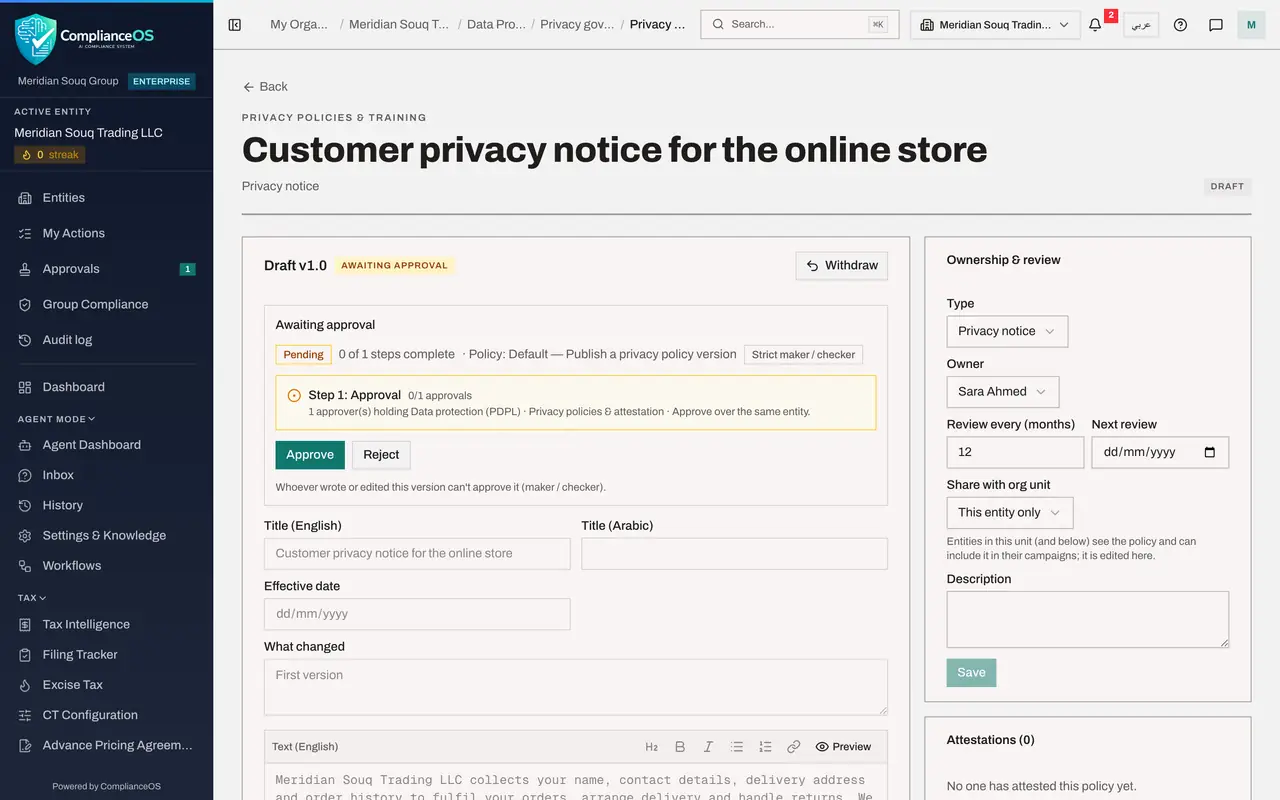
Select Open record on the card. The record itself opens in its module, here the privacy notice in Data Protection. Always read the record before you decide.
- Select Open record
- 6
Find Approve and Reject
On the record, the Awaiting approval box repeats the progress and offers Approve and Reject to people who are allowed to decide. We do not decide in this lesson; the approvals course shows approving, rejecting and sending back for changes.
- 7
Go back to the inbox
Select Approvals in the left menu to return to the inbox. The request stays under To decide until someone approves or rejects it.
- Select Approvals1
- 8
Open My requests
Select the tab My requests. It lists the records you prepared or edited and the access changes you asked for, with where each approval stands, and you can withdraw one while it is pending. Mariam has not submitted anything, so the list is empty.
- Select My requests
- 9
Refresh the inbox
Select To decide again, then Refresh at the top right, to load the newest requests without leaving the page. When a colleague submits something while you are working, it appears here.
- Select To decide1
- Select Refresh
How to check it worked
You can say how many requests are waiting for you from the number beside Approvals in the left menu, read what a request is about and which step it is on, and open its record without deciding it.
Common mistakes
- Looking for approvals in My Actions. Work assigned to you is in My Actions; requests that need a decision from a second person are in Approvals.
- Approving from the summary without opening the record. Always select Open record and read what you are approving.
- Expecting to approve your own work. With maker and checker rules, the person who prepared or edited a record cannot approve it; it must be someone else with the right permission.
Check your understanding
1. Where do you see how many requests are waiting for your decision?
- A.On the number beside Approvals in the left menu, and on the To decide tab
- B.Only in your email
- C.On the sign-in page
- D.In the entity switcher
Show answer
Answer: A. On the number beside Approvals in the left menu, and on the To decide tab
The left menu shows a number beside Approvals when something waits for you, and the To decide tab shows the same count.
2. What is the My requests tab for?
- A.Requests other people must decide for you: the records you prepared and the access changes you asked for
- B.Requests you have already rejected
- C.Holiday requests
- D.Deleted records
Show answer
Answer: A. Requests other people must decide for you: the records you prepared and the access changes you asked for
My requests follows what you submitted, shows where each approval stands, and lets you withdraw a request while it is pending.