Lesson 10 of 16
Notification settings: who is told, how and when
What you will be able to do
Find the settings that decide where alerts go. You will read the Notifications page of an entity, see what muting a category does, read the Module Configuration and Preferences tabs, change the reminder timing, and see which alert settings belong to the whole organisation.
Before you start
- You are signed in and have opened an entity.
- To change these settings you need the permission to configure notifications. Without it you can read them, and the controls say which permission is needed.
Steps
- 1
Open Notifications from the left menu
Scroll to the bottom of the left menu, open the Tools group and select Notifications. The page is about one entity: what has happened in it, who is told about it and how. It has three tabs: Notifications, Module Configuration and Preferences.
- Select Tools
- Select Notifications
- 2
Read the counters and the list
Unread counts the notifications you have not opened. Delivered is how many were raised in the app. High Severity counts the critical and high ones, and Mute Rules counts muted categories. The table lists each notification with its severity, when it was raised and whether it is read.
- 3
Open Muted categories
In the list on the left, select Muted categories. Every category of notification is listed: Tasks, Data Requests, Breaches, DPIA, Contracts, Compliance, Security and Approvals. DPIA is short for data protection impact assessment. Muting a category stops new notifications for it for everyone in the organisation.
- Select Muted categories0
- 4
Know what Mute does before you use it
Each category has a Mute button, and the line under its name counts the notifications of that category in the list. A mute is not a personal setting. It silences that category for every person in the organisation, so agree it with your administrator first. We do not mute anything in this lesson.
- 5
Open Module Configuration
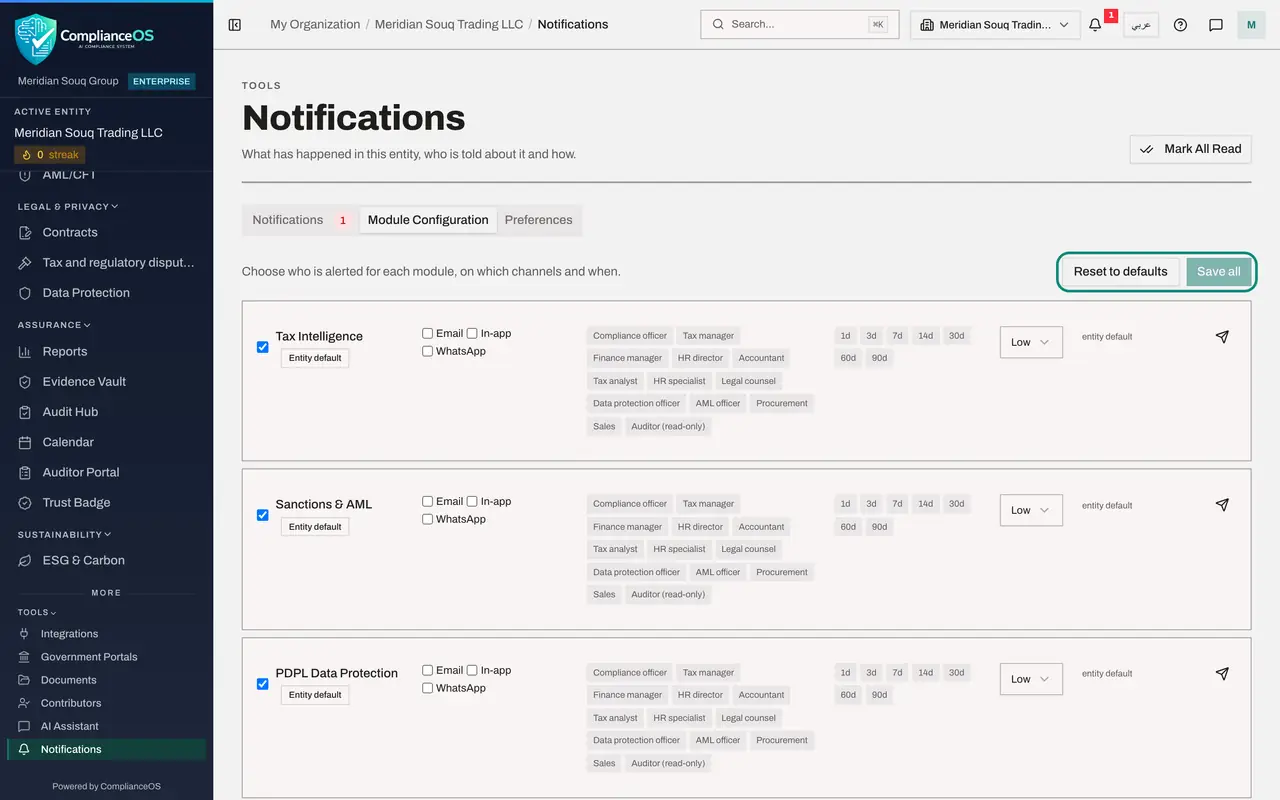
Select the tab Module Configuration. Each row is one module. The tick at the left switches its alerts on. Then come the channels, Email, In-app and WhatsApp, the job roles that are alerted, how many days before a deadline, and the lowest severity that is sent. Entity default means the row has not been changed.
- Select Module Configuration
- 6
Know the buttons on Module Configuration
Save all stores your changes to every row, and Reset to defaults puts all rows back. The paper plane at the end of a row sends a test alert for that module. Use this tab to check whether your role is on the list for the modules you work in.
- 7
Open Preferences
Select the tab Preferences. The note at the top says it plainly: these delivery settings belong to this entity and decide where its deadline alerts go for everyone, not just for you. Only push notifications are personal to you and this device.
- Select Preferences
- 8
Read the delivery channels
Email Alerts holds the address that receives the entity's deadline alerts, with a switch to send them. WhatsApp Alerts works the same way with a phone number where your organisation has it. Push notifications deliver alerts addressed to you on this device, for the severities you tick.
- 9
Change the reminder timing
Scroll down to Reminder timing. Open the box Send alerts this many days before a deadline and choose 30 days before. A longer window gives everyone earlier warning.
- Select 14 days before (recommended)
- Choose 30 days before
- 10
Select Save Preferences
Select Save Preferences. A short message confirms that the preferences were saved. Send a test alert would send one message to the configured address to prove that delivery works; we do not send one here.
- Select Save Preferences
- 11
Put the timing back
For this lesson, choose 14 days before, which is the recommended value, and select Save Preferences again. Alerts go out once a day for every deadline inside the window.
- Select 30 days before
- Choose 14 days before (recommended)
- Select Save Preferences
- 12
Find the organisation-wide alert settings
Open the account menu and select Profile and preferences. The Alert settings card there is for the whole organisation: a switch that pauses all email alerts, the organisation default, and alerts for one entity. It states that there are no personal alert settings, and each part names the permission it needs.
- Select Account menu
- Select Profile & preferences
How to check it worked
You can say which settings are shared by everyone at the entity, which belong to the whole organisation and which are personal to you and your device, and you can find where the number of days before a deadline is set.
Common mistakes
- Treating these as personal settings. The alert address, the reminder timing and the module rows apply to everyone who works on the entity. Only push notifications to your own device are personal.
- Muting a category to quieten your own bell. A mute stops new notifications of that category for everyone in the organisation.
- Changing the reminder timing without telling anyone. A shorter window means everybody gets less warning before a deadline.
Check your understanding
1. You change Send alerts this many days before a deadline on the Preferences tab. Who is affected?
- A.Only you
- B.Everyone who receives deadline alerts for this entity
- C.Every organisation that uses ComplianceOS
- D.Nobody until an administrator approves it
Show answer
Answer: B. Everyone who receives deadline alerts for this entity
The page says so at the top: these delivery settings belong to the entity and decide where its deadline alerts go for everyone, not only for you.
2. Which notification setting is personal to you?
- A.The email address for alerts
- B.Muted categories
- C.Push notifications to this device
- D.The organisation default
Show answer
Answer: C. Push notifications to this device
Push notifications are switched on per person and per device. Everything else on these pages is shared by the entity or the organisation.