Lesson 3 of 16
The top bar and the side panels
What you will be able to do
Know every control in the top bar, and use the two side panels that most modules share: the section list on the left and the Insights panel on the right.
Before you start
- You are signed in and have opened an entity.
- You can open at least one module. This lesson uses the Risk Register.
Steps
- 1
Look along the top bar
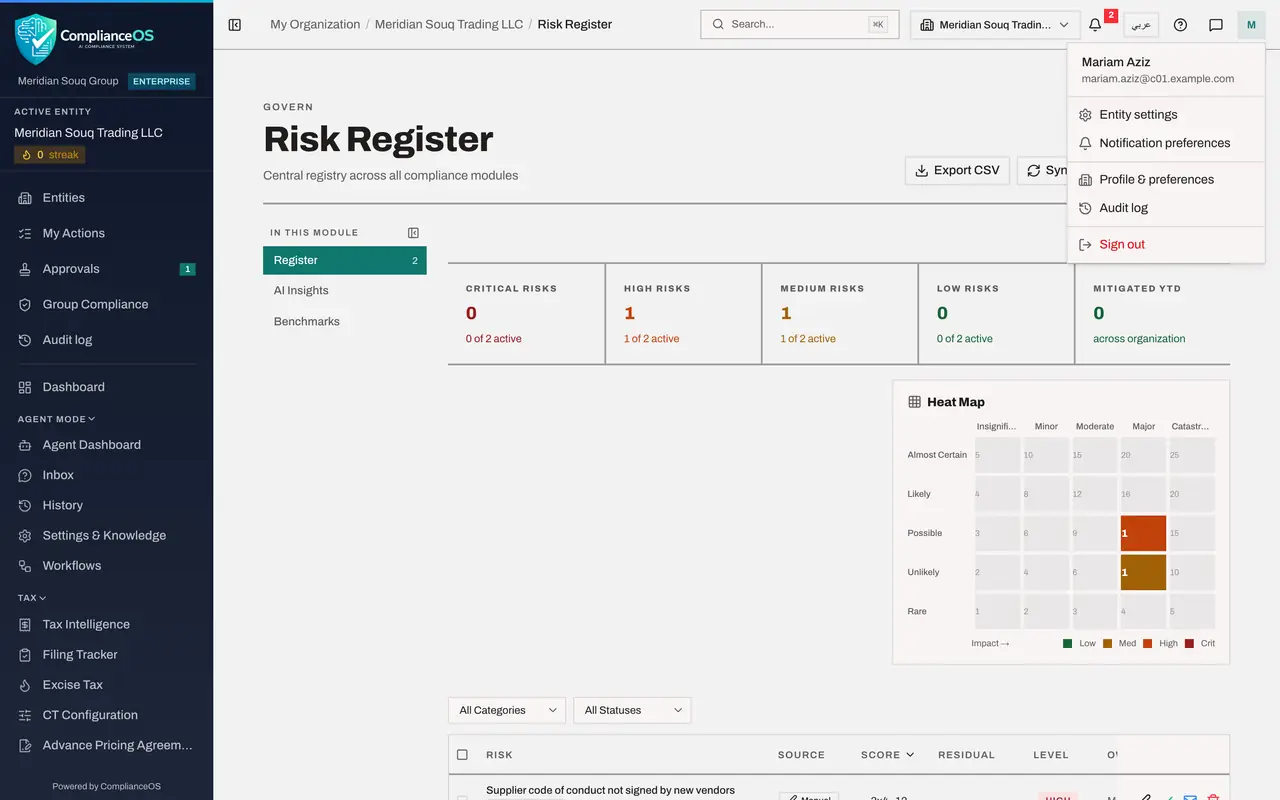
The top bar is the same on every page. From left to right it holds the button that hides the left menu, the breadcrumb, Search, the entity switcher, the bell, the language button, Help, the assistant and your account.
- 2
Find Search and the entity switcher
Search jumps to any page; a later lesson covers it. Beside it, the entity switcher shows the company you are working in and lets you change to another one.
- 3
Open the bell
Select the bell. It lists the latest notifications for this entity, and a red number on it counts the ones you have not read. A later lesson covers notifications in full.
- Select 2 unread notifications
- 4
Find the language button and Help
Close the bell by selecting it again. The next button switches the whole screen between English and Arabic. The question mark opens Help and Documentation.
- 5
Open the assistant
Select the speech bubble. The Compliance Assistant panel opens in the corner of the screen. You can type a question about this entity in the box at the bottom and press Enter. The yellow line reminds you that its answers are for guidance only.
- Select Open the AI assistant
- 6
Close the assistant
Select the cross at the top of the panel to close it. The arrows beside the cross open the assistant as a full page instead.
- Select Close assistant
- 7
Open your account menu
Select the round button with your initial. The menu shows who is signed in, then Entity settings, Notification preferences, Profile and preferences, Audit log if your role allows it, and Sign out.
- Select Account menu
- 8
Use the section list
Close the menu by pressing Escape. Most modules have a list on the left called In this module. Each line is a section of the module, and the numbers are live counts. Here the Risk Register has Register, AI Insights and Benchmarks.
- 9
Collapse the section list
Select the small button beside In this module. Its name is Collapse section list. The list turns into a row of buttons above the page. Because the page now has more room, the Insights panel docks itself on the right.
- Select Collapse section list
- 10
Dock the section list again
Select the same button, now called Dock section list, to put the list back on the left. The Insights panel hides again, because the two panels and a wide table do not fit side by side on this screen. The panels follow the width of your window in the same way.
- Select Dock section list
- 11
Open the Insights panel
Select Insights at the top right of the page. A panel slides in with summary figures for this module and a short note. It opens over the page so that the table keeps its width.
- Select Show insights panel
- 12
Pin the Insights panel
Select Pin to dock the panel beside the page, so that it stays open while you work. This choice is remembered on this browser.
- Select Pin insights panel to the page
- 13
Hide the Insights panel
Select Hide above the panel to close it again and give the table the full width. The Insights button brings it back whenever you want it.
- Select Hide insights panel
How to check it worked
You can name the controls in the top bar from left to right, open and close the assistant, collapse and dock the section list, and open, pin and hide the Insights panel.
Common mistakes
- Thinking a module has lost its sections. On a narrower window the section list turns into a row of buttons above the page, and the Insights panel hides behind the Insights button. Nothing is removed.
- Leaving the Insights panel pinned on a small screen. A pinned panel takes width away from wide tables, which then scroll sideways. Select Hide to give the table its room back.
- Treating the assistant's answer as a decision. The panel itself says that its responses are for guidance only; check the record before you act.
Check your understanding
1. The Insights panel is not on your screen. How do you see it?
- A.Ask an administrator to enable it
- B.Select the Insights button at the top right of the page
- C.Sign out and in again
- D.Switch to Arabic
Show answer
Answer: B. Select the Insights button at the top right of the page
When the window is not wide enough the panel hides, and the Insights button opens it over the page. Pin docks it beside the page.
2. Which control in the top bar opens the assistant?
- A.The bell
- B.The question mark
- C.The speech bubble beside the question mark
- D.The round button with your initial
Show answer
Answer: C. The speech bubble beside the question mark
The speech bubble opens the Compliance Assistant panel. The question mark opens Help, and the bell opens notifications.