Lesson 2 of 16
Find your way around: the left menu, breadcrumb and entities
What you will be able to do
Move around ComplianceOS with confidence. You will open an entity, use the left menu and its groups, read the breadcrumb, hide and show the menu, and change entity with the entity switcher.
Before you start
- You are signed in.
- You have access to at least one entity. An entity is one legal company in your group, such as Meridian Souq Trading LLC.
Steps
- 1
Start on the organisation Dashboard
After you sign in you land on the Dashboard for the whole organisation. The left menu is short here. Entities brings you back to this page, My Actions lists your open work, Approvals lists requests waiting for a decision, and Group Compliance compares your entities.
- 2
Open an entity
An entity is one legal company in your group. Scroll down to the list of entities. Each entity has a card with its name, location and score. Select the card, where it says View dashboard, and the entity's own dashboard opens.
- 3
Read the top of the left menu
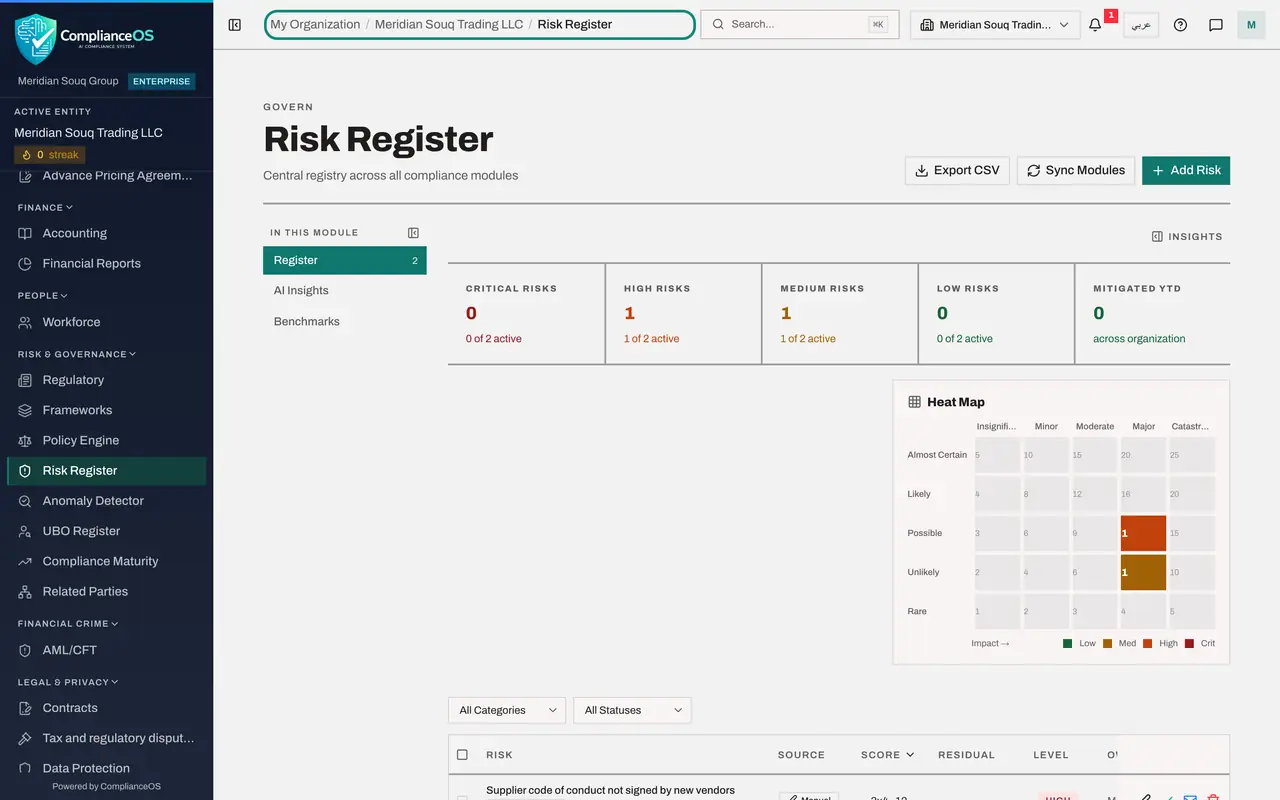
The top of the left menu now shows the organisation, and under Active entity the company you are working in. The small streak counter is the number of days in a row that this entity has had no overdue items.
- 4
Look at the groups in the left menu
Inside an entity the menu grows. Under Dashboard, the modules are arranged in groups: Agent Mode, Tax, Finance, People, Risk and Governance, Financial Crime, Legal and Privacy, Assurance and Sustainability. A module is one area of work, such as the Risk Register. You only see the modules that your role allows, and Audit log appears above Dashboard only for people who may read it.
- 5
Open the Tools group
Scroll to the bottom of the menu and select the Tools heading. It opens to show Integrations, Government Portals, Documents, Contributors, AI Assistant and Notifications. Select a heading again to close its group.
- Select Tools
- 6
Open a module from the menu
Select a module name to open it. Here we select Risk Register in the Risk and Governance group. The module you are in stays highlighted in the menu.
- Select Risk Register
- 7
Read the breadcrumb
The breadcrumb is the trail at the top of the page. From left to right it shows the organisation, the entity you are in, and the page you are on. Check the entity name here before you add or change a record.
- 8
Go back to the entity dashboard
Select the entity name in the breadcrumb. You return to that entity's dashboard. Selecting Dashboard in the left menu does the same, and the first item in the breadcrumb takes you to the organisation Dashboard.
- Select Meridian Souq Trading LLC
- 9
Close a group you do not use
Select a group heading, such as Tax, to close its list and shorten the menu. Nothing is removed. Select the heading again to open it.
- Select Tax
- 10
Hide the left menu when you need more room
Select the small panel button at the left of the top bar. Its name is Hide navigation. The left menu disappears and the page uses the full width.
- Select Tax
- Select Hide navigation
- 11
Bring the left menu back
Select the same button again. It is now called Dock navigation. The left menu returns and stays in place. Your choice is remembered on this browser.
- Select Dock navigation
- 12
Open the entity switcher
Select the button in the top bar that shows the entity name. It lists every entity you have access to, with Current beside the one you are in. Selecting another entity opens the same page for that entity. Mariam has access to one of the group's two entities, so one is listed.
- Select Switch entity
- 13
Return to all entities
Select All Entities to leave the entity and go back to the organisation Dashboard. Entities in the left menu takes you to the same place.
- Select All entities
How to check it worked
You can open a module from the left menu, say which entity you are working in by reading the breadcrumb, and get back to the entity dashboard and to the list of entities without using the browser's Back button.
Common mistakes
- Working in the wrong entity. Every record belongs to one entity, so read the entity name in the breadcrumb or in the top bar before you add or change anything.
- Thinking a module has disappeared when its group is only closed. Select the group heading, such as Tax or Tools, to open it again.
- Hiding the left menu and not knowing how to bring it back. The same button at the left of the top bar shows it again.
Check your understanding
1. How can you tell which entity you are working in?
- A.It is shown in the breadcrumb, at the top of the left menu and on the entity switcher in the top bar
- B.It is only shown on the sign-in page
- C.You have to open Help
- D.It is shown inside the bell
Show answer
Answer: A. It is shown in the breadcrumb, at the top of the left menu and on the entity switcher in the top bar
The breadcrumb names the entity before the page name, the left menu shows it under Active entity, and the entity switcher button carries the same name.
2. Integrations and Notifications are missing from your left menu. What is the most likely reason?
- A.They were deleted
- B.The Tools group at the bottom of the menu is closed; select the heading to open it
- C.You need to sign out and in again
- D.They only appear in Arabic
Show answer
Answer: B. The Tools group at the bottom of the menu is closed; select the heading to open it
Each group heading opens and closes its list. Tools starts closed, so its pages are hidden until you select the heading.