Lesson 12 of 16
Switch between English and Arabic
What you will be able to do
Switch the whole screen from English to Arabic and back with one button, and know what changes, what stays as it was typed, and how the right-to-left layout is arranged.
Before you start
- You are signed in and have opened an entity.
Steps
- 1
Find the language button
The language button is in the top bar, between the bell and the question mark. While the screen is in English it shows the word Arabic, written in Arabic letters.
- 2
Switch the screen to Arabic
Select the button. The whole page changes at once: the menu, the headings, the tiles and the notes are in Arabic. Because Arabic reads from right to left, the layout is mirrored. The menu is now on the right, and the top bar runs the other way.
- Select Switch to Arabic
- 3
See what stays as it was typed
The entity's name and the name of the deadline are still in English. Text that people entered is never translated; only the product's own words change. The same is true for every record.
- 4
Open My Actions in Arabic
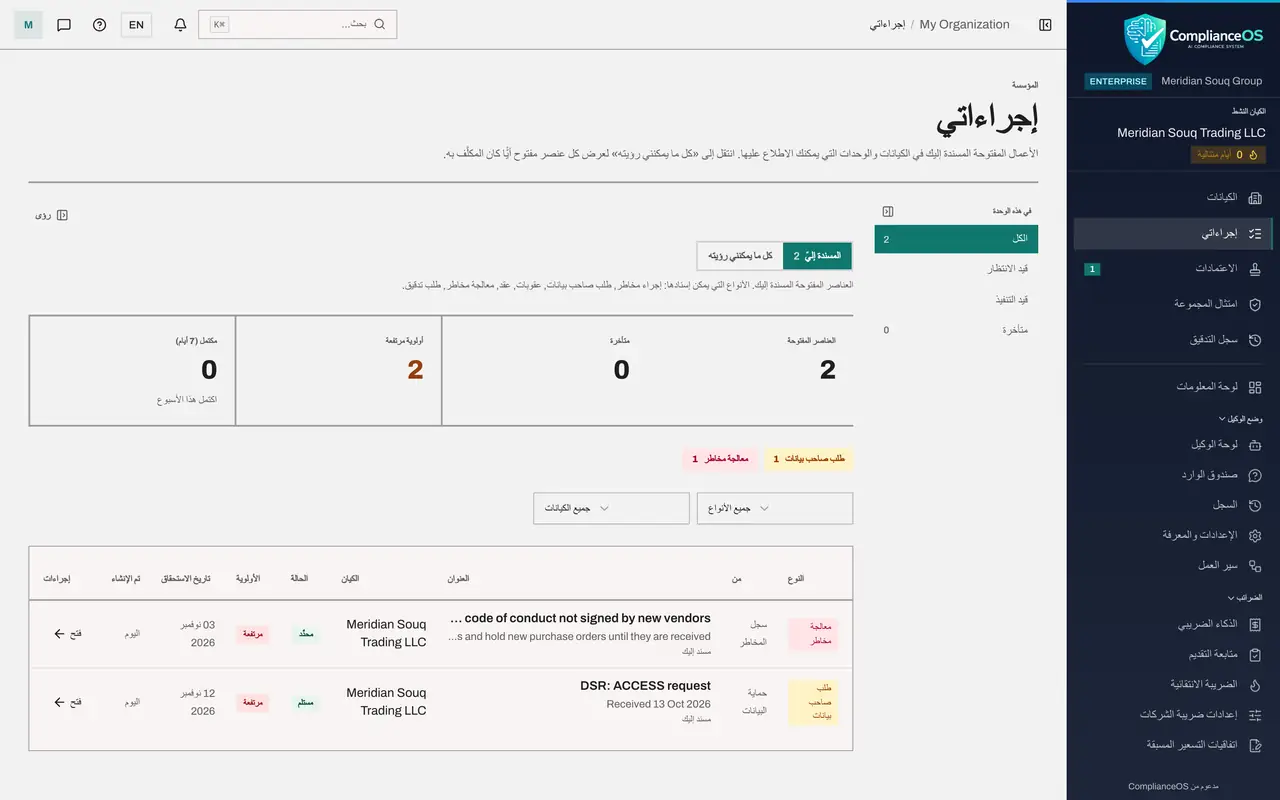
Select My Actions, the second item in the menu on the right. The page, its tabs, its counters and the column headings are in Arabic, and the table reads from right to left. The titles of the risk and the request stay as they were written.
- Select إجراءاتي
- 5
Open the account menu in Arabic
The round button with your initial is now at the left end of the top bar. Select it, and the same menu opens in Arabic, with Sign out at the bottom in red.
- Select قائمة الحساب
- 6
Search still understands English page names
Close the menu with Escape and open Search. The groups are in Arabic, but you can still type an English page name. Here we type risk, and the Risk Register is offered under its Arabic name.
- Select فتح البحث والأوامر
- Type البحث والأوامر:
risk
- 7
Switch back to English
Close Search with Escape. The language button now reads EN. Select it, and the screen returns to English with the menu on the left.
- Select التبديل إلى الإنجليزية
- 8
Your choice is remembered
The language is stored on the browser you are using, so the next time you open ComplianceOS here it starts in the language you chose. It does not change the language for your colleagues.
How to check it worked
After you select the Arabic button, the menu, headings and tables are in Arabic and the left menu has moved to the right. After you select EN, everything is back in English with the menu on the left.
Common mistakes
- Expecting your own text to be translated. Names and descriptions that people typed, such as a risk title or a company name, stay in the language they were written in.
- Looking for the menu on the left in Arabic. Arabic reads from right to left, so the whole layout is mirrored: the menu is on the right and the account button is on the left.
- Thinking the language was changed for everybody. The choice is yours alone and is remembered on the browser you are using.
Check your understanding
1. The screen is in Arabic and you want English again. What do you select?
- A.Sign out
- B.The EN button in the top bar
- C.Help
- D.The bell
Show answer
Answer: B. The EN button in the top bar
The language button always shows the language you can switch to: the Arabic word for Arabic while you are in English, and EN while you are in Arabic.
2. You switch to Arabic. What happens to a risk title that a colleague typed in English?
- A.It is translated automatically
- B.It stays in English, because typed text is shown as it was written
- C.It is deleted
- D.It is hidden
Show answer
Answer: B. It stays in English, because typed text is shown as it was written
The language button changes the product's own words: menus, headings, labels and messages. Records keep the text that was entered.