Lesson 5 of 16
Read the entity dashboard
What you will be able to do
Read the dashboard of one entity from top to bottom. You will learn what every tile, panel and section tells you, and how to reach the calendar and other shortcuts from the Actions menu.
Before you start
- You are signed in and have access to the entity.
- The entity has some records. In this demo company it has two data subject requests, two risks and one calendar deadline.
Steps
- 1
Open the entity dashboard
Select Dashboard in the left menu. The top of the page shows the entity's name, its legal form and location, and the financial year, or FY, that the figures belong to. Change the year with the FY selector.
- 2
Read Overall Compliance
The first tile is the entity's score out of 100 per cent, with a risk level under it. Here it is 50 per cent and the risk is high. The small line Based on 2 of 7 modules tells you how many modules the score is worked out from. The next lesson explains that line.
- 3
Read the framework and deadline tiles
Frameworks in scope counts the laws and standards mapped to this entity, and how many are fully compliant. Frameworks at risk counts those that need attention. Upcoming Deadlines counts what is due in the next 30 days.
- 4
Check the score of each module
Compliance Health Score repeats the overall figure and then lists a score and a bar for every module that has data. Here Workforce is at 30 per cent and Data Protection at 70 per cent. The note underneath names the modules that have no data yet for this year, and says they are not counted in the overall score until they hold records or are switched on in the score settings.
- 5
Read Upcoming Deadlines
The middle panel lists the next deadlines, soonest first, with the date and the number of days left. Select a deadline, or View Full Calendar, to open the calendar.
- 6
Read Focus Area
Focus Area says in plain words where the entity stands. It gives a status, here Needs attention, the reason, the weakest modules and the next deadline. It never says on track when the score is low.
- 7
Look at today's tasks
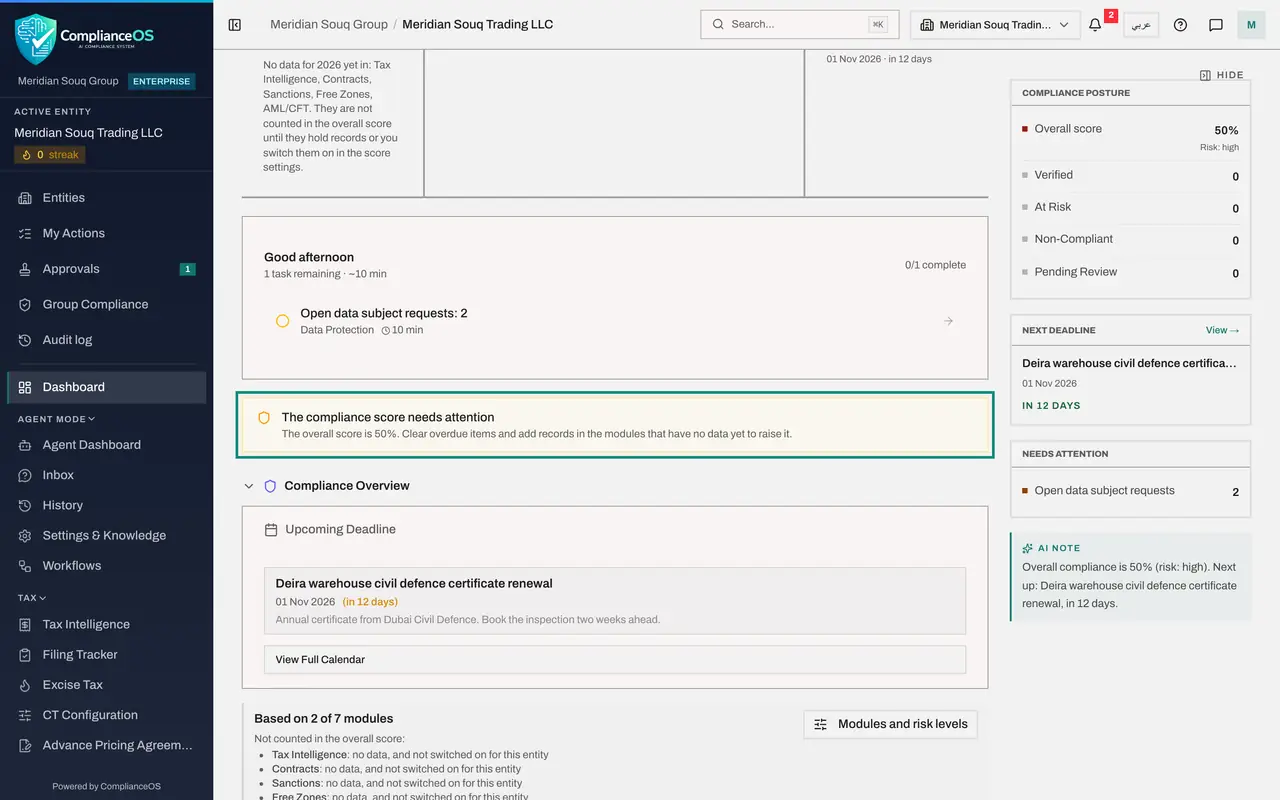
The card with the greeting lists what to deal with today and roughly how long each task takes. Here it shows two open data subject requests in Data Protection. Select a task to go straight to that module.
- 8
Read the advice under the tasks
When something needs action, a short banner explains it. Here it says the score needs attention and suggests clearing overdue items and adding records in the modules that have none.
- 9
Scroll to Compliance Overview
Compliance Overview starts with the next deadline and its notes. Below it, each module has a tile with its score and risk level; a dash means no data yet. Select a tile to open that module. Select the section heading to fold a section away.
- 10
Read Module Insights
Module Insights shows a few real counts from each module: tax transactions, contracts, sanctions reviews, free zone licences, employees, open data subject requests and carbon emissions. Each card opens its module.
- 11
Read Financial Risk and Evidence
Penalty Exposure estimates the fines this entity could face, in dirhams, split by area, and how much of that has been mitigated. Evidence Vault shows how many stored documents are verified and how ready the entity is for an audit.
- 12
Open Regulatory Alerts and All compliance modules
The last two sections start folded. Select Regulatory Alerts to see unread alerts about changes in the law, and select All compliance modules for a card for every module in the product.
- Select Regulatory Alerts
- Select All compliance modules
- 13
Read the panel on the right
Scroll back to the top. The panel on the right stays in view. Compliance Posture counts frameworks by state: Verified, At Risk, Non-Compliant and Pending Review. Under it are Next Deadline, Needs Attention and a one-line note. Hide closes the panel.
- 14
Open the Actions menu
Select Actions beside the financial year. Edit Entity changes the company's details, AI Framework Mapping works out which laws apply to it, Audit Tasks opens the task list those frameworks create, and View Calendar opens the calendar. Each one needs the matching permission.
- Select Actions
- 15
Open the calendar from the dashboard
Select View Calendar. The Compliance Calendar opens for this entity, and the deadline you saw on the dashboard is on it. Use the breadcrumb or Dashboard in the left menu to come back.
- Select View Calendar
How to check it worked
You can say what the entity's overall compliance is and how risky that is, which deadline comes next, which module is weakest, and what the dashboard says needs attention today.
Common mistakes
- Reading a dash as zero. A dash on a module tile means the module holds no data yet for this year, which is different from a score of zero.
- Looking at the wrong year. The FY selector beside the entity name decides which year every figure belongs to.
- Stopping at the first row. The sections lower down, such as Module Insights and Financial Risk and Evidence, are where you see why the score is what it is.
Check your understanding
1. A module tile under Compliance Overview shows a dash and the words No data yet. What does it mean?
- A.The module scored zero
- B.Nothing has been recorded in that module for this year, so it has no score
- C.You have no access to the module
- D.The module is switched off for everyone
Show answer
Answer: B. Nothing has been recorded in that module for this year, so it has no score
A score appears once the module holds records for the year. Until then the tile shows a dash and No data yet.
2. Where is the shortcut to this entity's calendar?
- A.In the Actions menu beside the financial year, and in the View Full Calendar links
- B.Only in the bell
- C.On the sign-in page
- D.In the account menu
Show answer
Answer: A. In the Actions menu beside the financial year, and in the View Full Calendar links
Actions holds View Calendar, and the Upcoming Deadlines panel and the Next Deadline card both link to the full calendar.