Lesson 7 of 16
My Actions: the work that is waiting for you
What you will be able to do
Use My Actions to see the open work assigned to you in every module and entity, widen the list to everything you can see, narrow it down with the filters, and open an item in the module where the work is done.
Before you start
- You are signed in.
- Something is assigned to you. In this demo company Mariam owns one risk and has been assigned one data subject request.
Steps
- 1
Select My Actions in the left menu
My Actions is near the top of the left menu on every page. It gathers open work from all the modules and entities you can see into one list, so you do not have to visit each module to find out what is waiting.
- Select My Actions
- 2
Start on Assigned to me
The page opens on the tab Assigned to me, with the number of items beside it. These are the open items that carry your name. The line underneath lists the kinds of work that can be assigned to a person.
- 3
Read the counters
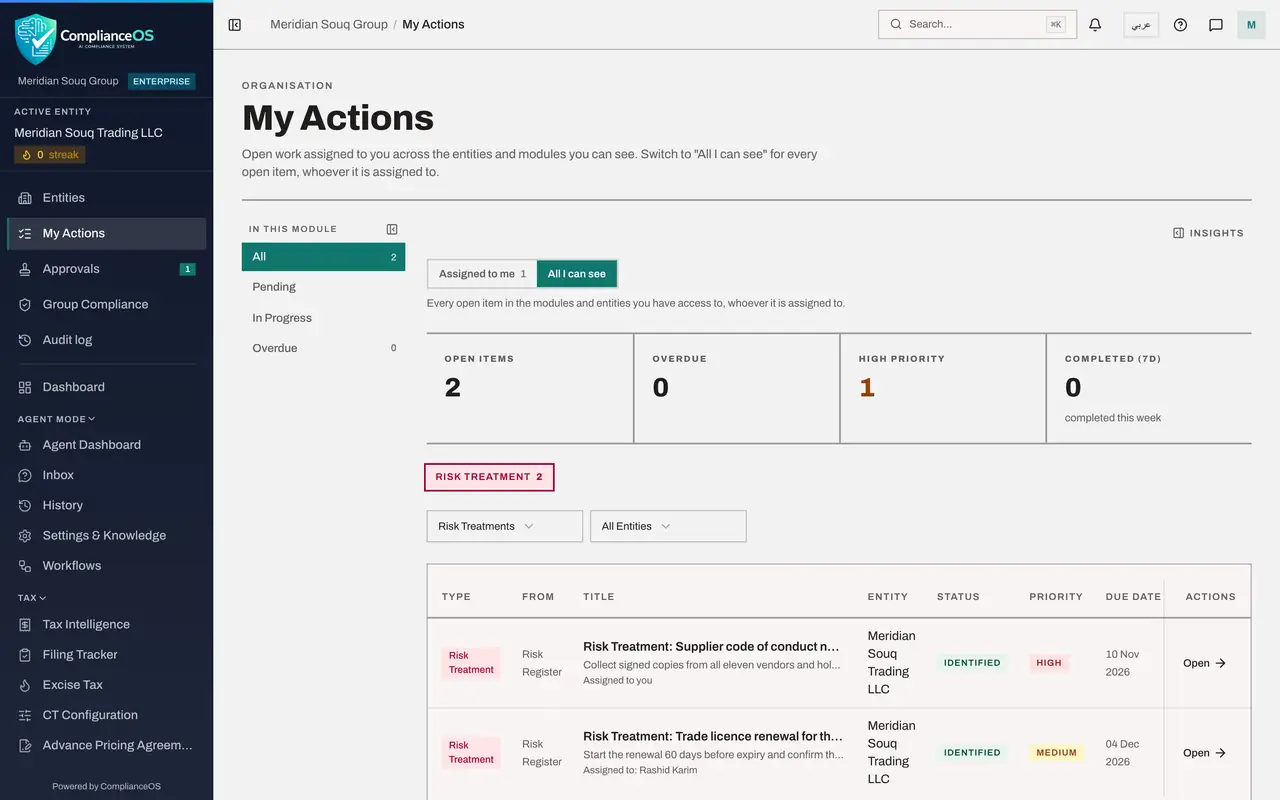
Four counters sum up the list. Open Items is everything still open, Overdue is what is already late, High Priority counts the urgent items, and Completed, 7 days, is what was finished in the last week. The counters always describe the whole list, not only the rows on screen.
- 4
Read one row
Each row is one piece of work. Type and From say what kind of item it is and which module it comes from. Then come its title with a line of detail, the entity, its status in the module, its priority and the due date. Scroll the table sideways to see when it was created. Assigned to you confirms it is yours.
- 5
Know the kinds of item
The coloured chips above the table count the items of each type. A Risk Treatment is an open risk that you own in the Risk Register. A DSR is a data subject request, where a person asks about their personal data. You may also see Risk Actions from privacy impact assessments, Sanctions reviews, Contract reviews, Audit requests, Employee documents, Audit findings and Agent approvals.
- 6
Switch to All I can see
Select the tab All I can see. The list grows to every open item in the modules and entities you have access to, whoever it is assigned to. One risk here reads Assigned to Rashid Karim, and one request has no assignee yet.
- Select All I can see
- 7
Filter the list by type
Select the box that reads All Types and choose a type to see only that kind of work. Here we choose Risk Treatments. The counters follow the filter.
- Select All Types
- Choose Risk Treatments
- 8
Show only overdue items
In the list on the left, select Overdue to keep only the items whose due date has passed. Pending and In Progress work the same way. Here nothing is late, so the table says All caught up.
- Select Overdue0 (0)
- 9
Clear the filters
Select All on the left and set the type box back to All Types. Always do this before you decide that nothing is waiting. The second box, All Entities, limits the list to one company when you work on several.
- Select All0 (0)
- Select All Types
- Choose All Types
- 10
Go back to Assigned to me
Select Assigned to me again. Your own two items are listed: the risk you own and the access request from a customer.
- Select Assigned to me2
- 11
Select Open on the request
Open is the last button on the row. Select it on the data subject request. ComplianceOS takes you to Data Protection and opens the request itself, so you can start work on it straight away.
- Select Open
- 12
Read the request
The request shows who made it, what kind of request it is, its status, its deadline and who it is assigned to, here you. This is where the request is worked and closed; the privacy courses show how.
- 13
Open the risk in the same way
Back in My Actions, Open on the risk treatment takes you to the Risk Register, where the risk is listed with its score, owner and due date. When you close a risk or complete a request in its module, it leaves My Actions.
- Select Open
How to check it worked
You can say how many items are assigned to you and how many are overdue, find a named item, say when it is due, and open it in its module with the Open button.
Common mistakes
- Expecting to finish the work inside My Actions. My Actions is a list; Open takes you to the module, and the item leaves the list when it is completed or closed there.
- Forgetting that a filter is on. If the list looks short or empty, check that the type box reads All Types, the entity box reads All Entities, and All is selected in the list on the left.
- Reading All I can see as your own workload. That tab shows every open item in the modules you have access to, including work assigned to colleagues and work that nobody has been given yet.
Check your understanding
1. My Actions opens on which tab?
- A.All I can see
- B.Assigned to me
- C.Overdue
- D.Completed
Show answer
Answer: B. Assigned to me
The page opens on Assigned to me, so the first thing you see is your own work. All I can see widens the list to every open item you have access to.
2. An item is in My Actions and you want it off the list. What do you do?
- A.Delete it from My Actions
- B.Select Open, then complete or close it in its module
- C.Sign out and in again
- D.Change the language
Show answer
Answer: B. Select Open, then complete or close it in its module
My Actions gathers open items from the modules. An item disappears from it only when its status in the module is no longer open.