Lesson 11 of 16
Search and keyboard shortcuts
What you will be able to do
Jump straight to any page with Search, open it from the keyboard, close it with Escape, and learn the keyboard shortcuts that take you to the pages you use most.
Before you start
- You are signed in and have opened an entity.
Steps
- 1
Open Search
Select the Search box in the top bar. A panel opens in the middle of the screen with a box to type in.
- Select Open search and commands
- 2
Read the three groups
Before you type, the panel lists Quick Actions, such as My Actions and Generate report, then Navigation with every page you can open, and at the end Switch Entity. The bottom line reminds you of the keys: arrows to move, Enter to select, Escape to close.
- 3
Type part of a page name
Type a word from the name of the page you want. The list shortens as you type. Here we type risk, and Risk Register is the match.
- Type Search and commands:
risk
- Type Search and commands:
- 4
Press Enter to go there
Press Enter to open the highlighted result, or select it with the mouse. The Risk Register opens without you touching the left menu.
- 5
Open Search from the keyboard
You do not need the mouse. Hold the Command key and press K on a Mac, or hold Control and press K on Windows. Search opens on whatever page you are on.
- 6
Find an entity
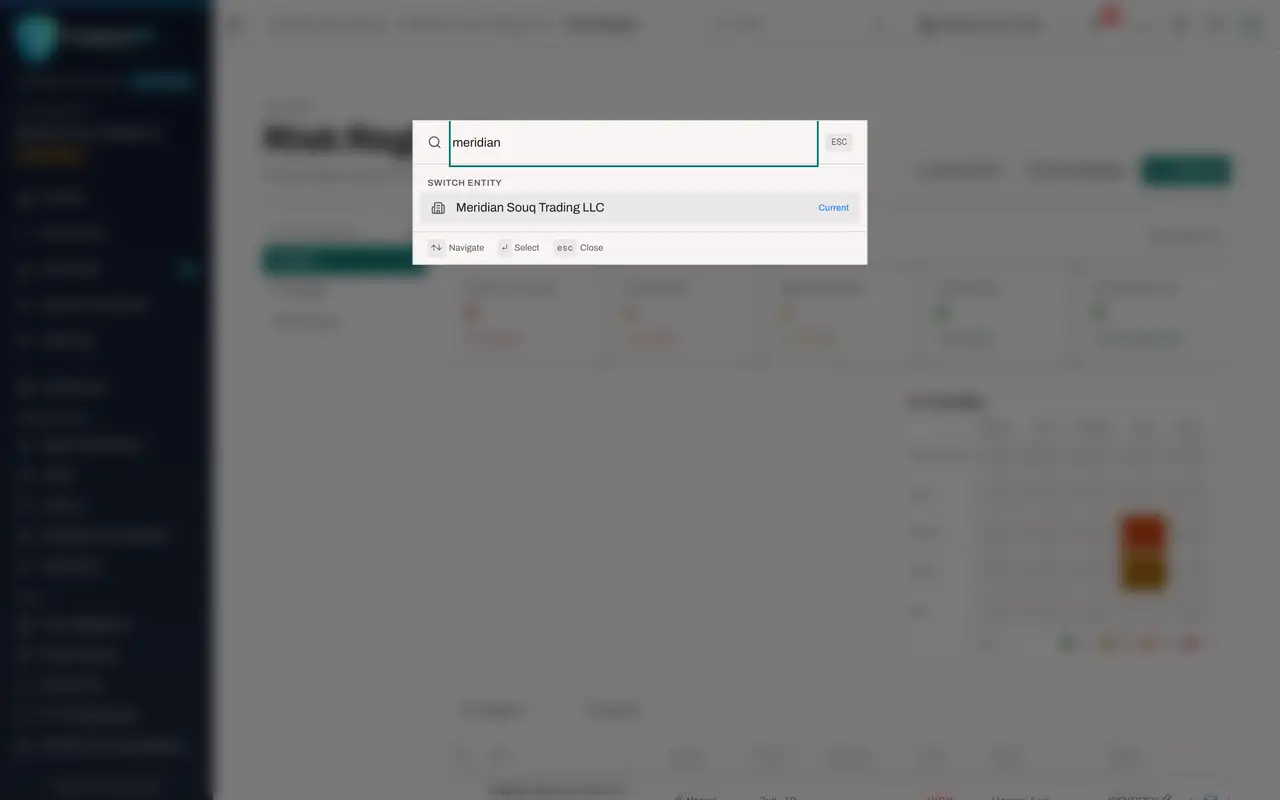
Type part of a company name. Under Switch Entity, Search lists the entities you can access, with Current beside the one you are in. Selecting another entity opens it.
- Type Search and commands:
meridian
- Type Search and commands:
- 7
Know what Search does not find
Search does not look inside your records. Type the name of a person who made a data subject request, and the panel says No results found. To find a record, open its module and use the search or filters there.
- Type Search and commands:
huda al marri
- Type Search and commands:
- 8
Press Escape to close Search
Press the Escape key. The panel closes and you are back on the page you were on. Selecting anywhere outside the panel closes it too.
- 9
Open the list of keyboard shortcuts
Open Search again and select Keyboard shortcuts, the last of the Quick Actions. A window lists every shortcut. Pressing the question mark key on any page opens the same window.
- Select Open search and commands
- Choose Keyboard shortcuts
- 10
Read the shortcuts
Under Navigation, G then D goes to the dashboard, G then T to tax, G then C to contracts and G then R to regulatory. The window also lists keys for moving through tables and for actions such as new item, edit and close.
- 11
Close the window with Escape
Press Escape to close the list of shortcuts. Escape closes any window or menu that is open.
- 12
Go to the dashboard with G then D
Select an empty part of the page so that the cursor is not in a text box. Press G, let go, and then press D within a second. The entity dashboard opens.
How to check it worked
You can reach the Risk Register from Search without touching the left menu, open and close Search from the keyboard, open the list of keyboard shortcuts, and go to the entity dashboard by pressing G and then D.
Common mistakes
- Expecting Search to find a record, such as a contract or a person. It finds pages, quick actions and entities. To find a record, open its module and search there.
- Giving up when Search says No results found. Try a shorter word from the page name, such as risk instead of risk register report.
- Pressing shortcut keys while the cursor is in a text box. The keys are then typed into the box. Select an empty part of the page first.
Check your understanding
1. What does the Search box in the top bar find?
- A.Pages, quick actions and entities
- B.Individual contracts and data subject requests
- C.Other people's passwords
- D.Text inside uploaded documents
Show answer
Answer: A. Pages, quick actions and entities
Search is a quick way to move around: type part of a page name, such as risk, and press Enter to go there.
2. Which keys open Search without the mouse?
- A.Escape
- B.Command and K on a Mac, or Control and K on Windows
- C.G and then D
- D.The question mark
Show answer
Answer: B. Command and K on a Mac, or Control and K on Windows
Command K, or Control K, opens Search from any page. Escape closes it, G then D goes to the dashboard, and the question mark lists the shortcuts.