Lesson 9 of 16
Notifications: the bell and the notification centre
What you will be able to do
Use the bell to see what has happened in the entity you are working in, open the notification centre, narrow the list down, and open the record a notification is about.
Before you start
- You are signed in and have opened an entity. The bell shows notifications for the entity you are in.
- Something has happened in the entity. In this demo company two data subject requests were logged, and each one raised a notification.
Steps
- 1
Find the bell in the top bar
The bell is in the top bar on every page of an entity. A red number on it tells you how many notifications you have not read yet. A notification is a short message that something happened, such as a new request or a deadline coming up.
- 2
Open the bell
Select the bell. It lists the five latest notifications for this entity, newest first, each with a title, a line of detail and the time. The coloured dot shows how urgent it is, and unread ones are shaded. Mark all as read, at the top, clears the red number.
- Select 2 unread notifications
- 3
Select View all notifications
At the bottom of the bell, select View all notifications. The notification centre for this entity opens. The line under the heading says how many notifications are unread.
- Select View all notifications
- 4
Read one notification
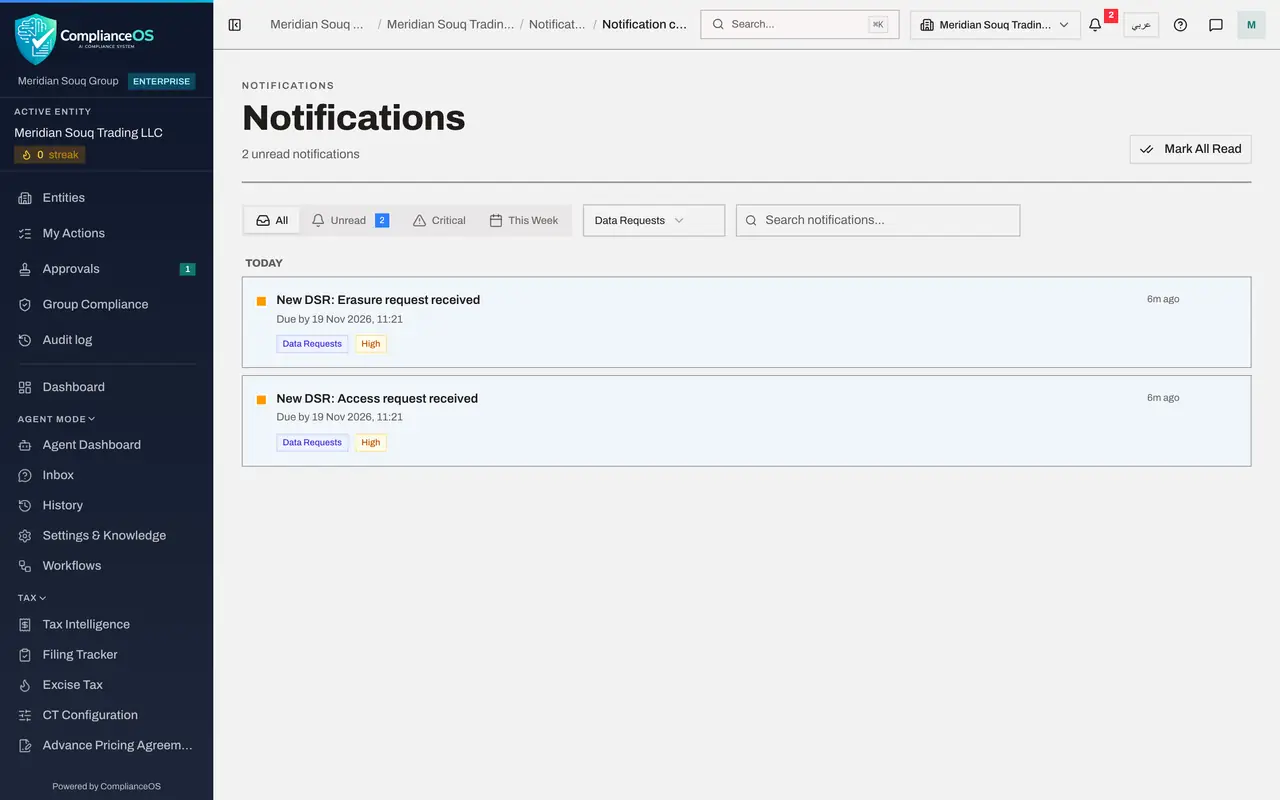
Notifications are grouped by day. Each one shows what happened, how long ago, a line of detail such as the due date, the category it belongs to, here Data Requests, and its severity, here High. DSR is short for data subject request.
- 5
Show only unread notifications
Select the tab Unread to hide everything you have already read. The tabs Critical and This Week narrow the list in the same way, and All shows everything again.
- Select Unread2
- 6
Filter by module
Select the box that reads All Modules and choose a category to see only its notifications. Here we choose Data Requests. Other categories include Tasks, Breaches, Contracts, Compliance, Security and Approvals.
- Select All
- Select All Modules
- Choose Data Requests
- 7
Search the notifications
Type a word in the box Search notifications to find a message by its text. Here we type access, and only the access request is left.
- Type Search notifications...:
access
- Type Search notifications...:
- 8
Clear the search and the filter
Empty the search box and set the module box back to All Modules, so that the full list is shown again.
- Select All Modules
- Choose All Modules
- 9
Know the buttons on each notification
Point at a notification and two small buttons appear at its right. The tick marks it as read without opening it, and the bin deletes the message. Deleting a message does not close the work it is about. Mark All Read, at the top of the page, marks everything in this entity as read.
- 10
Open the record behind a notification
Select the notification New DSR, Erasure request received. ComplianceOS marks it as read and takes you to Data Protection with that request open, so you can start work on it straight away.
- 11
See the red number go down
Look at the bell again. The notification you opened no longer counts as unread, so the red number has gone down by one. When nothing is unread, the bell shows no number at all.
How to check it worked
You can say how many notifications are unread from the red number on the bell, open the full list with View all notifications, filter it, and open the record behind a notification. Opening it lowers the red number by one.
Common mistakes
- Looking for the red number on the organisation Dashboard. The bell counts notifications for one entity, so open the entity first.
- Selecting Mark All Read to tidy up without reading. The red number disappears, and you may miss something that needed you.
- Deleting a notification and expecting the work to go away. Deleting only removes the message; the request, deadline or task is still open in its module.
Check your understanding
1. What does the red number on the bell mean?
- A.The number of people signed in
- B.The number of unread notifications for the entity you are in
- C.The number of entities in your organisation
- D.The days until the next deadline
Show answer
Answer: B. The number of unread notifications for the entity you are in
The bell counts unread notifications for the current entity. It shows 9 with a plus sign when there are more than nine.
2. The bell only lists the latest few notifications. How do you see the rest?
- A.Select View all notifications at the bottom of the bell
- B.Sign out and in again
- C.Open Help
- D.You cannot
Show answer
Answer: A. Select View all notifications at the bottom of the bell
View all notifications opens the notification centre for the entity, with tabs, a module filter and a search box.