Lesson 14 of 16
Help, guides and guided tours
What you will be able to do
Use the built-in Help to find out what a module does and where to start for your role, search the help, read a step-by-step guide, and follow a guided tour that points at the screen for you.
Before you start
- You are signed in and have opened an entity at least once.
Steps
- 1
Open Help
Select the question mark in the top bar. Help and Documentation opens. It explains what each part of ComplianceOS does, where to start for your role, and gives step-by-step guides.
- Select Help
- 2
Read Where to start
Where to start lists the first steps for everyone, and then three steps each for tax and finance, data protection, people and workforce, compliance officers, legal and financial crime. Find the heading that matches your work.
- 3
Search the help
Type a word in the search box at the top. Here we type deadline. Help lists every module whose name or description mentions it: Calendar, Filing Tracker, Notifications and more. Each result says what the module does, why it matters and which modules it works with.
- Type Search help — try "risk", "VAT" or "deadline":
deadline
- Type Search help — try "risk", "VAT" or "deadline":
- 4
Open a module from its help card
Each module card has an Open link that takes you straight to that module in the entity you last worked in. We stay in Help for now. Empty the search box, or select the cross in it, to see the full page again.
- 5
Find Tutorials and Guides
Scroll down to Tutorials and Guides. Each card is one common task, with its level and how long it takes. Read Guide opens the written steps. Cards that also have Start Tour can show you the way on the screen itself.
- 6
Start a guided tour
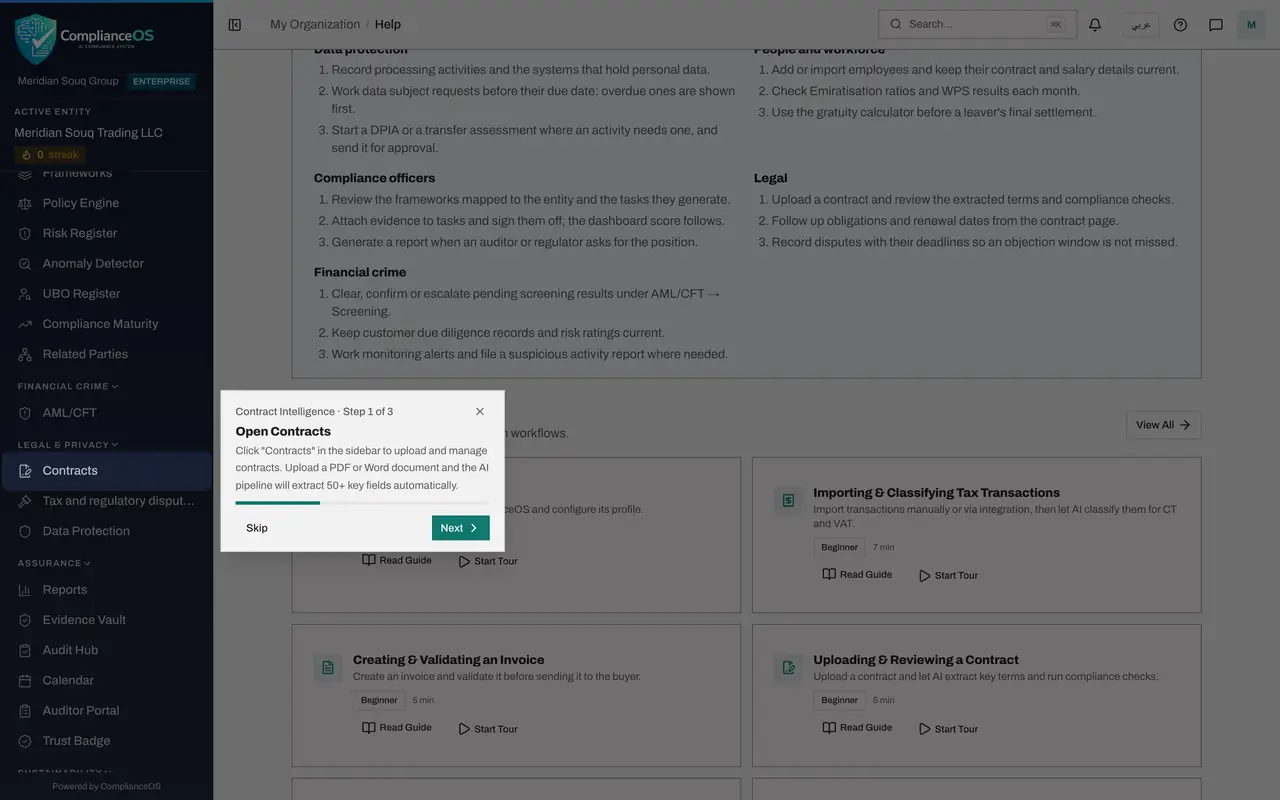
Select Start Tour on the card Uploading and Reviewing a Contract. The page dims, one thing on the screen is lit, and a small card explains it. This first card is Step 1 of 3 and points at Contracts in the left menu.
- Select Start Tour
- 7
Select Next
Read the card, then select Next. The light moves to the next place, here Evidence Vault in the left menu, and the card explains what happens there. Back returns to the step before.
- Select Next
- 8
Go to the last step
Select Next again. Step 3 of 3 points at Reports. The bar on the card shows how far through the tour you are.
- Select Next
- 9
Select Finish
On the last step, select Finish. The tour closes and the page is back to normal. Skip or the cross on the card ends a tour early. A tour only points and explains; it never changes your data.
- Select Finish
- 10
Open the written guides
Select View All beside Tutorials and Guides. The Tutorials and Guides page lists every guide by topic: Getting Started, Tax and Finance, Contracts and Compliance, and Notifications and reports. The tour you finished is marked Tour done.
- Select View All
- 11
Read a guide
Select a guide's title to open its steps. Here we open Setting Up Deadline Alerts. The numbered steps appear under the title, some with a tip in a yellow box. Select the title again to fold the guide away.
- 12
Read how the parts connect
Select Back to Help and scroll to the end of the Help page. How the parts connect explains that everything belongs to one legal entity and how modules feed each other, and Tips lists short hints, such as using the entity switcher to stay on the same page while changing entity.
- Select Back to Help
How to check it worked
You can open Help and Documentation, find a module by searching for a word, start a guided tour and follow it to Finish, and open a written guide and read its steps.
Common mistakes
- Looking in Help for your own records. Help describes the product; your data is in the modules, and My Actions lists your work.
- Selecting outside the tour card by accident. A guided tour closes when you select the dimmed page, Skip or the cross. Start it again from the same card.
- Skipping Where to start. It lists the first three things to do for each kind of role, which is the quickest way to learn a new module.
Check your understanding
1. How do you move through a guided tour?
- A.With Next and Back on the tour card, and Finish on the last step
- B.By pressing the question mark
- C.By signing out
- D.Tours run on their own and cannot be controlled
Show answer
Answer: A. With Next and Back on the tour card, and Finish on the last step
Each tour card says which step you are on, for example Step 1 of 3, and has Skip, Back and Next. The last step has Finish.
2. You want to know what the Calendar module is for. What is the quickest way?
- A.Ask a colleague for their password
- B.Open Help and type calendar or deadline in the search box
- C.Open the Audit log
- D.Switch language
Show answer
Answer: B. Open Help and type calendar or deadline in the search box
The help search lists every module whose name or description matches, with what it does, why it matters and which modules it works with.