Lesson 6 of 16
The compliance score and which modules count
What you will be able to do
Understand how the overall compliance score is worked out, read the line Based on N of M modules, and choose which modules count for an entity and where the risk levels start.
Before you start
- You are signed in and have opened the entity dashboard.
- To change what the score covers you need permission to edit compliance tasks on the entity. Without it you can still read everything in this lesson.
Steps
- 1
Find the Based on line
On the entity dashboard, look under the Overall Compliance score. The line Based on 2 of 7 modules tells you that two of the seven scored modules count toward the figure. The overall score is the average of the modules that count.
- 2
See which modules have a score
Compliance Health Score lists the modules that count and the score of each. Here they are Workforce and Data Protection. The note below names the modules with no data for this year, which are not counted until they hold records or are switched on.
- 3
Read what is not counted, and why
Scroll down to Compliance Overview. Under the next deadline, the same Based on line is followed by a list headed Not counted in the overall score. Each module on it has a reason, such as no data, and not switched on for this entity.
- 4
Select Modules and risk levels
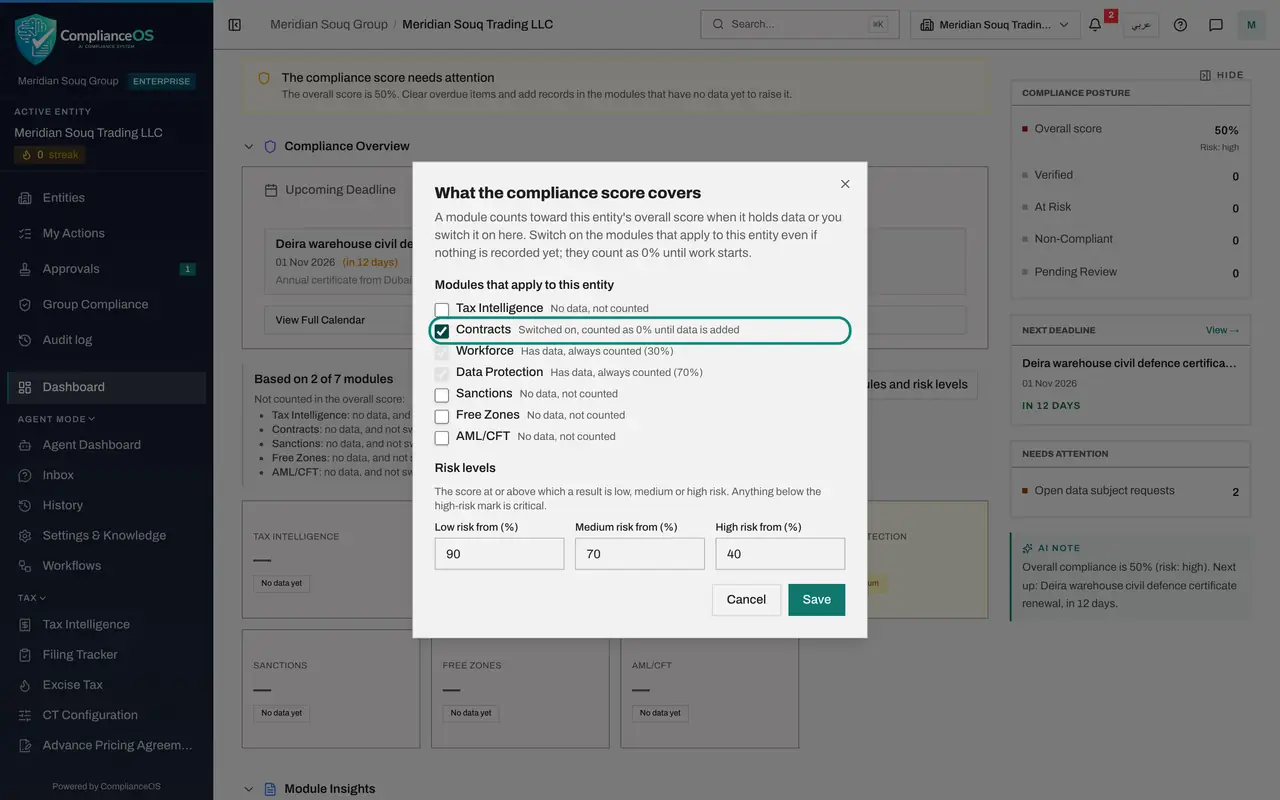
Select the button Modules and risk levels beside that list. A dialog opens with the title What the compliance score covers.
- Select Modules and risk levels
- 5
Read the list of modules
Every scored module is listed with a tick box and a status. Has data, always counted means the module holds records and cannot be left out. No data, not counted means it is ignored until someone records something or switches it on.
- 6
Switch on a module that applies to the entity
This retailer signs supplier and lease contracts, so Contracts applies even though nothing has been uploaded yet. Tick Contracts. Its status changes to Switched on, counted as 0 per cent until data is added.
- 7
Check the risk levels
Risk levels are the scores at which a result is called low, medium or high risk. By default a score of 90 or more is low risk, 70 or more is medium, 40 or more is high, and anything below is critical. Leave them as they are unless your organisation has agreed other values.
- 8
Select Save
Select Save. The dialog closes, a message confirms Score settings saved, and the dashboard works the score out again.
- Select Save
- 9
Read the new score
Scroll back to the top. The tile now reads Based on 3 of 7 modules. The overall score has dropped from 50 to 33 per cent and the risk level has moved from high to critical, because Contracts counts as 0 per cent. The score is lower but more honest: it now shows work that has not started.
- 10
Read the note about switched-on modules
Scroll down to Compliance Overview again. Under the list of modules that are not counted, a new line says Switched on with nothing recorded yet, so counted as 0 per cent, and names Contracts. As soon as the first contract is uploaded, Contracts gets a real score.
- 11
Go back to the top of the dashboard
Scroll back to the top. Compliance Health Score still lists only the modules that hold data, Workforce and Data Protection, but the large figure beside it is the new overall score. Under the bars, a second note now names Contracts: switched on with no data yet, so it counts as 0 per cent.
- 12
Open the full breakdown
Select View full breakdown beside Compliance Health Score. It opens Reports, where you can generate a compliance report that sets out the detail behind the score. Reports are covered in a later course.
- Select View full breakdown →
How to check it worked
After you switch on Contracts and save, the tile reads Based on 3 of 7 modules, the overall score is lower because Contracts counts as 0 per cent, and the list under Compliance Overview names Contracts as switched on with nothing recorded yet.
Common mistakes
- Being pleased with a high score that is based on one or two modules. Always read the Based on line; a module that applies to the entity but is not counted hides a gap.
- Switching a module off to make the score look better. A module with data is always counted, and a module that applies to the entity should be switched on even while it is empty.
- Changing the risk levels without agreement. They decide when a score is called low, medium, high or critical for this entity, so they should follow your organisation's policy.
Check your understanding
1. The tile reads 70 per cent, Based on 1 of 7 modules. What should you conclude?
- A.The entity is 70 per cent compliant overall
- B.Only one module is being scored; the other six hold no data and are not switched on
- C.Six modules have failed
- D.The score is broken
Show answer
Answer: B. Only one module is being scored; the other six hold no data and are not switched on
The score is an average of the modules that count. A module counts when it holds data or when someone has switched it on for the entity.
2. You switch on a module that has no records yet. What happens to the overall score?
- A.Nothing
- B.It goes up
- C.It goes down, because the empty module now counts as 0 per cent until work starts
- D.The module is deleted
Show answer
Answer: C. It goes down, because the empty module now counts as 0 per cent until work starts
A switched-on module with nothing recorded counts as 0 per cent. That is deliberate: it shows the work that has not started.