Lesson 4 of 16
Read the organisation Dashboard
What you will be able to do
Read the organisation Dashboard, the page that sums up every entity you can access. You will learn what each tile and panel means and how to open one entity from it.
Before you start
- You are signed in.
- This lesson is shown by an administrator who can see both entities of the group. Someone with access to one entity sees the same page, limited to that entity.
Steps
- 1
Open the organisation Dashboard
Select Entities in the left menu, or sign in, and the organisation Dashboard opens. Its subtitle reads Portfolio overview across all managed entities. Everything here is a total or an average across the entities you can access.
- 2
Check the financial year
The selector at the top right shows the financial year the figures belong to, here FY 2026. Select it to look at another year. The small label beside it repeats the year in use.
- 3
Read the organisation card
The first card names your organisation and its plan, here Enterprise, with the status Active. Entity Slots Used shows how many entities the plan allows and how many are taken: two of ten.
- 4
Read Total Entities and Portfolio Compliance
Total Entities counts the companies in the group. A person who can only see some of them reads Entities you can access instead. Portfolio Compliance is the average compliance score of those entities, out of 100 per cent.
- 5
Read Penalty Exposure and Overdue Deadlines
Penalty Exposure is an estimate, in dirhams, of the fines the group could face if its open compliance gaps are not closed. Overdue Deadlines counts calendar deadlines that have passed without being completed. Both tiles turn red when they need attention.
- 6
Compare entities in the chart
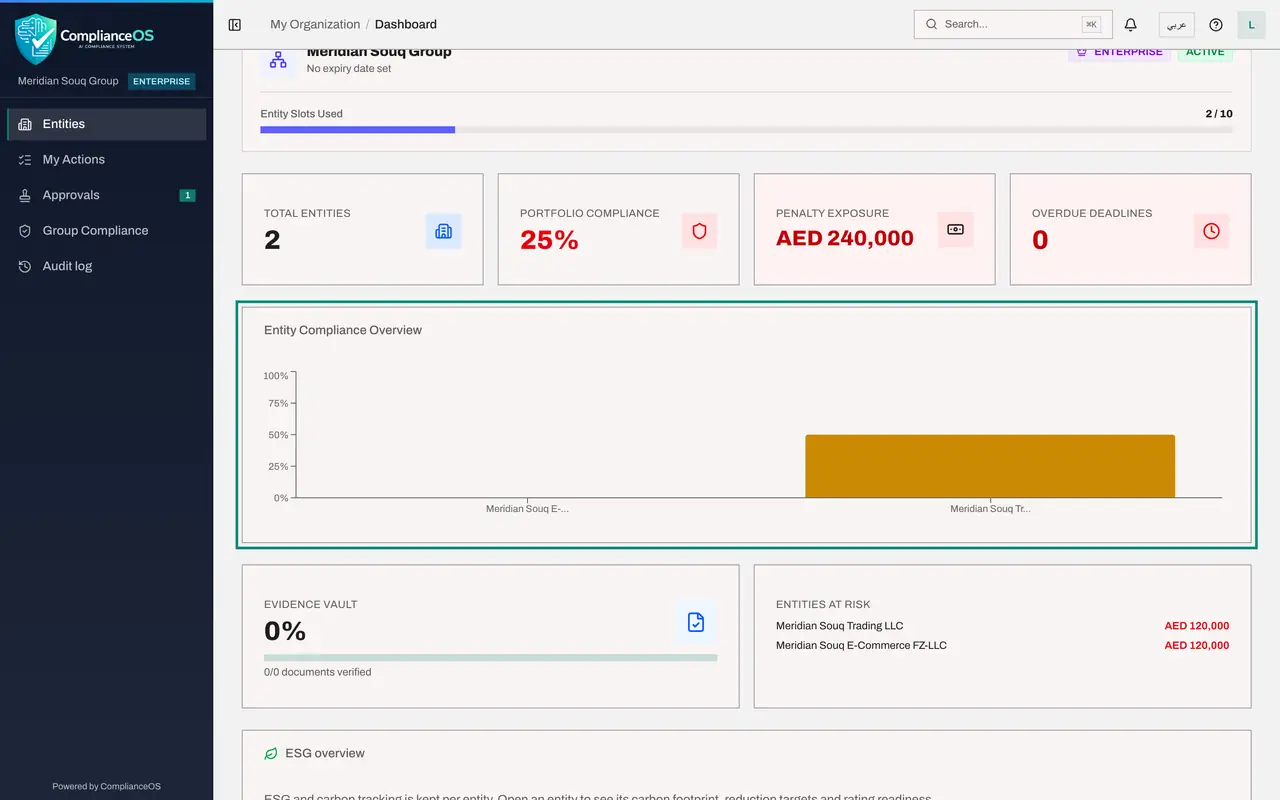
Entity Compliance Overview draws one bar for each entity, so you can compare their scores at a glance. The chart appears when you can see more than one entity.
- 7
Read Evidence Vault and Entities at Risk
Evidence Vault shows what share of the stored evidence documents has been verified. Entities at Risk lists each entity with penalty exposure and the amount. Select an entity name there to open it.
- 8
Find the ESG overview
ESG stands for environmental, social and governance. Carbon tracking is kept for each entity, so this panel gives one link per entity that opens its ESG and Carbon page.
- 9
Read the entity cards
Under Primary Entities, each company has a card with its name, its location, whether it is active, its compliance score and its next deadline. Subsidiaries, if the group has any, are listed in a second row.
- 10
Use the shortcuts at the bottom
Three shortcuts sit under the cards. Group Compliance compares the entities in detail, Audit Log shows who did what, and Team Members lists the people in the organisation. Each one opens only if your role allows it.
- 11
Know where a new entity is added
Add Entity, at the top of the page, starts the set-up of another company. That is an administrator's task and is covered in the administration course.
- 12
Open one entity
Scroll back to the cards and select Meridian Souq Trading LLC, where it says View dashboard. The page changes from the organisation's totals to that one company's own dashboard, which the next lesson explains.
How to check it worked
You can say how many entities you can see, what the portfolio compliance figure is, which entity carries the largest penalty exposure, and open that entity's own dashboard from its card.
Common mistakes
- Reading the portfolio figure as the score of one company. It is an average across the entities you can see; open an entity to see its own score.
- Forgetting the financial year. Every figure on the page belongs to the year in the selector at the top right; last year's work does not count toward this year.
- Assuming everyone sees the same numbers. The page only counts the entities you have access to, so a colleague with access to one entity sees different totals.
Check your understanding
1. A colleague's first tile reads Entities you can access, 1 of 2 in the organisation. What does that mean?
- A.One entity has been deleted
- B.The organisation has two entities and the colleague's role gives access to one of them
- C.The page failed to load
- D.The colleague must buy another entity slot
Show answer
Answer: B. The organisation has two entities and the colleague's role gives access to one of them
The organisation Dashboard only counts entities you can access. An administrator who can see all of them reads Total Entities instead.
2. Where do you open one entity's own dashboard?
- A.From its card in the entity list near the bottom of the page
- B.From the bell
- C.From Help
- D.You cannot; only administrators can
Show answer
Answer: A. From its card in the entity list near the bottom of the page
Each entity has a card with its location, status and score. Selecting the card opens that entity's dashboard.