Lesson 16 of 16
How this connects: one record, seen everywhere
What you will be able to do
See how the parts of this course fit together. One person logs a record in a module and assigns it to a colleague. You then follow that single record to the colleague's bell, dashboard, My Actions and the audit log.
Before you start
- You have followed the earlier lessons of this course.
- Two people take part: Sara Ahmed, the Data Protection Officer, who logs a data subject request, and Mariam Aziz, the compliance officer, who receives it.
Steps
- 1
Sara opens the data subject requests
Sara Ahmed is the Data Protection Officer. A customer has written to ask for a correction of his details. In Data Protection, she selects DSRs in the list In this module. DSR is short for data subject request.
- Select DSRs2 (2)
- 2
Sara logs the request
She selects Log DSR and chooses the request type Rectification, which means the person wants a correction. She types the requester's name and email.
- Select Log DSR
- Select Select request type
- Choose Rectification
- Type Requester Name:
Khalifa Al Suwaidi - Type Requester Email:
khalifa.alsuwaidi@example.com
- 3
Sara saves it
She chooses the channel the request came through, here Web form, and selects Log DSR at the bottom of the form. The request is added to the list, and the clock for the response starts.
- Select Not recorded
- Choose Web form
- Select Log DSR
- 4
Sara assigns it to Mariam
She selects View on the new row. In the box Assigned to she chooses Mariam Aziz. A message confirms Request assigned to Mariam Aziz. From this moment the request is Mariam's work.
- Select View: Khalifa Al Suwaidi
- Select Assigned to
- Choose Mariam Aziz
- 5
Sara signs out
Sara closes the request. She has finished, so she opens the account menu and selects Sign out.
- Select Close
- Select Account menu
- Select Sign out
- 6
Mariam signs in
Now Mariam Aziz, the compliance officer, signs in with her own email and password.
- Type Email:
mariam.aziz@c01.example.com - Type Password:
(your password) - Select Sign in
- Type Email:
- 7
Mariam opens the entity and looks at the bell
She opens Meridian Souq Trading LLC. The bell carries a red number. She selects it, and the newest notification reads New DSR, Rectification request received, with the date the answer is due.
- Select 2 unread notifications
- 8
The dashboard counts it
She closes the bell. On the entity dashboard, today's tasks read Open data subject requests, 3, and the Needs Attention card on the right shows the same count. Before Sara logged the request, both said 2.
- 9
My Actions lists it as her work
She selects My Actions. On the tab Assigned to me there is a new row, DSR, Rectification request, from Data Protection, marked Assigned to you, with the due date. Open takes her straight to the request in Data Protection to work on it.
- Select My Actions
- 10
The audit log shows who did what
She selects Audit log in the left menu. The newest lines read Data subject request: Logged and Data subject request: Assigned, each with the time, the entity and the name Sara Ahmed. Every person works under their own name, so the record is clear.
- Select Audit log
- 11
The same pattern holds in every module
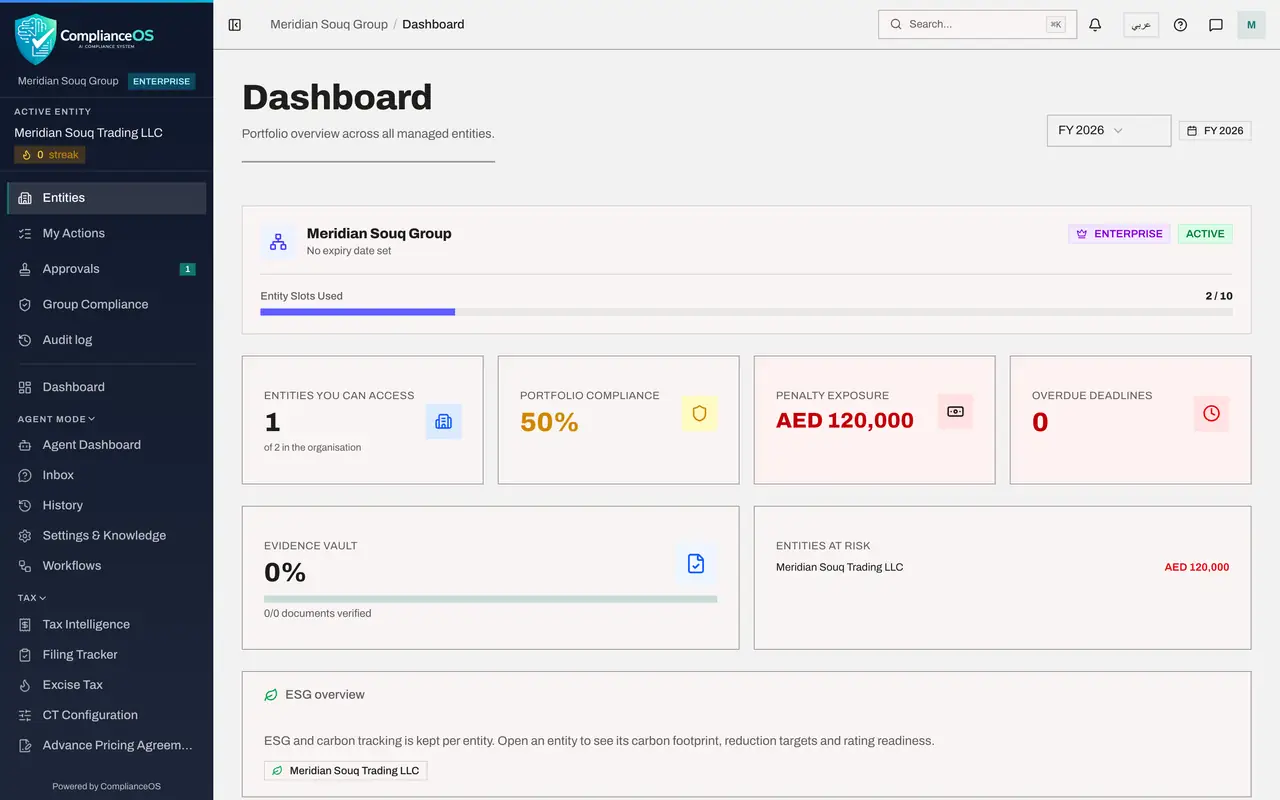
Back on the entity dashboard, the deadline panel is fed by the Calendar, the scores by the modules, and the bell by events such as this request. Whatever module you work in, look in the same four places: the bell, the dashboard, My Actions and Approvals.
- Select Dashboard
How to check it worked
After Sara logs the request and assigns it to Mariam, Mariam's bell shows a new notification, her entity dashboard counts one more open data subject request, My Actions lists the request as Assigned to you, and the audit log shows who logged and who assigned it.
Common mistakes
- Telling a colleague by chat that you gave them work, and nothing else. Assign the record in its module, so that it appears in their My Actions and stays on record.
- Looking in only one place. The bell tells you something happened, the dashboard counts it, My Actions lists it as work, and the module is where you do the work.
- Forgetting to sign out when two people share one computer. Each person signs in as themselves, so that the audit log shows who really did what.
Check your understanding
1. Sara assigns a data subject request to Mariam. Where does Mariam find it as work to do?
- A.In My Actions, on the tab Assigned to me
- B.Only in Sara's email
- C.On the sign-in page
- D.In Help
Show answer
Answer: A. In My Actions, on the tab Assigned to me
A record that is assigned to you appears in My Actions under Assigned to me, with Open to go straight to the record.
2. Which page shows who logged the request and who assigned it?
- A.The Compliance Calendar
- B.The Audit log
- C.The language button
- D.Keyboard shortcuts
Show answer
Answer: B. The Audit log
The audit log records each action with the time and the person, here the logging of the request and its assignment, both by Sara Ahmed.