Lesson 3 of 10
Upload a statement of imports from a file
What you will be able to do
This lesson is for the accountant. Instead of typing every declaration, you will upload a statement of the quarter's imports as a comma separated values file, or CSV. You will read the message that says how many declarations were brought in and lists every row that was skipped, with the reason, and see that uploading the same statement again never counts an import twice.
Before you start
- You are signed in as the accountant, and the declaration ending 1843 from the previous lesson is in the list.
- The file is customs-statement-q3-2026.csv. It has one row for each declaration and a first row of column headings.
- The only column that must be present is the declaration number. Its heading can be declaration_number, Declaration No, Dec No or Number. The other headings the app recognises are: Date or Declaration Date; CIF, CIF Value or Customs Value; Duty or Customs Duty; VAT, Import VAT or VAT Amount; Excise or Excise Tax; Supplier or Exporter; and Description or Goods Description. Capital letters do not matter. Columns with any other heading are ignored.
- Dates can be written year, month, day, as in 2026-08-03, or day, month, year with slashes, as in 09/09/2026. Amounts are plain numbers in dirhams with no thousands separators.
- The file used here has five rows: the declarations ending 0217, 2655, 1843, 1102 and 2377. The row ending 1843 is already in the list, and the row ending 1102 has its date written day first, 09/09/2026.
Steps
- 1
Start on Customs Declarations
Open Customs Declarations from the Customs tab of Tax Intelligence, as before. The list holds the one declaration typed in the last lesson. Upload statement is at the top right, next to Add declaration.
- 2
Select Upload statement and choose the file
Select Upload statement. Your computer's file window opens: choose the statement file, here customs-statement-q3-2026.csv. The upload starts as soon as the file is chosen; there is no second button to press.
- Select Upload statement (CSV)
- Upload Upload statement (CSV):
customs-statement-q3-2026.csv
- 3
Read the result message
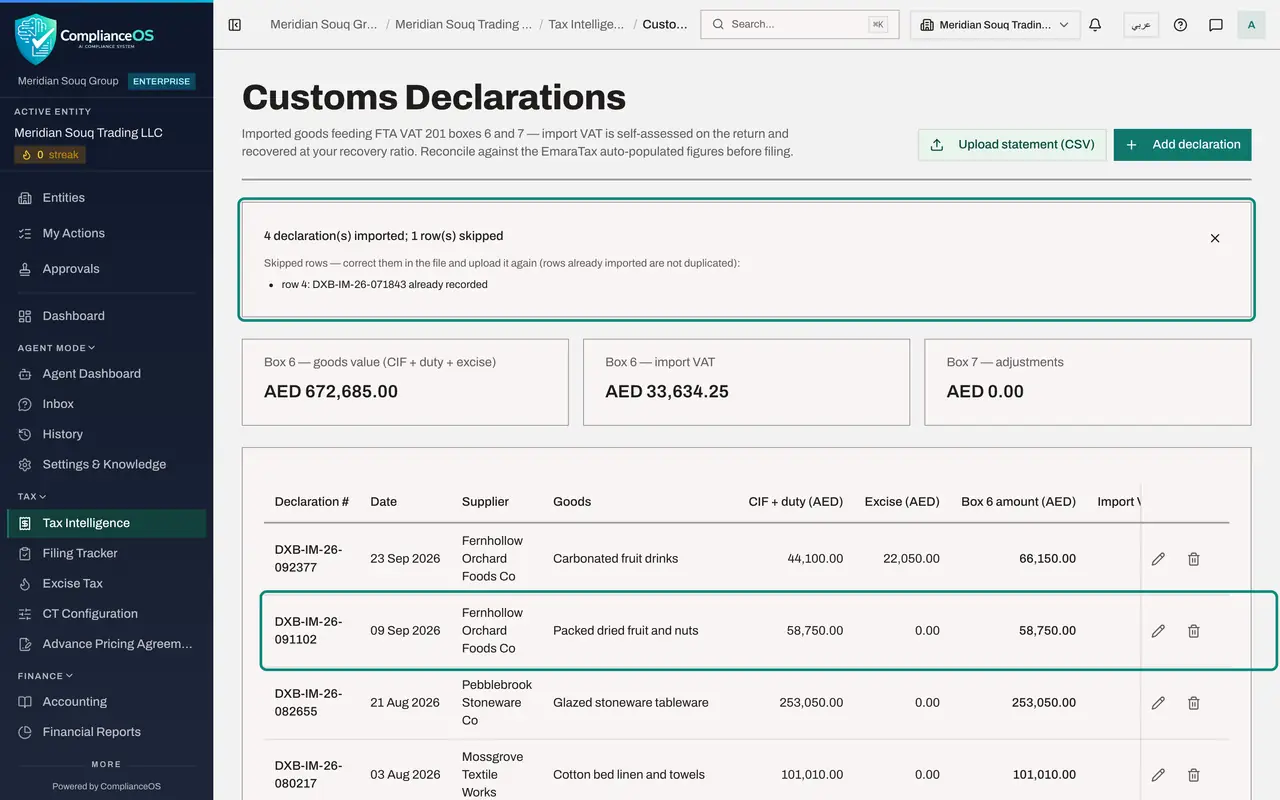
A message appears above the totals: 4 declarations imported, 1 row skipped. Below it, every skipped row is listed with its reason. Row numbers count the heading as row 1, so row 4 is the third declaration in the file.
- 4
Understand why the row was skipped
Row 4 was skipped because the declaration ending 1843 is already recorded: you typed it in the last lesson. That is the app protecting you from a duplicate, and there is nothing to correct. The row ending 1102, whose date was written day first as 09/09/2026, was read as 9 September 2026 and imported.
- 5
Read the new rows
Select Hide navigation, the button at the top left beside the page trail, so that every column of the list fits on the screen. Four declarations have joined the list, newest date first. Their source is Upload, and the one typed by hand still says Manual. The Goods column shows the description from the file. The totals above have grown to include them.
- Select Hide navigation
- 6
Upload the same statement again
If you are not sure whether a statement was already uploaded, upload it again: nothing is counted twice. Select Upload statement and choose customs-statement-q3-2026.csv once more.
- Select Dismiss
- Select Upload statement (CSV)
- Upload Upload statement (CSV):
customs-statement-q3-2026.csv
- 7
Read the second message
This time the message reads 0 declarations imported, 5 rows skipped, and lists all five rows as already recorded. The list still has five declarations. When you correct a skipped row in a file, this is why you can upload the whole statement again, not just the corrected row.
- 8
Check the list against the statement
The list has five declarations, one for each row of the statement. The declaration ending 2377, for carbonated fruit drinks, also carried 22,050 dirhams of excise tax in the file. Its row shows 44,100.00 under CIF plus duty, 22,050.00 under Excise and 66,150.00 under Box 6 amount. The first total, Box 6 goods value, includes the excise too: 672,685.00 dirhams.
How to check it worked
The list has five declarations. Four have the source Upload and one, typed in the last lesson, has the source Manual. The declaration ending 2377 shows 22,050.00 under Excise. The totals read 672,685.00 dirhams of goods value and 33,634.25 dirhams of import VAT.
Common mistakes
- Uploading a spreadsheet file. Only a CSV file is accepted; save the spreadsheet as CSV first.
- Writing dates with the month first, as in 09/23/2026. A date with slashes is read day first, so such a row is skipped or, worse, lands in the wrong month. Use year, month, day when in doubt.
- Deleting declarations before uploading a corrected file. There is no need: rows already recorded are skipped, so the same statement can be uploaded again without doubling anything.
- Not reading the message after the upload. It lists every skipped row with its reason. Correct those rows in the file and upload it again.
Check your understanding
1. The message says a row was skipped because its declaration is already recorded. What should you do?
- A.Delete the existing declaration and upload again
- B.Nothing: the declaration is in the list once, which is correct
- C.Rename the declaration in the file
- D.Ask an administrator to allow duplicates
Show answer
Answer: B. Nothing: the declaration is in the list once, which is correct
A declaration number is recorded once for each entity. Skipping the repeat is what stops an import being counted twice.
2. Which column must a statement file contain?
- A.The supplier
- B.The import VAT
- C.The declaration number
- D.The description of the goods
Show answer
Answer: C. The declaration number
Without a declaration number column the whole file is refused. Every other column is optional, although a row also needs a date the app can read.