Lesson 10 of 10
How this connects: screening import suppliers against sanctions lists
What you will be able to do
This lesson is for the officer responsible for anti-money laundering, or AML, and for the tax team who record imports. Supplier names typed or uploaded on the Customs Declarations screen are not sent to sanctions screening. You will confirm that the Screening list has no check for them, and then screen each overseas supplier by hand, so that there is a dated record that the company checked who it imports from.
Before you start
- You are signed in as the AML officer, Hamad Ali.
- The quarter's customs declarations name four overseas suppliers: Halcyon Reef Homewares Ltd, Pebblebrook Stoneware Co, Mossgrove Textile Works and Fernhollow Orchard Foods Co. All four are invented for this training.
- Supplier names that arrive on purchase transactions in Tax Intelligence are screened automatically; the VAT course shows that. Names that exist only on a customs declaration are not, which is why this lesson is needed.
- Screening compares a name with the sanctions lists held inside ComplianceOS. Nothing is sent to the supplier or to any authority.
Steps
- 1
Open AML/CFT and select Screening
In the left menu, under Financial crime, select AML/CFT, then select the Screening tab. AML/CFT stands for anti-money laundering and countering the financing of terrorism. The tab has a form to screen one name, and below it the list of every check made for this entity.
- Select AML/CFT
- Select Screening
- 2
See that the import suppliers are not in the list
Look at All Screening Checks, lower on the page. It says No screening checks found. Five customs declarations with four supplier names have been recorded for this entity, and none of them has produced a check. Recording a declaration does not screen its supplier.
- 3
Type the supplier's name
Scroll back up to Screen Counterparty. In Subject Name type the supplier's full legal name as printed on the declaration: Halcyon Reef Homewares Ltd.
- Type Subject Name:
Halcyon Reef Homewares Ltd
- Type Subject Name:
- 4
Choose the subject type
Open Subject Type and choose Vendor, which is the type for a supplier. The other choices are Customer, UBO, meaning an ultimate beneficial owner, and Other.
- Select Select type
- Choose Vendor
- 5
Leave the date of birth and nationality blank
Date of Birth and Nationality help to tell one individual from another with the same name. A supplier that is a company has neither, so leave both blank.
- 6
Select Screen
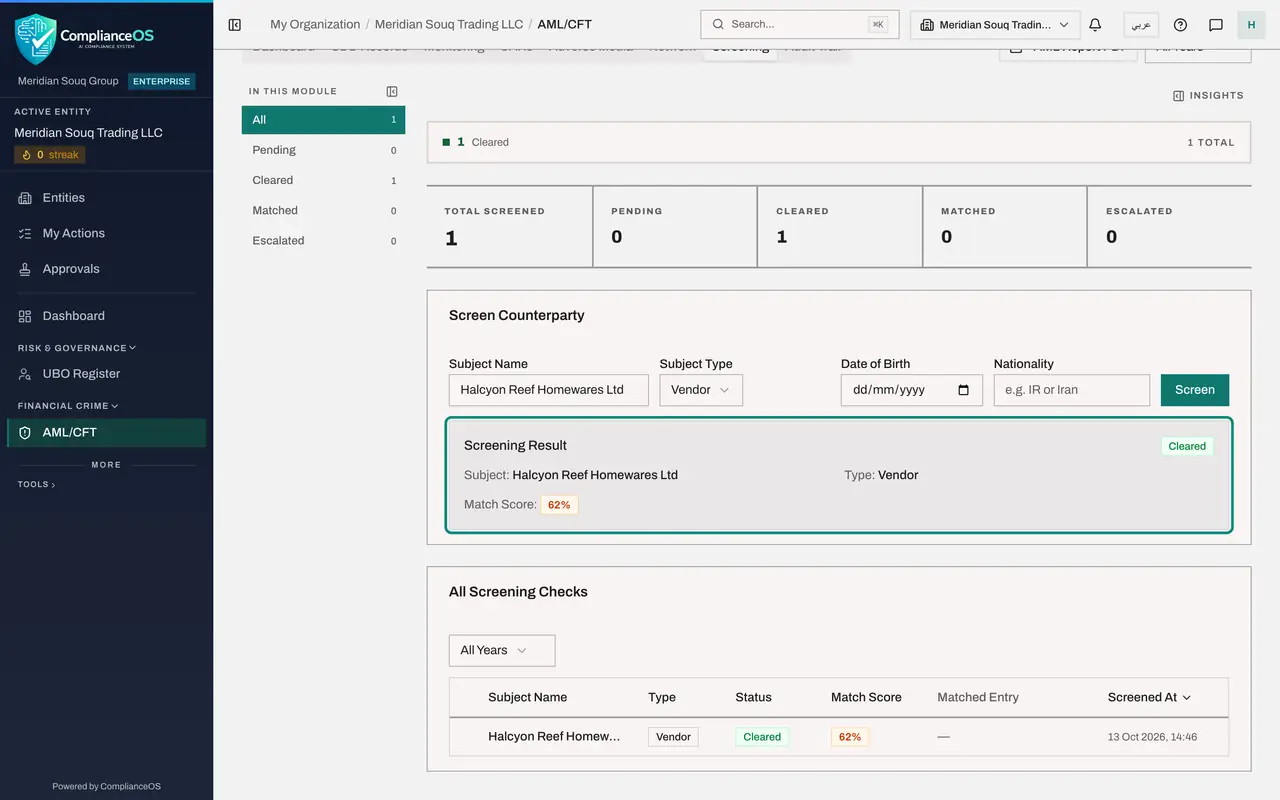
Select Screen. The name is compared with every active sanctions list. This can take up to a minute. A message then confirms Screening completed, and a Screening Result panel opens under the form with the subject, the type, a match score and the status Cleared.
- Select Screen
- 7
Read the result
The same check is now the first row of All Screening Checks: the name, the type Vendor, the status Cleared, the match score, and the date and time of the check. The score says how closely the name resembled the nearest entry on any list. Cleared means nothing matched closely enough to need a review. The counters above the form have the other statuses a check can have: Pending, Matched and Escalated.
- 8
Screen the second supplier
Repeat for each remaining supplier. Subject Type still says Vendor, so only the name changes. Type Pebblebrook Stoneware Co in Subject Name and select Screen. The Screening Result panel shows the new check.
- Type Subject Name:
Pebblebrook Stoneware Co - Select Screen
- Type Subject Name:
- 9
Screen the third supplier
Type Mossgrove Textile Works in Subject Name and select Screen. Wait for the result before typing the next name.
- Type Subject Name:
Mossgrove Textile Works - Select Screen
- Type Subject Name:
- 10
Screen the fourth supplier
Type Fernhollow Orchard Foods Co in Subject Name and select Screen.
- Type Subject Name:
Fernhollow Orchard Foods Co - Select Screen
- Type Subject Name:
- 11
Read the list of checks
All Screening Checks now has four rows, one for each supplier named on the quarter's customs declarations, all Cleared. This list is the dated record that the company screened the parties it imported from. The counters above the form show the same: four screened, four cleared.
How to check it worked
The list All Screening Checks has four rows, one for each supplier, each with the type Vendor and the status Cleared, and with today's date and time under Screened At. The Total screened figure reads 4.
Common mistakes
- Assuming customs suppliers are screened because the name was typed on a declaration. They are not. Screen them here, or record the purchase invoice in Tax Intelligence, where screening is automatic.
- Typing a short or trading name. Screen the full legal name as printed on the commercial invoice or the declaration; a shortened name can miss a match or raise a false one.
- Reading Cleared as a permanent answer. It means no list entry matched closely enough on the day of the check. Lists change, so screen again when you deal with the supplier again.
- Filling in Date of Birth and Nationality for a company. They are for individuals. Leave them blank for a supplier that is a company.
Check your understanding
1. A supplier's name is recorded only on a customs declaration. Has it been screened against the sanctions lists?
- A.Yes, automatically, when the declaration was saved
- B.No. It must be screened by hand on the Screening tab
- C.Yes, when the VAT return was computed
- D.Only if the supplier is in the Emirates
Show answer
Answer: B. No. It must be screened by hand on the Screening tab
The Customs Declarations screen keeps the supplier name for reference only. The Screening list shows no check for it until someone runs one.
2. Which Subject Type do you choose for an overseas company you buy from?
- A.Customer
- B.Vendor
- C.UBO
- D.Other
Show answer
Answer: B. Vendor
Vendor is for suppliers. Customer is for buyers, and UBO is for the beneficial owners of a company.