Lesson 2 of 10
Add a customs declaration by hand, field by field
What you will be able to do
This lesson is for the accountant. You will record one customs declaration by typing it in, and learn what each of the eight fields of the Add customs declaration form is for: the declaration number, the declaration date, the cost, insurance and freight value, or CIF, the customs duty, the excise tax paid at import, the import value added tax, or VAT, the supplier and the description of the goods.
Before you start
- You are signed in as the accountant, Ahmed Saleh.
- You have the customs declaration in front of you. In this lesson it is declaration DXB-IM-26-071843, dated 14 July 2026, for kitchen storage and homewares bought from Halcyon Reef Homewares Ltd: CIF value 184,500.00 dirhams, customs duty 9,225.00 dirhams at 5 percent, and import VAT 9,686.25 dirhams, which is 5 percent of the value plus the duty.
- All amounts are typed in dirhams, exactly as printed on the declaration or on the import VAT statement.
- Homewares carry no excise tax, so the excise box stays empty for this declaration. Excise applies to goods such as carbonated drinks, tobacco and energy drinks.
Steps
- 1
Open Customs Declarations
In Tax Intelligence select Returns, then the Customs tab, then Open Customs Declarations.
- Select Returns
- Select Customs
- Select Open Customs Declarations
- 2
Select Add declaration
Select Add declaration at the top right. The Add customs declaration form opens with eight fields. Save declaration is greyed out for now: it becomes available once the number and the date are filled in.
- Select Add declaration
- 3
Type the declaration number
In Declaration number type the number exactly as customs printed it, with its dashes. Here it ends in 1843. The app refuses a second declaration with the same number for the same entity, so an exact number is what protects you from counting an import twice.
- Type Declaration number:
DXB-IM-26-071843
- Type Declaration number:
- 4
Enter the declaration date
In Declaration date enter the date on the declaration: 14 July 2026. Type it, or select the calendar icon and pick the day. This date decides which VAT return the import belongs to.
- Type Declaration date:
2026-07-14
- Type Declaration date:
- 5
Type the CIF value
In CIF value type the customs value of the goods in dirhams: 184500. CIF stands for cost, insurance and freight: the price of the goods plus the cost of insuring and shipping them to the port. Type digits only, with a point for fils if there are any.
- Type CIF value (AED):
184500
- Type CIF value (AED):
- 6
Type the customs duty
In Customs duty type the duty charged on the declaration: 9225. Leave it empty when the goods were free of duty.
- Type Customs duty (AED):
9225
- Type Customs duty (AED):
- 7
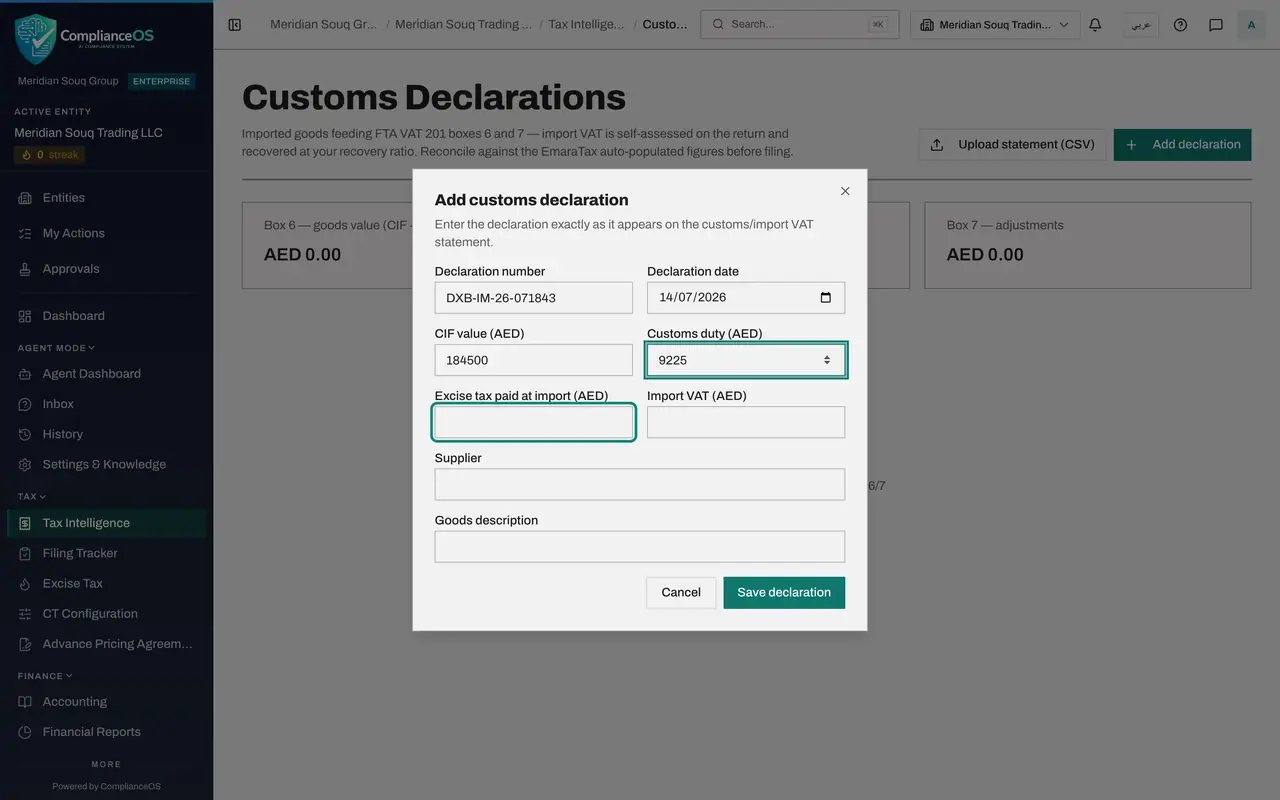
Leave the excise tax empty
Excise tax paid at import is for goods that carry excise, such as carbonated drinks or tobacco: type the excise shown on the declaration. Homewares carry none, so leave it empty. Whatever is typed here is added to the value of the goods in box 6.
- 8
Type the import VAT
In Import VAT type the VAT shown on the declaration or on the import VAT statement: 9686.25. The app does not work this out for you, so copy the figure from the document.
- Type Import VAT (AED):
9686.25
- Type Import VAT (AED):
- 9
Type the supplier
In Supplier type the name of the overseas supplier, here Halcyon Reef Homewares Ltd. It is optional, and it is what lets you match the declaration to the purchase invoice later. The list shows a dash when it is left blank.
- Type Supplier:
Halcyon Reef Homewares Ltd
- Type Supplier:
- 10
Type the goods description
In Goods description type a few words about what was imported, as on the declaration: Kitchen storage and homewares. It is optional, and it lets a reader of the list, or an auditor, see what each declaration was for without opening the paper.
- Type Goods description:
Kitchen storage and homewares
- Type Goods description:
- 11
Select Save declaration
Select Save declaration. The form closes, the message Declaration saved appears at the top right, and the declaration joins the list.
- Select Save declaration
- 12
Read the new row
Select Hide navigation, the button at the top left beside the page trail, so that every column of the list fits on the screen. The row shows the declaration number, the date, the supplier and the goods, then 193,725.00 under CIF plus duty, 0.00 under Excise, and 193,725.00 under Box 6 amount, which is the three added together. Import VAT reads 9,686.25 and Adjustment 0.00. Source says Manual because it was typed in. The pencil and the bin at the end of the row are for editing and deleting.
- Select Hide navigation
- 13
Read the totals
The totals above the list have moved. Box 6 goods value, which is CIF plus duty plus excise, now reads 193,725.00 dirhams and Box 6 import VAT reads 9,686.25 dirhams. Box 7 adjustments is still zero. These are running totals of the whole list, not of one return period.
How to check it worked
The list has one row for the declaration ending 1843, dated 14 July 2026, with the supplier's name and the goods description, 193,725.00 under CIF plus duty and under Box 6 amount, 0.00 under Excise, 9,686.25 under Import VAT, and the source Manual. The first two totals above the list show 193,725.00 and 9,686.25.
Common mistakes
- Typing the duty or the excise into the CIF box, or adding them to the CIF value yourself. Type each figure in its own box: the app adds them together for box 6.
- Saving with every amount at zero. Only the number and the date are needed to save, so the app asks All amounts are zero, save it anyway? Select Go back and type the amounts, unless the declaration really carries no value.
- Using the invoice date instead of the declaration date. The declaration date decides which VAT return period the import falls in.
Check your understanding
1. Which two fields must be filled before Save declaration can be selected?
- A.CIF value and customs duty
- B.Declaration number and declaration date
- C.Import VAT and supplier
- D.All eight
Show answer
Answer: B. Declaration number and declaration date
Save declaration stays greyed out until there is a declaration number and a declaration date. The amounts, the supplier and the description can be left blank; if every amount is zero, the app asks you to confirm before saving.
2. The list shows 193,725.00 under Box 6 amount. Where does that figure come from?
- A.You typed it
- B.The app added the CIF value of 184,500, the customs duty of 9,225 and the excise, here zero
- C.It is the import VAT
- D.It came from the customs authority
Show answer
Answer: B. The app added the CIF value of 184,500, the customs duty of 9,225 and the excise, here zero
The Box 6 amount is the CIF value plus the duty plus any excise tax paid at import, because that sum is the value of imported goods reported in box 6 of the VAT return.