Lesson 9 of 10
How this connects: the Compliance Calendar and the Evidence Vault
What you will be able to do
This lesson is for the compliance officer, and for tax staff who want to know where their customs work shows up elsewhere. Computing the value added tax return, or VAT return, with the imports in it left two traces in other parts of ComplianceOS: a filing deadline in the Compliance Calendar, and a sealed record in the Evidence Vault. You will find both, and then place the customs statement itself in the Evidence Vault under the Customs source type, because the Customs Declarations screen has nowhere to attach a document.
Before you start
- You are signed in as the compliance officer, Mariam Aziz, whose menu includes the Calendar and the Evidence Vault.
- The tax manager has computed the VAT return for July to September 2026, as in lesson 6.
- You have the customs statement the accountant uploaded, customs-statement-q3-2026.csv, or a scan of the customs declarations.
- A file placed in the Evidence Vault is sealed: it cannot be edited afterwards, so check that it is the right file before you upload.
Steps
- 1
Open the Calendar
In the left menu, under Assurance, select Calendar. The Compliance Calendar gathers deadlines from every module. The tiles count the deadlines of this month, those overdue, those in the next 30 days and those completed in the year.
- Select Calendar
- 2
Find the VAT deadline
Under Upcoming deadlines is VAT Return Filing for 1 July to 30 September 2026, on 28 October, marked Pending. It also sits on the 28th in the month view. Nobody typed this in: it appeared when the tax manager computed the return that holds the imports.
- 3
Select the deadline to read its detail
Select the deadline. A panel opens above the list with the status, the due date and a line that reads VAT return for the period, net VAT due 0.00 dirhams. That is the net figure of the return from lesson 6, where the import VAT due and the import VAT recovered cancelled out. Dismiss removes the deadline from the calendar, so leave it alone.
- Select VAT Return Filing — 2026-07-01 to 2026-09-30
- 4
Select View Source
Select View Source. Tax Intelligence opens: the module the deadline came from. The compliance officer can read the tax records here but does not prepare them.
- Select View Source
- 5
Open the Evidence Vault
In the left menu, under Assurance, select Evidence Vault. The vault keeps files and records with a fingerprint of their contents, called a hash, so that any later change can be detected, and with a retention period that says how long each must be kept.
- Select Evidence Vault
- 6
Find the record of the computed return
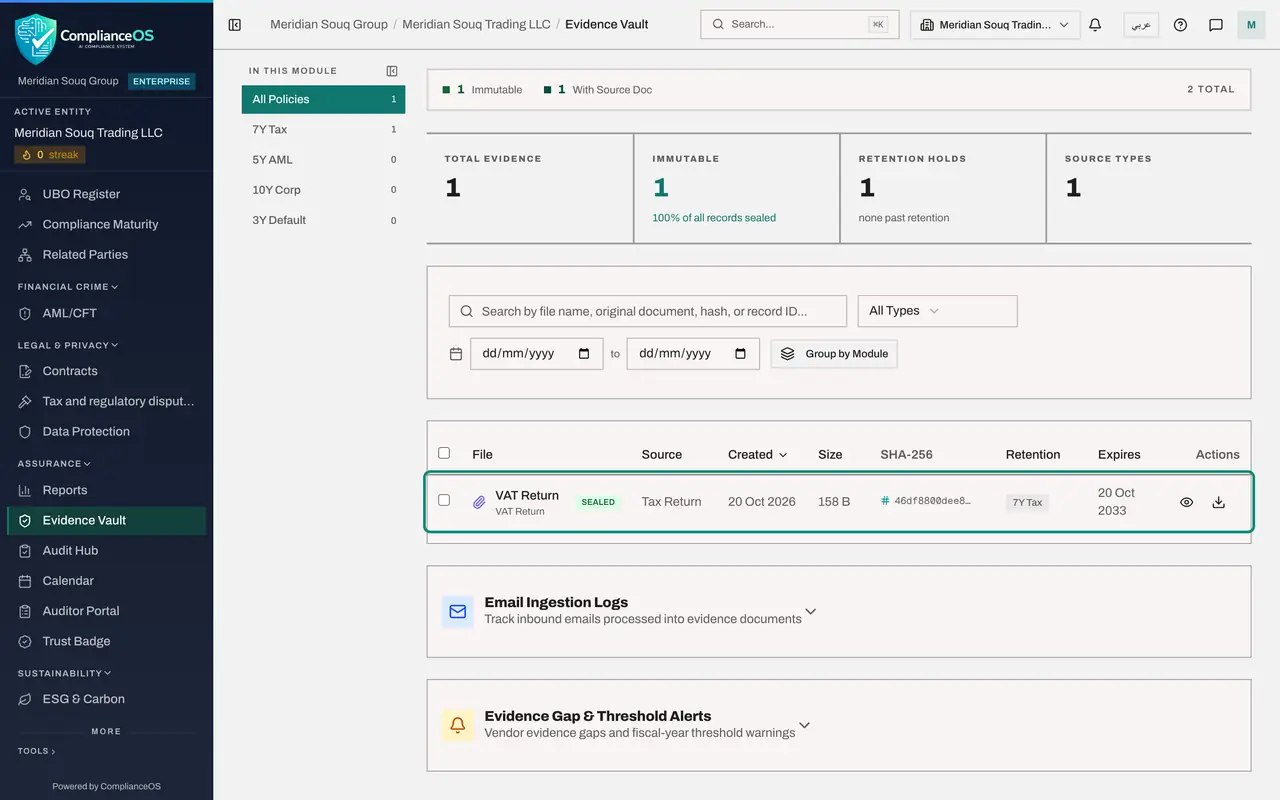
The list already holds one record: VAT Return, marked Sealed, with the source Tax Return, the seven year tax retention and an expiry date seven years from today. The Tax module wrote it by itself when the return was computed. Nobody uploaded it.
- 7
Select Upload
The customs statement behind those figures is not in the vault yet, and the Customs Declarations screen cannot hold attachments. Select Upload at the top right. The Upload Evidence form opens.
- Select Upload
- 8
Choose the file
Under File, select Choose File and pick the customs statement, here customs-statement-q3-2026.csv. The vault accepts PDF, Word, Excel, PowerPoint and CSV files and PNG or JPG pictures, up to 50 megabytes.
- Upload File:
customs-statement-q3-2026.csv
- Upload File:
- 9
Choose the source type
Open Source Type. It says what kind of record the file supports. Choose Customs, the type for customs declarations and statements.
- Select Source Type
- Choose Customs
- 10
Read the retention
Look at Retention beside it. It changed by itself from Default, three years, to Tax, 7 years, when you chose Customs: the statement is kept as long as the return it supports. Leave it as it is.
- 11
Read the note under Linked record
Linked record is optional. For this source type the form says that records of this type cannot be picked here, so the file will be stored without a linked record. That is expected. The file name is what will tell a reader which quarter the statement belongs to.
- 12
Select Upload and Vault
Select Upload and Vault. The form closes and the statement joins the list, marked Sealed, with the source Customs, the seven year tax retention and its own hash. From now on the file cannot be changed, only read, downloaded and verified.
- Select Upload & Vault
How to check it worked
The Compliance Calendar shows VAT Return Filing for 1 July to 30 September 2026 on 28 October, with the status Pending. The Evidence Vault lists two files: the record written when the return was computed, and the customs statement you uploaded. Both are marked Sealed and both carry the seven year tax retention.
Common mistakes
- Adding the VAT deadline to the calendar by hand. It was created when the return was computed; a second, manual deadline would stay open for ever.
- Changing the retention back to Default, three years. Choosing the source type Customs sets Tax, seven years, by itself, which is how long customs records that support a tax return must be kept. Leave it.
- Expecting to link the statement to the return or to a declaration. For this source type the upload form says a record cannot be picked, so the file is stored without a link. Give the file a clear name instead.
- Uploading a working copy. The vault seals what you give it. Upload the statement as received from customs or from your clearing agent.
Check your understanding
1. What created the VAT filing deadline in the Compliance Calendar?
- A.The compliance officer added it
- B.Computing the VAT return in Tax Intelligence
- C.Uploading the customs statement
- D.The tax authority sent it
Show answer
Answer: B. Computing the VAT return in Tax Intelligence
The deadline was created by the Tax module when the return for the period was computed. Its detail shows the net VAT of that return, and View Source opens Tax Intelligence.
2. You upload a customs statement to the Evidence Vault and choose the source type Customs. What happens to the retention?
- A.It stays on Default, three years
- B.It changes to Tax, seven years, by itself
- C.You must type a number of years
- D.The file is kept for ever
Show answer
Answer: B. It changes to Tax, seven years, by itself
Retention follows the source type. For Customs it is Tax, seven years. You can still change it, but there is rarely a reason to. The hash and the expiry date are worked out by the vault.